Upload your own theme (Publisher and Business)
Upload a custom theme as a zip file, activate it, edit its code in the browser, and fix the errors that stop a theme from working.
Who can do this: Owners and Administrators on the Publisher or Business plan. Starter sites use the official Source theme.
Besides the official themes, you can use a theme you’ve bought from a designer, had made, or built yourself. A theme is a folder of templates, styles and images, uploaded as a single .zip file.
1. Get your theme ready
- Have the theme as a
.zipfile. If you have a folder, compress it; the zip should contain the theme’s files, includingpackage.jsonandindex.hbs, either at the top level or inside one folder. - The file name becomes the theme’s name:
harbour-light.zipinstalls asharbour-light. - The name can’t be the same as an official theme, such as
source.zipormargin.zip. Rename the file first, for example tosource-custom.zip.
2. Upload it
- Go to Settings, find Theme under Site, and select Change theme.
- Select Upload theme at the top right.
- Drag your zip file onto the box, or click it to choose the file.
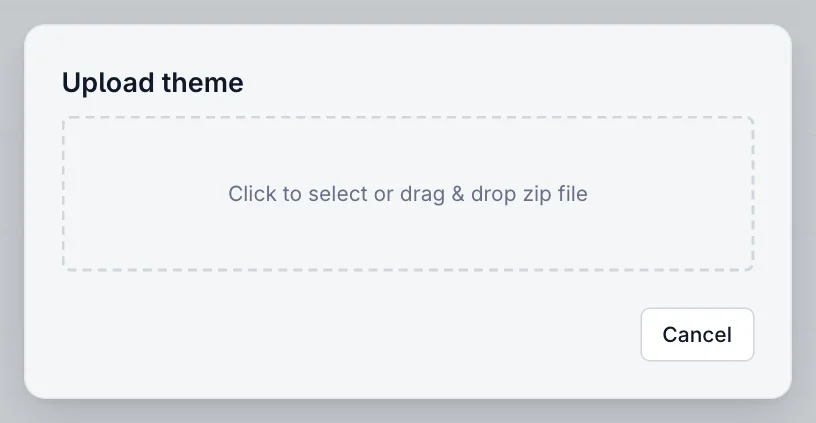
Your theme is checked as it uploads. If a theme with the same name is already installed, you’re asked whether to Overwrite it. Overwriting the active theme puts the new version live straight away.
3. Activate it
When the upload works, you’ll see Upload successful, with any problems the check found listed underneath. Select Activate theme to make it live now, or Close to activate it later from the Installed tab.
If the check found errors that don’t stop the theme from installing, the button reads Activate with errors. You can go ahead, but parts of your site may not work as expected until the errors are fixed. See if your theme is rejected or shows an error below.
Download, edit or delete a theme
On the Installed tab, each theme has a ⋯ menu. The active theme’s menu is also on the Theme row in Settings.
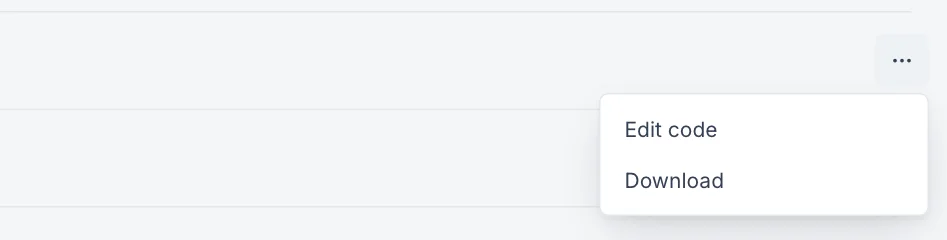
| Option | What it does |
|---|---|
| Edit code | Opens the theme’s files in a code editor in your browser. Saving your own theme replaces it. Official themes can’t be overwritten, so your edits are saved as a new copy (named, for example, source-edited) that keeps your design settings. Activate the copy to use it. |
| Download | Saves the theme as a zip file. Do this before you edit or delete a theme, so you have a copy to go back to. |
| Delete | Removes a theme you uploaded. It isn’t offered for official themes or for the active theme: activate another theme first. Deleting can’t be undone. |
If your theme is rejected or shows an error
Problems show up in two places: when you upload or activate a theme, and occasionally on your live site, where a page shows an error instead of your content. Both point at something in the theme’s files. If you didn’t build the theme yourself, send the message to whoever did; in the meantime you can switch to an official theme so readers aren’t affected.
Theme not uploaded means the check found something that stops the theme from working. The dialog says the theme “couldn’t be uploaded” and lists what to fix, with the problems that blocked it marked Blocking. Fix them in the theme’s files, zip it again and select Re-upload.
| What you see | What it means and how to fix it |
|---|---|
| Upload failed … comes with Blogaly and cannot be overwritten | Your zip has the same name as an official theme. Rename the file, for example source.zip to source-custom.zip, and upload again. |
| Could not read package.json file | Every theme needs a package.json file at its top level. Check that it’s there and that the zip doesn’t contain extra folders around the theme. |
| Theme package.json file is malformed | The file isn’t valid JSON, often because of a missing comma or quote, or a comma after the last item. Paste it into any JSON checker to find the line. |
| "name" or "version" is missing from theme package.json file | Add both, for example "name": "harbour-light" and "version": "1.0.0". |
| The {{pagination}} helper was used outside of a paginated context | A template shows page numbers on a page that isn’t a list of posts. Move the pagination to a list template such as index.hbs or tag.hbs. |
| The {{#social_accounts}} helper requires a source argument / must be used as a block helper | The social links block in a template is written incorrectly. It needs to open and close, with the site as its source: {{#social_accounts @site}}…{{/social_accounts}}. |
| The {{cancel_link}} helper was used outside of a subscription context | The “cancel subscription” link is in a template where there’s no subscription to cancel. It belongs inside the part of the account template that lists a member’s subscriptions. |
Good to know
- Themes you upload are yours to maintain. Blogaly keeps the official themes up to date, but not uploaded ones or copies you’ve edited.
- A theme can add its own options to the Theme tab of the design editor.
- For a small change, such as a CSS tweak or a script, code injection is often simpler than editing a theme, and it keeps working when you switch themes.
- Keep the zip you uploaded. It’s the easiest way back if a later change goes wrong.
Last checked against the product on 7 November 2026.
Related
Still stuck?
Tell us what you were trying to do and what you saw, and we’ll help you sort it out.
Contact us