Automations (beta)
Send new members a series of emails automatically: a welcome straight away, then more over the following days.
Who can do this: The site owner and Administrators. A beta you switch on in Labs; it can’t be switched off again.
Automations send emails to members on a schedule, without you doing anything each time. Today an automation starts when someone becomes a member, and is made of two kinds of step: Email (send an email) and Wait (pause for a number of days). That’s enough for a welcome series: a hello on day one, your best posts a few days later, an invitation to upgrade after a week.
Automations are in beta. They work, but they’re still growing, and the screens may change as new features arrive.
1. Turn on the beta
- Go to Settings → Advanced → Labs and select Open.
- Switch on Automations (beta).
- Read the confirmation and select Enable.
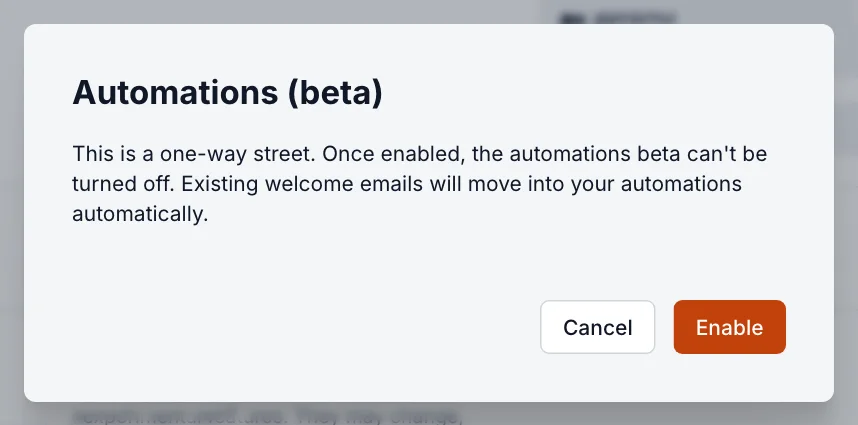
2. Find your automations
Automations now appears in the sidebar under Audience. You start with two:
| Automation | Who it’s for |
|---|---|
| Free member welcome flow | Welcome new free members after they sign up. |
| Paid member welcome flow | Welcome new paid members after they start their subscription. Needs Stripe connected, so not on Starter. |
Each shows whether it’s Live (sending) or Off. Select one to open it.
3. Build the series
The editor shows the automation as a chain of steps, starting with the trigger Member signs up.
- Select the + between two steps to add one. Choose Email to send an email, or Wait to add a delay before the next step.
- Select an Email step to write it: a Subject line and the email body. You can send yourself a test from there.
- Select a Wait step and set the delay, between 1 and 30 days.
- To remove a step, select it and choose Delete step.
- Select Save to keep your work without sending anything.
4. Go live
- Select Publish to switch the automation on. From then on, every new member who meets the trigger is enrolled automatically.
- When you change a live automation, select Publish changes. Changes apply at once, to members already part-way through as well as to new ones.
- Turn off stops the automation. Members in the middle of it are removed and won’t get the remaining emails.
See how it’s doing
Once emails go out, select Show performance to see how many emails each step has Sent, how many were Opened and Clicked, and the top clicked links.
Good to know
- Only the owner and Administrators can see and edit automations. Editors, even with the Enhanced Editor role, can’t.
- Tell us what you think: the automations screen has a Share your feedback link.
Last checked against the product on 7 November 2026.
Related
Still stuck?
Tell us what you were trying to do and what you saw, and we’ll help you sort it out.
Contact us