Email design
Choose what appears in your newsletter emails and how they look: header, title, footer, fonts, colours and buttons.
Who can do this: Administrators. Each newsletter has its own design.
Your posts are turned into email automatically: the same text, images and cards, in a layout that works in every inbox. Each newsletter has its own settings for what goes around the post and how it looks.
- Go to Settings → Newsletters.
- Next to the newsletter, select Edit.
- Use the Content and Design tabs. The preview on the left updates as you go.
- Select Save. The new design is used for the next email you send.
What’s in the email: the Content tab
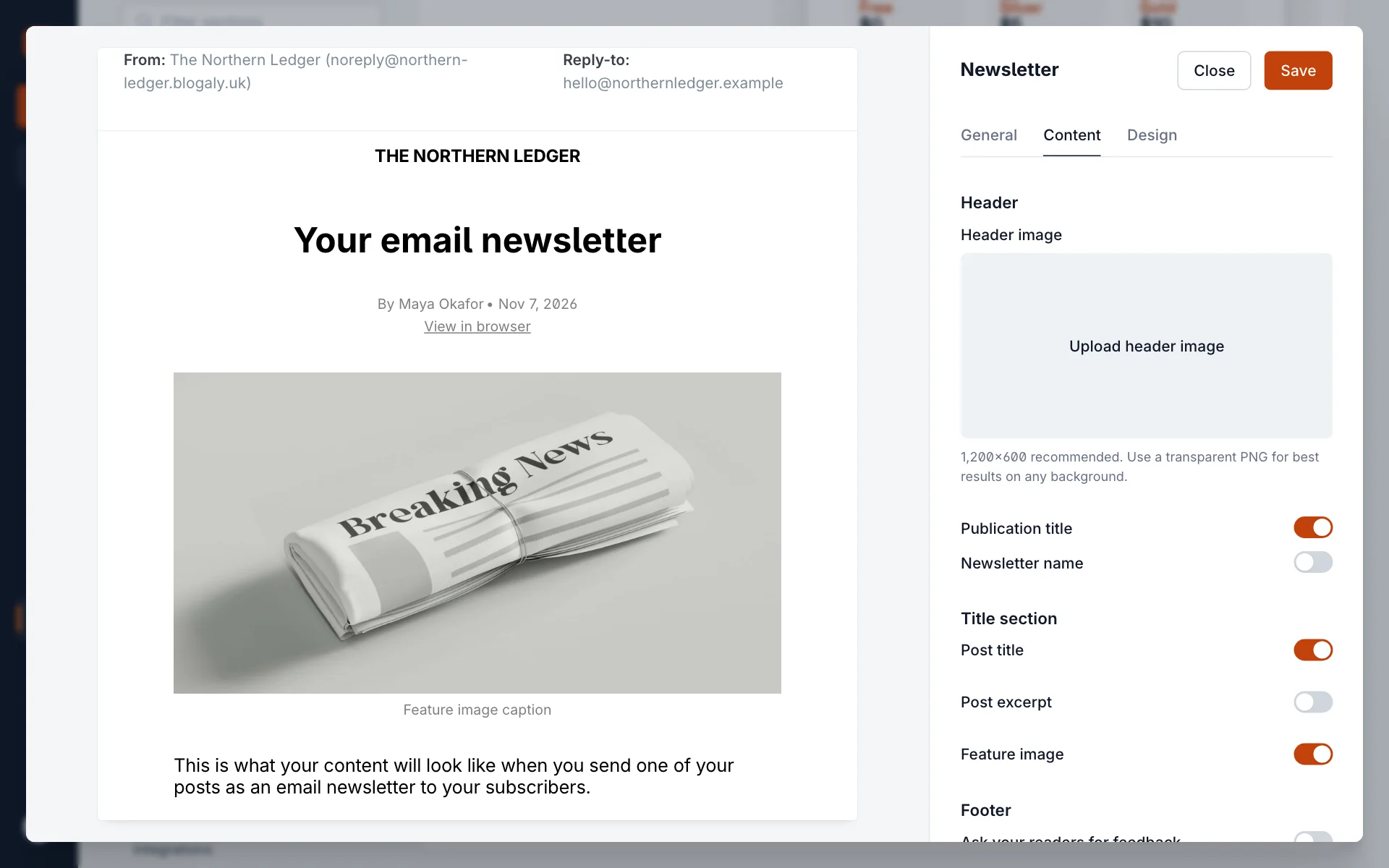
| Setting | What it does |
|---|---|
| Header image | A banner across the top of every email. 1200×600 pixels is recommended. |
| Publication icon, Publication title, Newsletter name | What shows at the top, above the post. The icon option appears once your site has an icon. |
| Post title | Shows the post’s title at the top of the email. |
| Post excerpt | Adds the post’s excerpt under the title. |
| Feature image | Shows the post’s feature image. |
Scroll down for the footer:
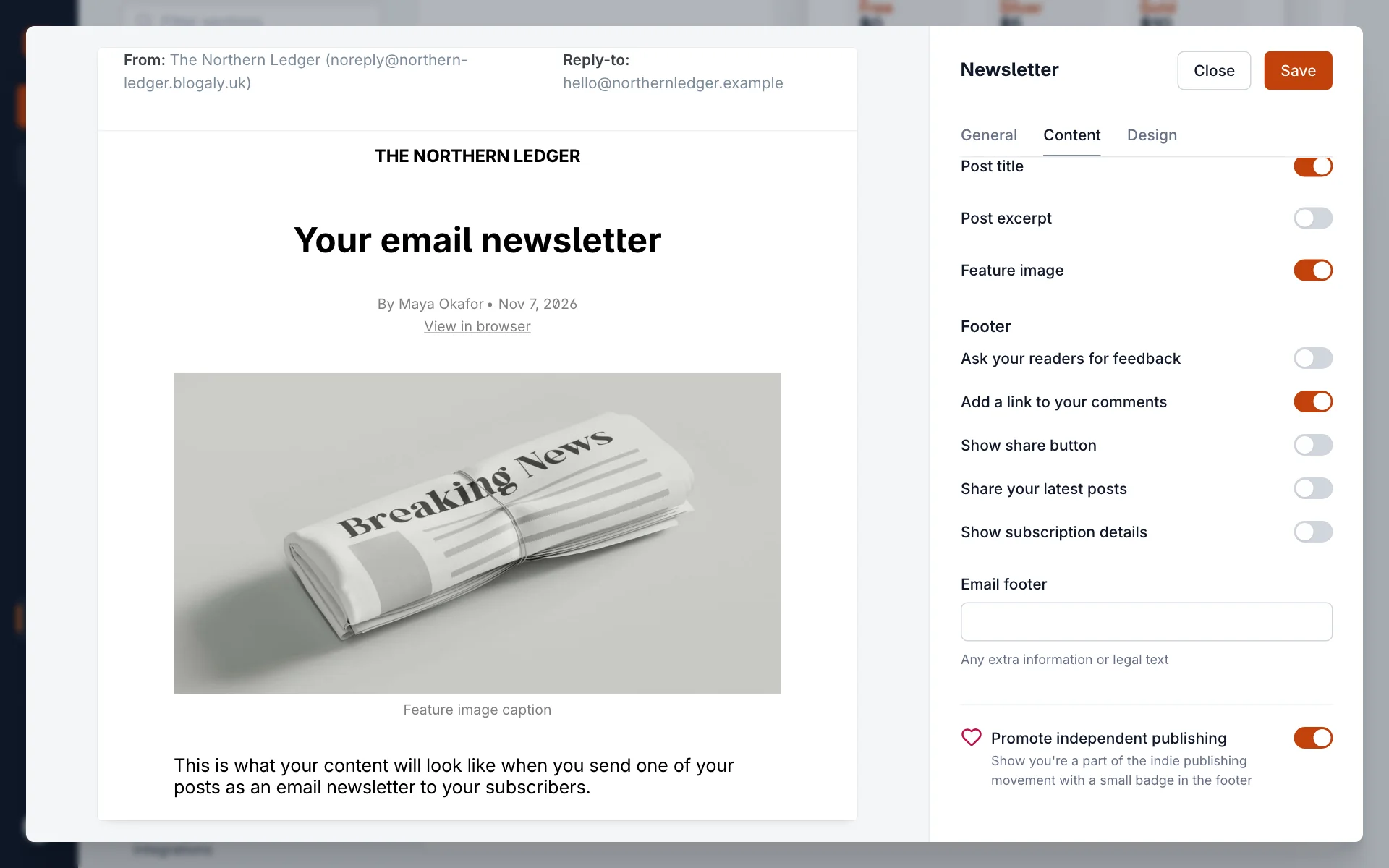
| Setting | What it does |
|---|---|
| Ask your readers for feedback | Adds “More like this” and “Less like this” buttons, so you can see what lands. |
| Add a link to your comments | Adds a button to the post’s comments. Shown only when comments are on. |
| Show share button | Adds a button readers can use to share the post. |
| Share your latest posts | Lists your most recent posts at the bottom. |
| Show subscription details | Adds a box telling each reader why they get the email, for example that they’re a free subscriber. |
| Email footer | Your own text: a postal address, a sign-off, or legal text. |
| Promote independent publishing | A small “Powered by Blogaly” link at the very bottom. Turn it off if you’d rather not show it. |
How it looks: the Design tab
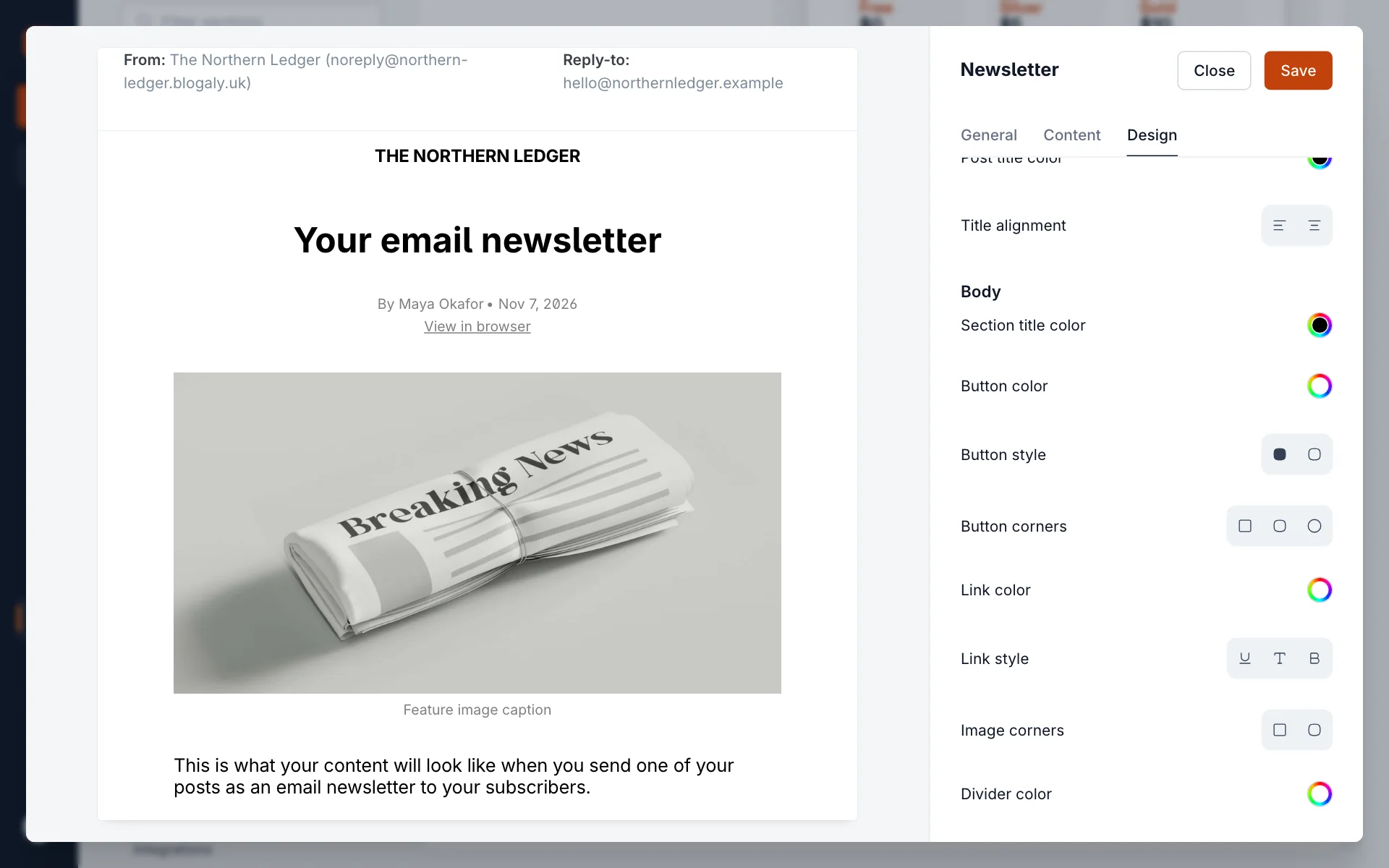
- Global: Background color, Heading font and Heading weight, and Body font. Fonts are Clean sans-serif or Elegant serif, which every email app can show.
- Header: Header background color, Post title color and Title alignment (left or centred).
- Body: Section title color, Button color, Button style (fill or outline), Button corners, Link color, Link style, Image corners and Divider color.
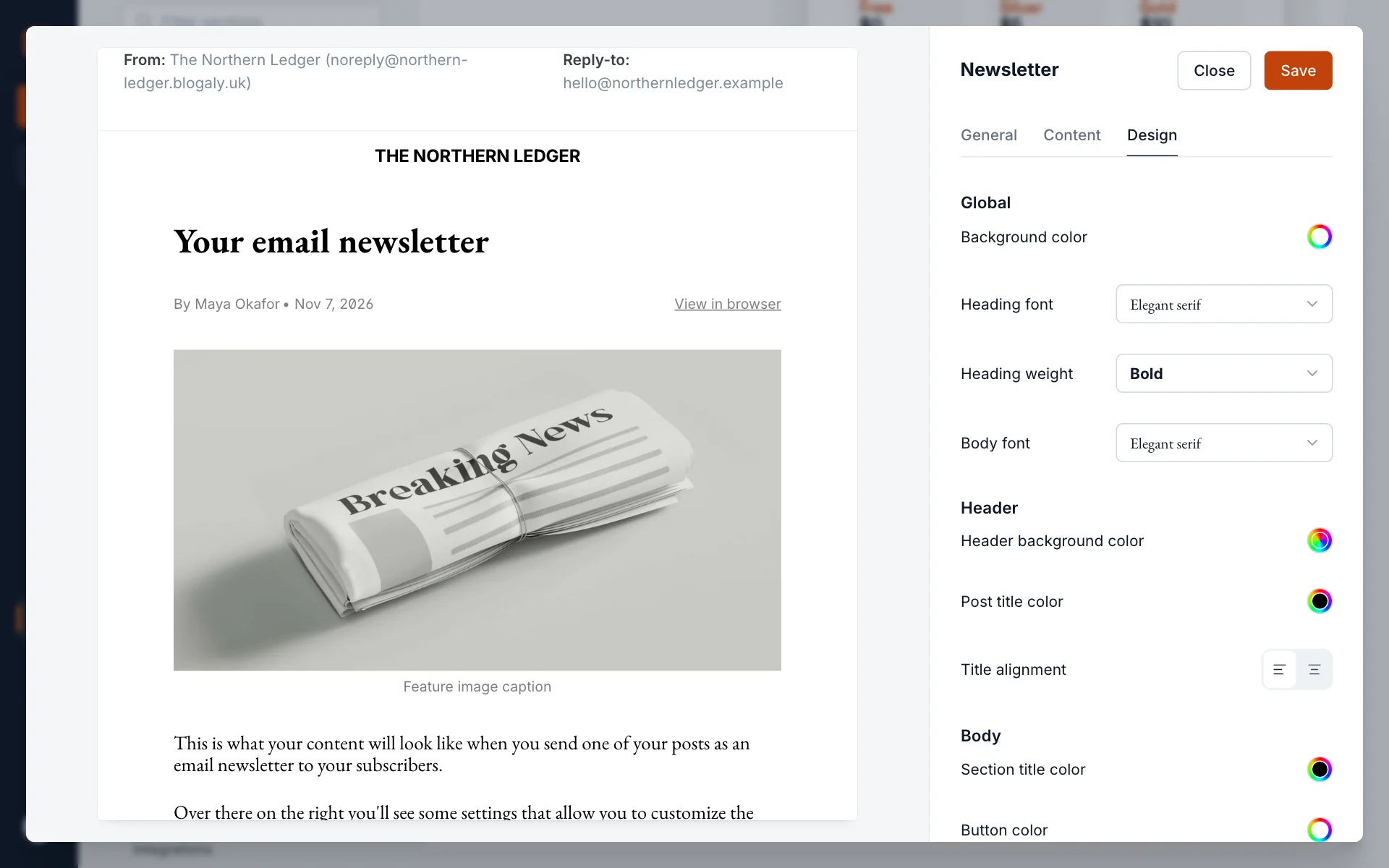
What readers get
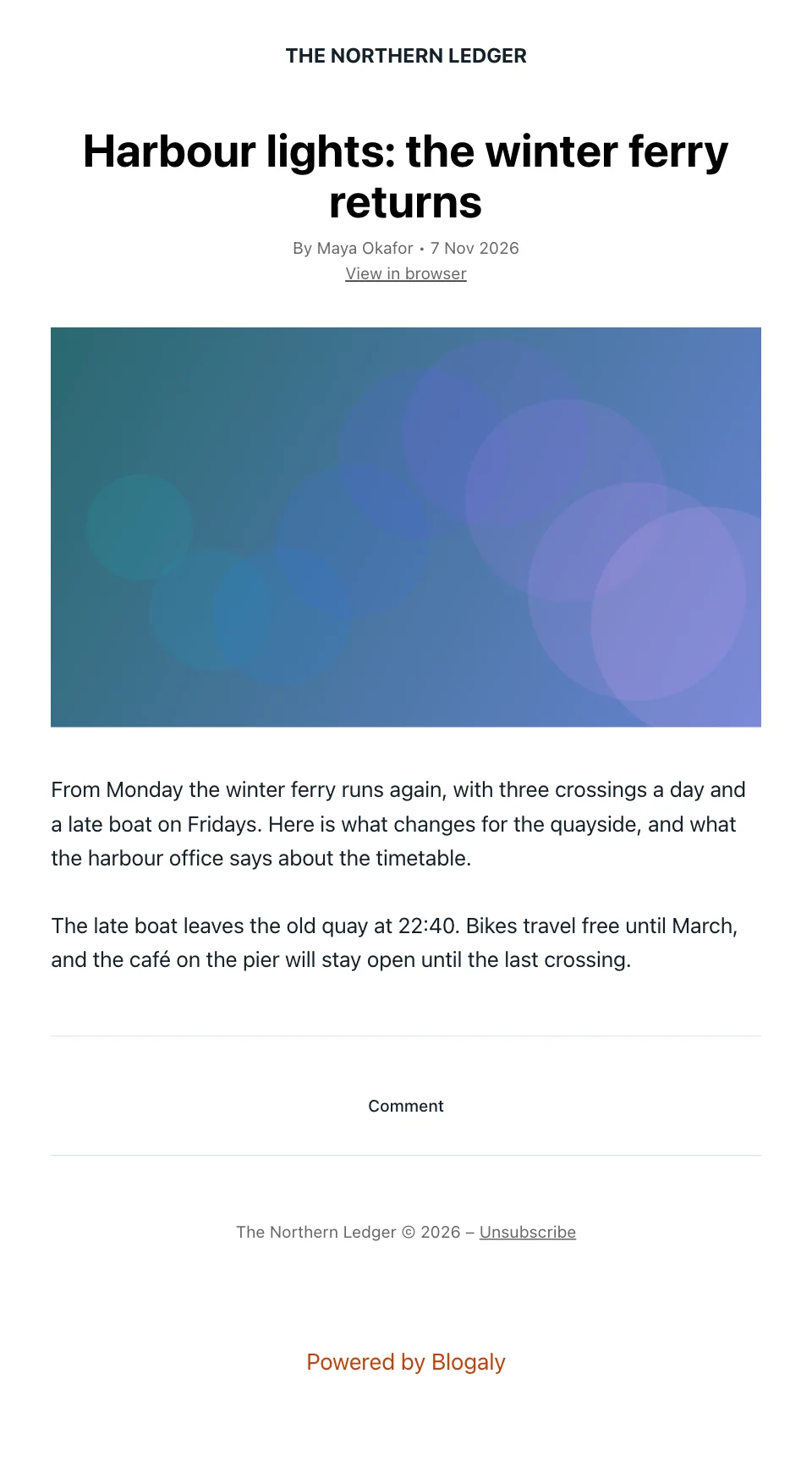
This is a real email from the demo site, with the default design. Every email ends with your site name, the year and an Unsubscribe link. You can’t remove the unsubscribe link: it’s required by law in most countries and by the big inbox providers.
Good to know
- Send yourself a test from the publish screen before a big send, and open it on your phone. See Send a post as an email.
- Some email apps show images only after the reader allows them. Don’t put anything essential only in an image.
- Very long posts can be cut short by some email apps (Gmail clips messages over about 100 KB). Readers can always select View in browser.
- Dark mode in email apps can change your colours. A light background with dark text holds up best.
- Welcome emails have their own design. See Welcome emails for new members.
Last checked against the product on 7 November 2026.
Related
Still stuck?
Tell us what you were trying to do and what you saw, and we’ll help you sort it out.
Contact us