Opens, clicks and email growth
See how your newsletters perform: how many subscribers you have, how many open each send and click a link, and how that changes over time.
Who can do this: Owners and Administrators, on every plan.
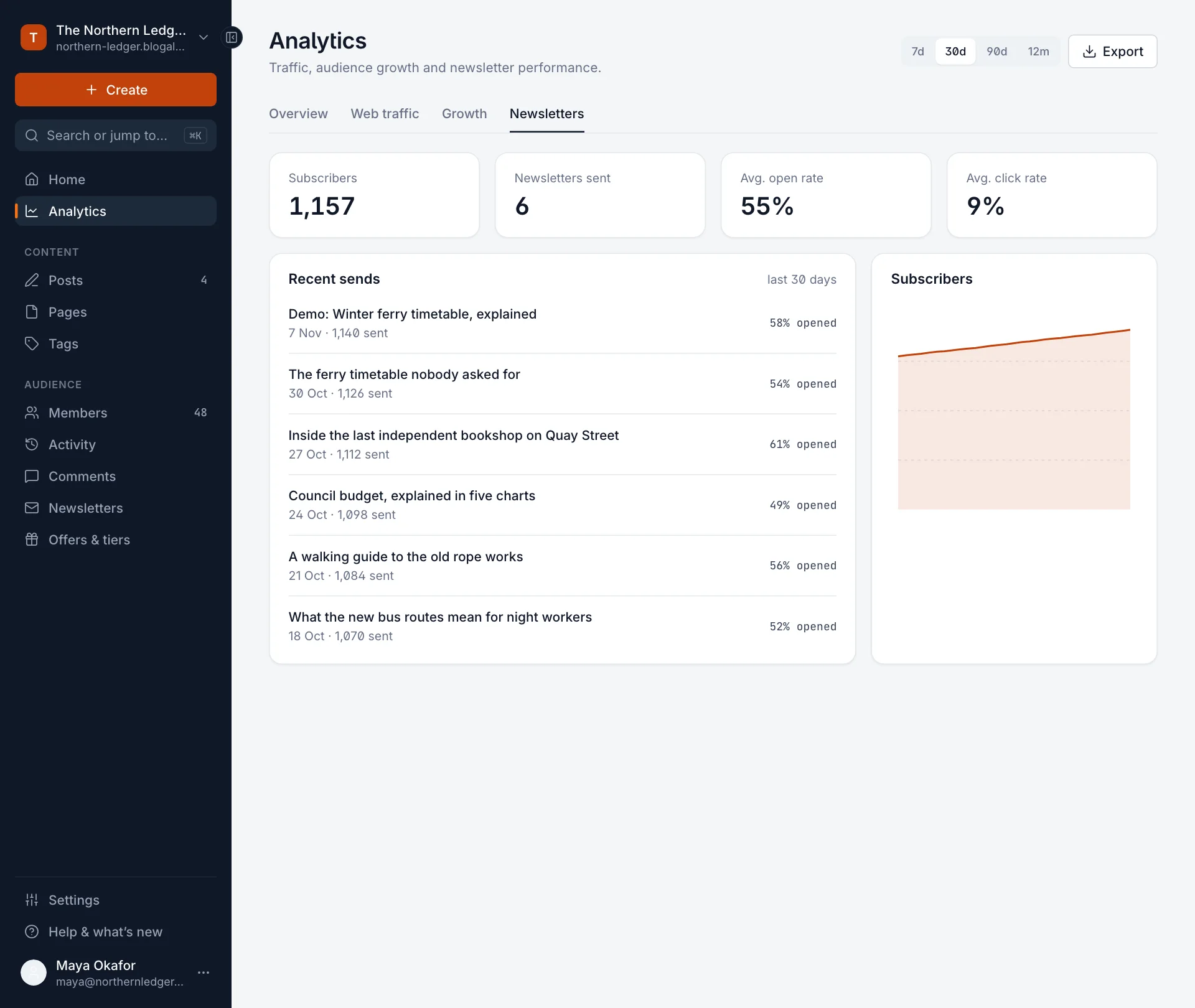
When you send a post as a newsletter, Blogaly records who it went to, who opened it and who clicked a link in it. The Newsletters tab of Analytics puts that together, send by send.
Open the Newsletters tab
- Select Analytics in the sidebar.
- Select the Newsletters tab.
- Pick a period at the top right: 7d, 30d, 90d or 12m.
What each number means
| Number | Meaning |
|---|---|
| Subscribers | Members subscribed to your newsletter at the end of the period. |
| Newsletters sent | How many posts went out by email in the period. |
| Avg. open rate | The average of each send’s open rate. Every send counts the same, however many people it went to. |
| Avg. click rate | The same, for the share of recipients who clicked at least one link. |
Recent sends lists each newsletter in the period, newest first, with its date, how many people it went to and the percentage who opened it. Select a title to open that post’s analytics. The Subscribers chart shows how your list grew over the period.
How opens and clicks are counted
- Opens: each email carries a tiny invisible image. When a reader’s email app loads it, that’s an open. One person opening the same email several times counts once.
- Clicks: links in your newsletter go through your site first, so we can record the click, and then on to where you pointed them. One person clicking several links counts once in the click rate.
- Both are on for every newsletter, and the numbers keep updating for days after a send as people catch up with their inbox.
Find your most engaged readers
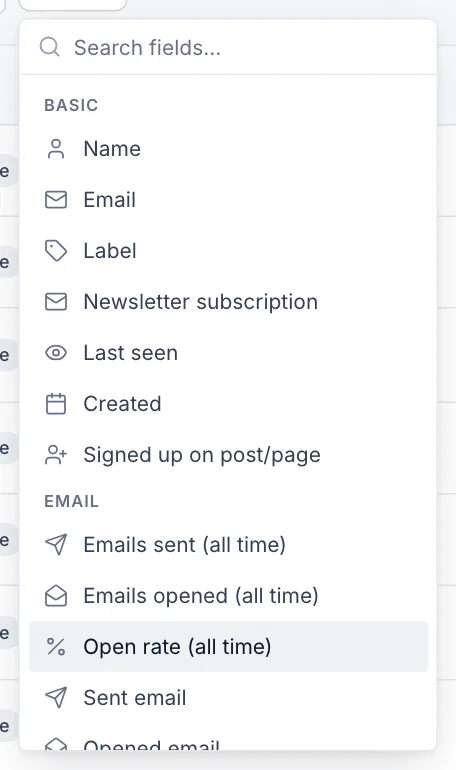
Each member keeps their own email history. On Members, select Filter to find people by Emails sent (all time), Emails opened (all time) or Open rate (all time), or by whether they opened or clicked a particular email. It’s a good way to find loyal readers, or people who haven’t opened anything in a while.
Ways to improve your numbers
- Write subject lines that say what’s inside. Your post title is the subject unless you change it.
- Send at a regular time, so readers expect you.
- Put your most important link near the top.
- Keep your list healthy: addresses that bounce or complain are stopped automatically. See how delivery works and disabled email addresses.
Good to know
- Sends are dated by when the post was published.
- Posts published on the web only don’t appear here.
- Readers who open the email but don’t click through don’t appear in your web traffic.
- Not seeing any sends? You need to send a post as a newsletter first.
Last checked against the product on 7 November 2026.
Related
Still stuck?
Tell us what you were trying to do and what you saw, and we’ll help you sort it out.
Contact us