Create your publication
Sign up, pick a name and a plan, and your site is live at name.blogaly.uk a few minutes later.
Who can do this: Anyone. You need an email address you can open.
Everything about your Blogaly account (your sites, plans and billing) lives in your dashboard at dash.blogaly.com. Your writing happens in each site’s own admin. This guide takes you from no account to a live site.
1. Create your account
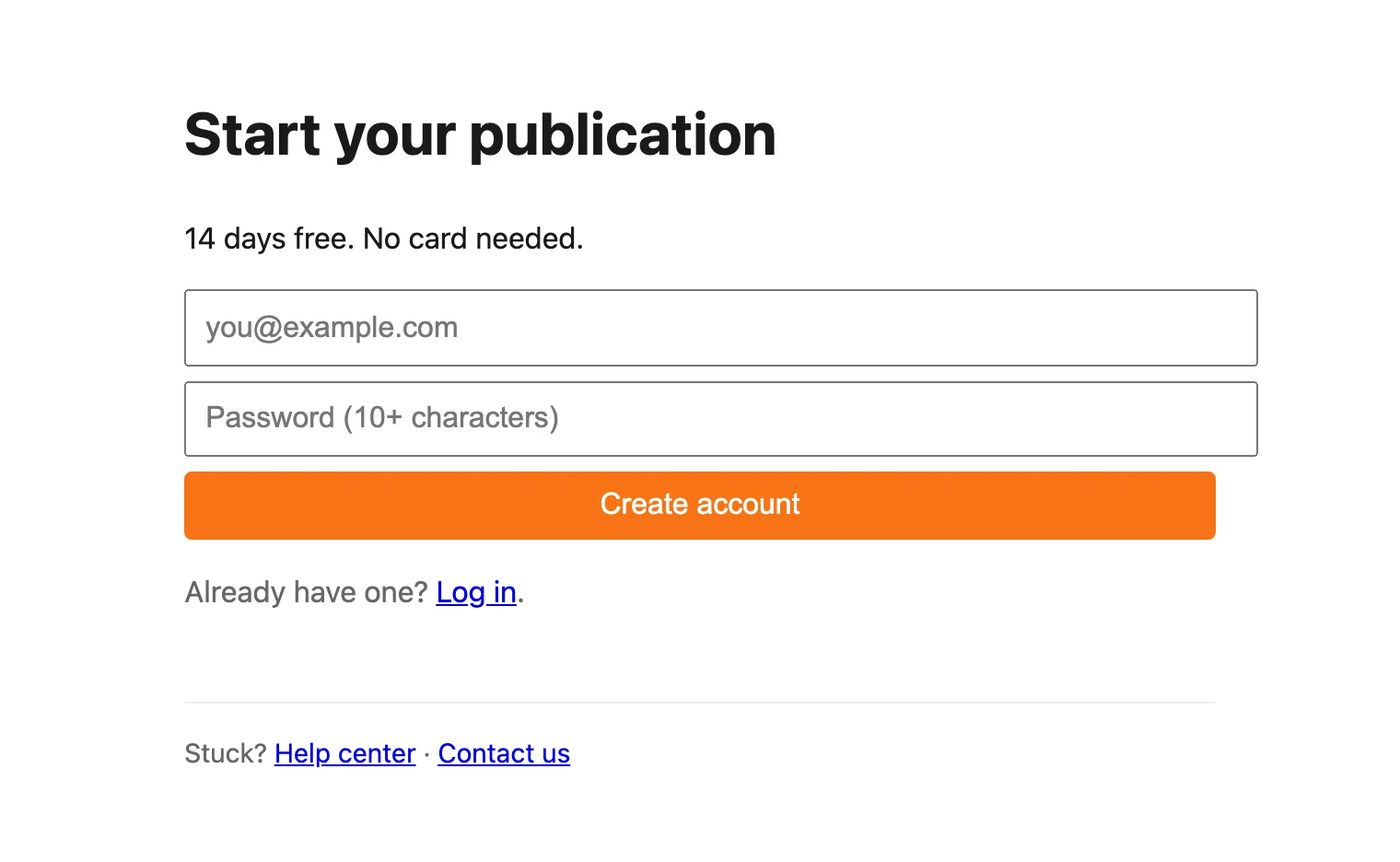
- Go to dash.blogaly.com/signup.
- Enter your email address and a password of at least 10 characters, then select Create account.
- Open the email we send you and follow the link to confirm your address. Then log in.
2. Choose a name and a plan
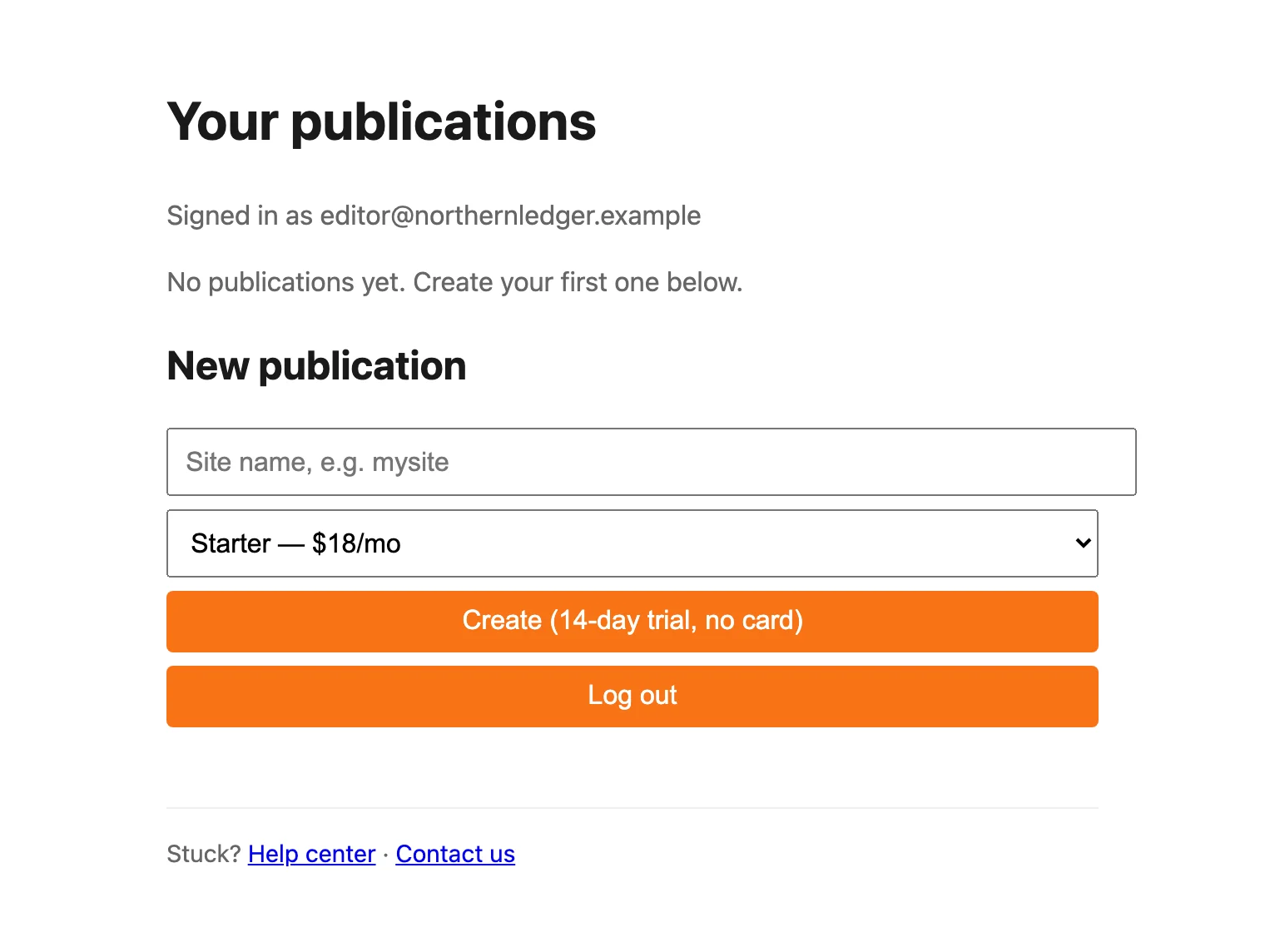
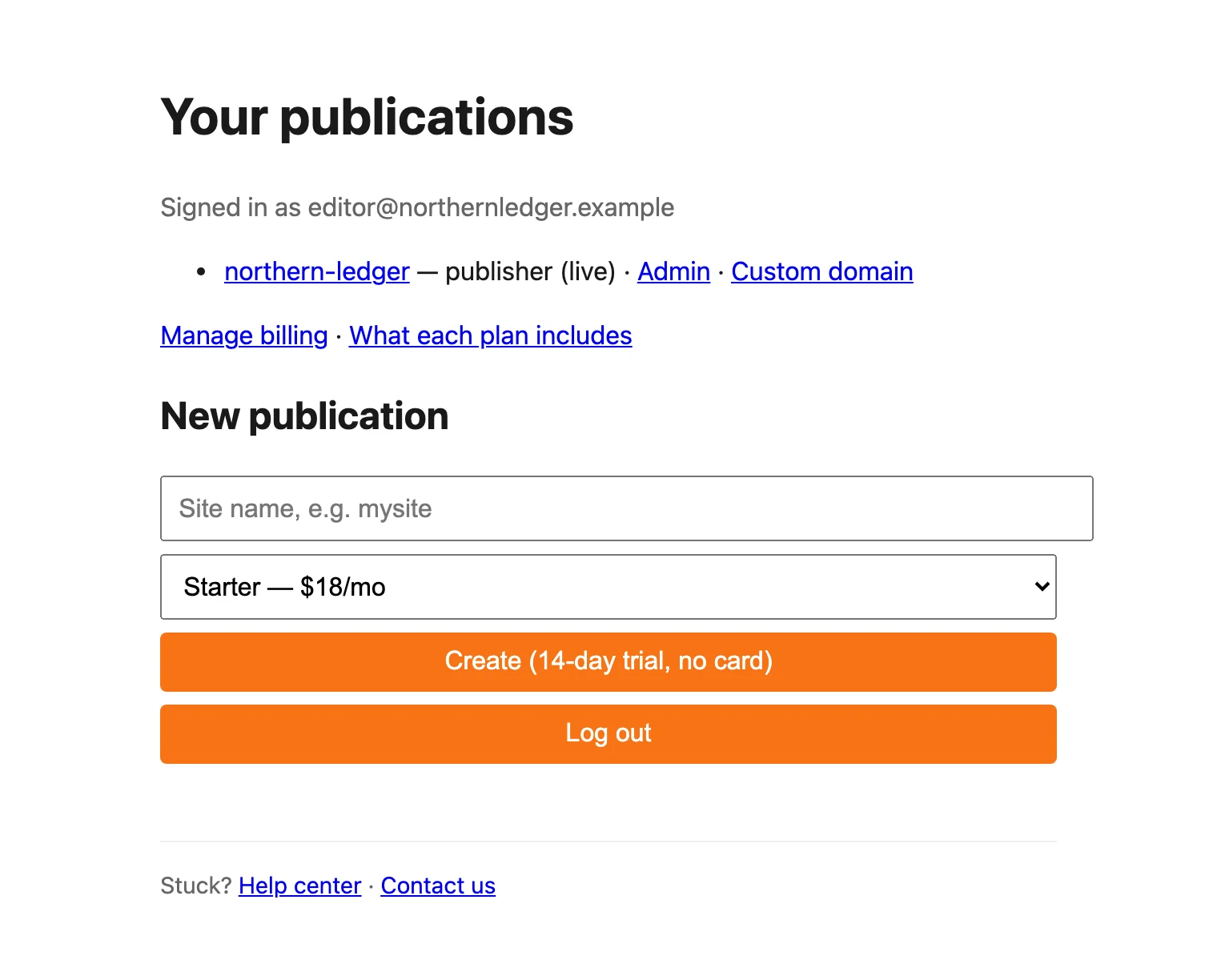
Once you’re logged in, you’ll see Your publications. Under New publication:
- Type your site name. It becomes your address:
northern-ledgergives younorthern-ledger.blogaly.uk. Use 3 to 30 lowercase letters, numbers or dashes, starting and ending with a letter or number. - Pick a plan: Starter, Publisher or Business. See what each plan includes.
- Select Create (14-day trial, no card).
If the name is taken or reserved, you’ll be asked to try another. Your name only matters until you connect your own domain, which you can do at any time.
3. Set your site password
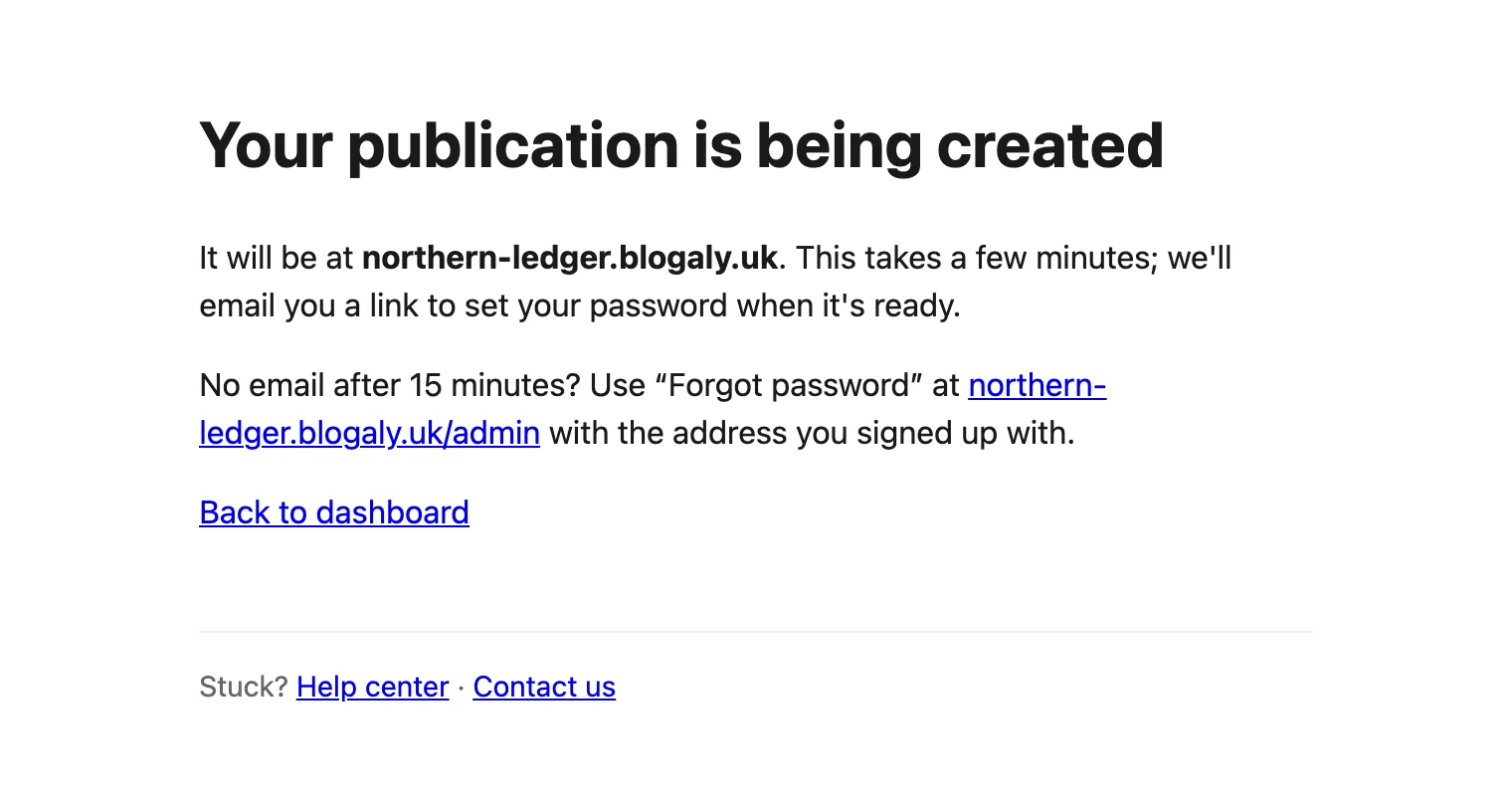
We build your site while you wait. It takes a few minutes. When it’s ready, we email you so you can choose the password for your site’s admin.
You’ll get two emails at the address you signed up with, usually within a few minutes of each other.
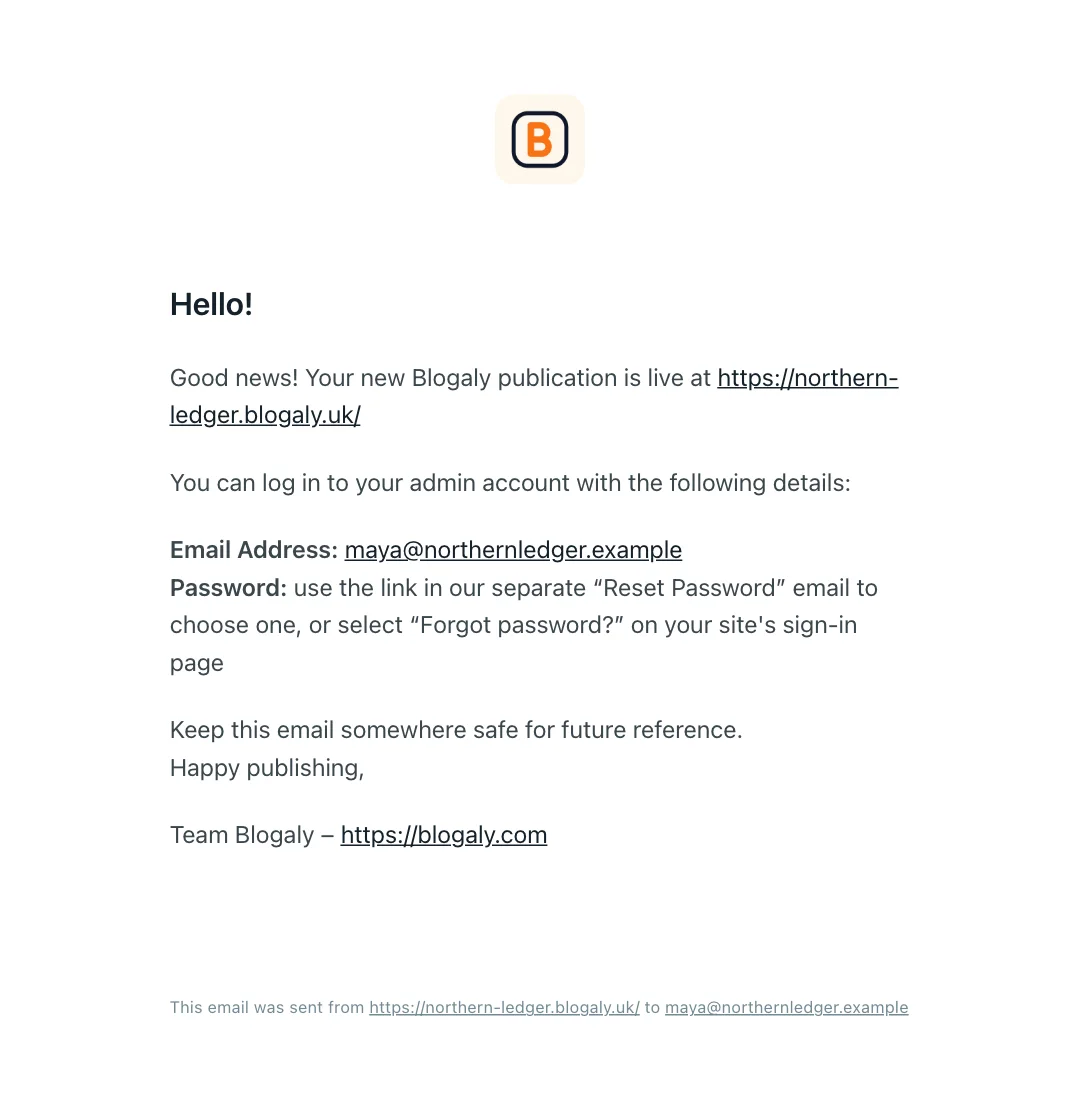
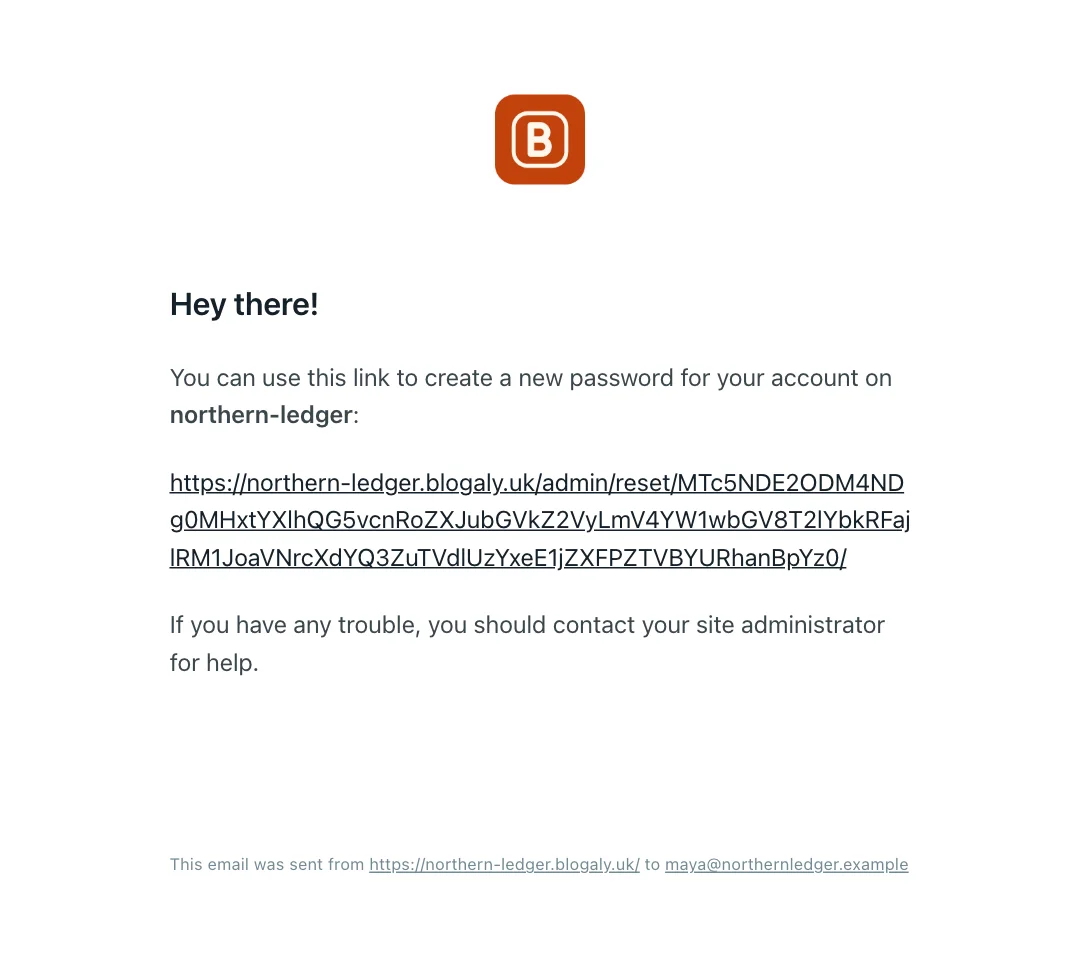
- Open the second email and follow the link.
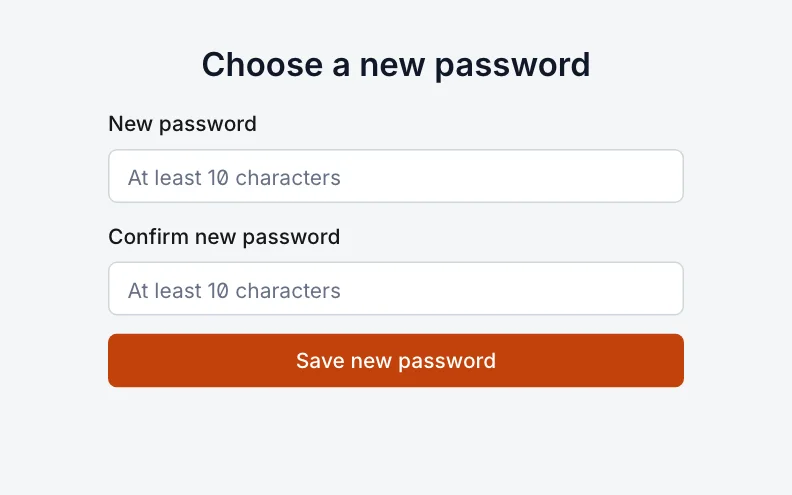
- Choose a password of at least 10 characters, type it twice and select Save new password. This password is for your site’s admin, separate from your dashboard password.
- You’re signed in. Your admin lives at
your-name.blogaly.uk/admin. Bookmark it.
4. You’re live
Back in your dashboard, your site now shows as live. Select its name to visit it. From here you can also connect a custom domain or manage billing.
About your free trial
- Every new site gets 14 days free, on any plan, without a card.
- To keep your site after the trial, add a payment method under Manage billing before it ends.
- If the trial ends without one, the site is paused, not deleted. Add a card and restart your subscription to bring it back. See why a site is paused.
What to do next
Last checked against the product on 7 November 2026.
Related
Still stuck?
Tell us what you were trying to do and what you saw, and we’ll help you sort it out.
Contact us