Gift subscriptions
Readers can buy a paid membership for someone else, for 1, 3, 6 or 12 months, and send it by email or share the link themselves.
Who can do this: The site owner or an administrator, with Stripe connected (Publisher or Business plan).
A gift subscription is a one-off payment for a fixed stretch of paid access. The buyer pays once; the person they give it to gets your paid tier from the day they claim it, and it doesn’t renew. It’s a simple way for loyal readers to spread the word, especially around holidays and birthdays.
Turn it on
There’s nothing to switch on in Admin: as soon as Stripe is connected and you have a paid tier in your sign-up pop-up, readers can buy gifts. You decide where they’re offered.
- Settings → Membership → Gift subscriptions shows the Shareable link to the gift page,
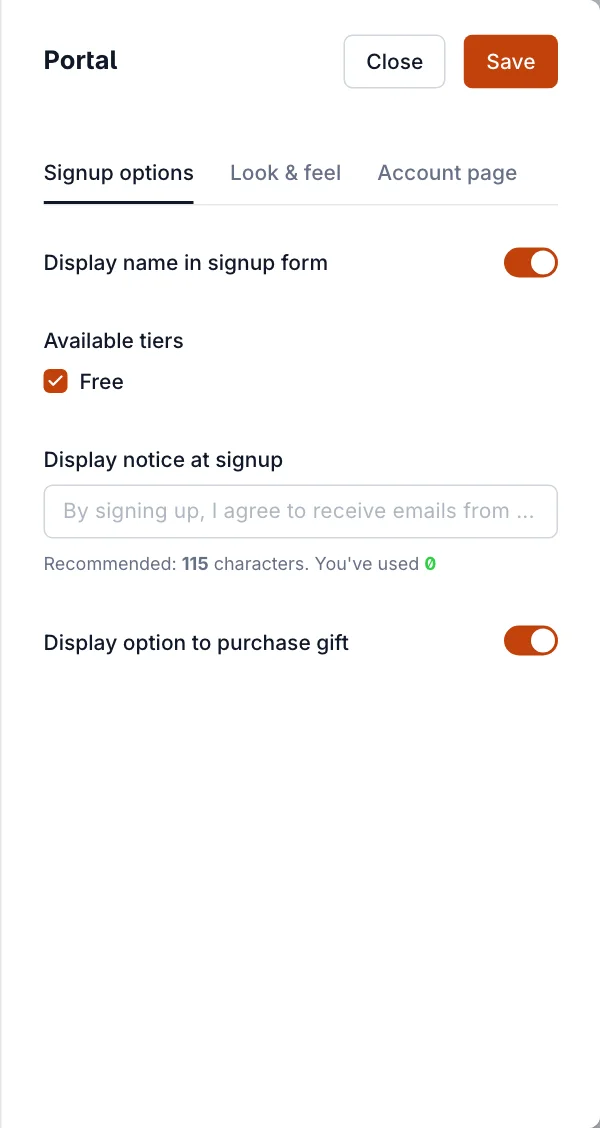
your-name.blogaly.uk/#/portal/gift. Select Copy link to put it in a newsletter, a post or your navigation, or Preview to see it. - In Settings → Membership → Signup portal → Customize, the Display option to purchase gift switch on Signup options adds a gift option to the sign-up pop-up.
- The same switch on the Account page tab adds a Gift membership card to members’ account page, with a Buy button.
What the buyer sees
- Gift a membership. They choose the tier and how long: 1, 3, 6 or 12 months. If they aren’t signed in, they also give their name and email.
- How would you like to share this gift? Email it to them (the recipient’s name and email, an optional message and a delivery date, from today up to a year ahead) or I’ll share it myself.
- Continue to payment takes them to Stripe’s checkout for a single payment.
- Afterwards they see Your gift is on its way, Your gift is scheduled or Your gift is ready, with the gift link to copy.
The price is your tier’s monthly price times the number of months, or its yearly price for 12 months. Only the tiers and prices you offer in the sign-up pop-up can be gifted: if you show only yearly prices, the only gift is 12 months.
What the recipient sees
- An emailed gift arrives at 9:00 in your site’s time zone on the chosen day, from your site, with the buyer’s message and a link.
- The link opens A gift, just for you on your site. They enter their name and email and select Redeem your gift. If they’re already a free member, the gift goes onto their existing account. Someone who already pays for a subscription can’t redeem a gift; they see You already have an active subscription.
- Their paid access starts the moment they redeem, not when the gift was bought.
- Up to a week before the gift runs out, they get one reminder email. In their account, a Continue subscription option lets them start paying, with the rest of the gift time used first.
- If they don’t continue, they go back to being a free member when it ends. Nothing is charged.
Gifts in Admin
- In Members, a Gift tab appears once anyone has redeemed a gift, and the status filter has a Gift subscription option.
- The buyer’s activity shows Purchased gift subscription with the amount, tier and length.
- Payments appear in your Stripe dashboard as one-off payments, and Stripe’s usual fee applies.
Good to know
- A gift link can be redeemed once. Whoever opens it first and redeems it gets the gift, so buyers should send it only to the person it’s for.
- An unclaimed gift expires one year after it was bought, or one year after its delivery date when it was scheduled. The expiry date is shown on the redemption page.
- Scheduling an email doesn’t lock the gift until that day: the buyer can share the link sooner.
- Archiving a tier stops new gifts for it.
- If you refund a gift payment in Stripe before it’s redeemed, the gift link stops working.
- Gift purchases need Stripe connected. If you disconnect, the gift page says gift subscriptions are not available right now.
Last checked against the product on 7 November 2026.
Related
Still stuck?
Tell us what you were trying to do and what you saw, and we’ll help you sort it out.
Contact us