Sign in to your site’s admin
Sign in at your-name.blogaly.uk/admin, reset a forgotten password, and use the code we email when you sign in on a new device.
Who can do this: Everyone on your site’s staff: owner, administrators, editors, authors and contributors.
Blogaly has two separate sign-ins, with separate passwords. Which one you need depends on what you want to do.
| Your dashboard | Your site’s admin | |
|---|---|---|
| Address | dash.blogaly.com | your-name.blogaly.uk/admin |
| For | Your account, sites, plans, billing and custom domains | Writing, members, newsletters, design and settings |
| Who | The account owner | Everyone you’ve invited as staff |
| Forgot your password? | Reset it on the dashboard | Use Forgot password?, below |
Changing one password never changes the other. If you use a password manager, save them as two entries.
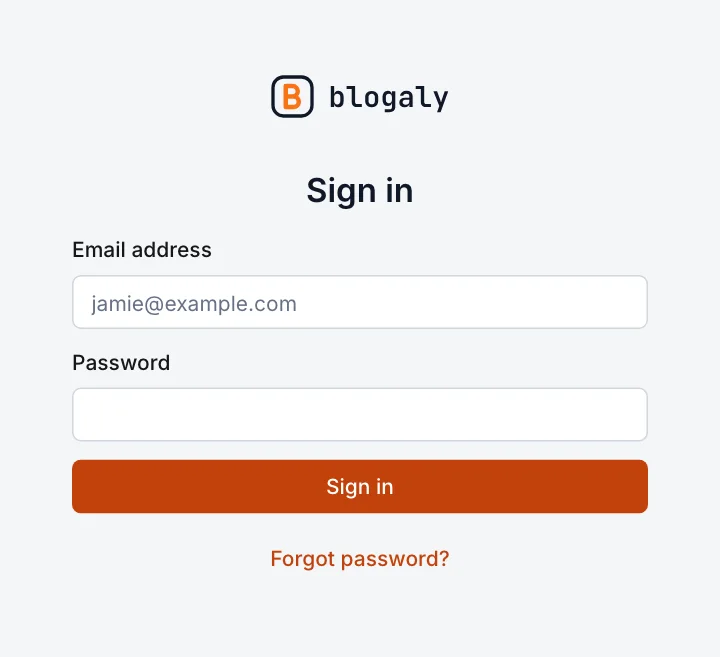
Sign in
- Go to
your-name.blogaly.uk/admin. - Enter your Email address and Password.
- Select Sign in.
Forgot your password
- On the sign-in screen, type your Email address first.
- Select Forgot password?. You’ll see “An email with password reset instructions has been sent.”
- Open the email and follow the link within 24 hours, then choose a new password of at least 10 characters.
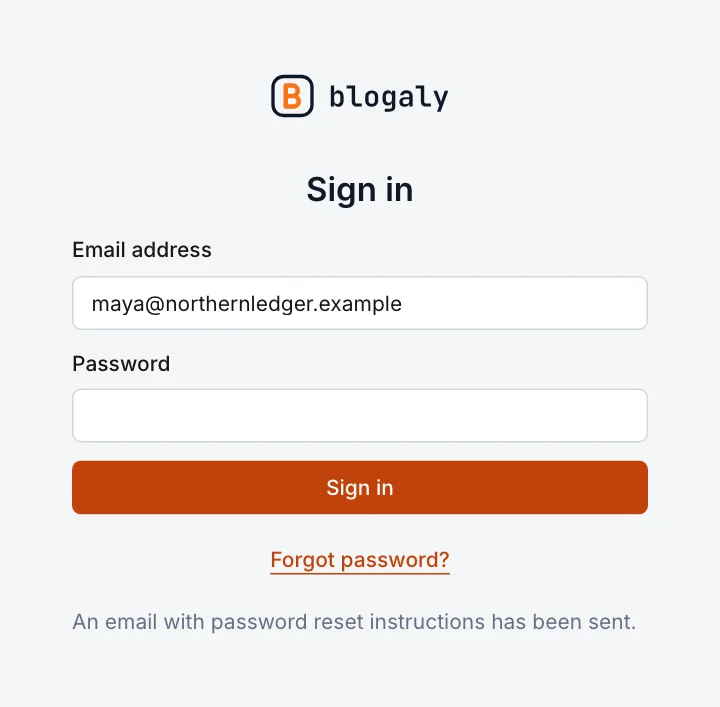
If you select Forgot password? with the email field empty, you’ll be asked for your address first. Use the address your staff account was created with. No email after a few minutes? Check your spam folder, then try again.
The code we email on a new device
When you sign in from a browser or device you haven’t used before, we check it’s really you. After your password, you’ll see Verify it’s you, and we email you a 6-digit code.
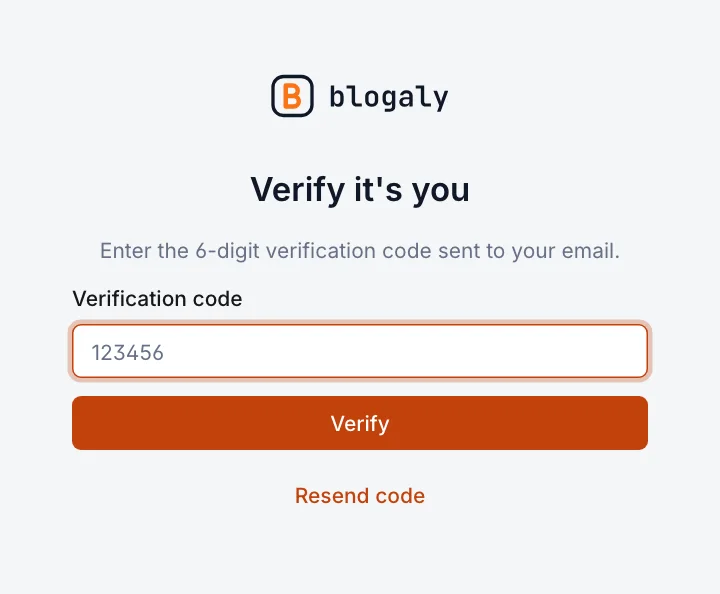
- Open the email. It shows the code, plus the device, approximate location and time of the sign-in.
- Enter the code under Verification code and select Verify.
- Codes last about 10 minutes. If yours has run out, or never arrived, select Resend code.
Once a browser is verified, it’s remembered, even if you sign out and back in. You’ll be asked again in a different browser, a private window, or after clearing your cookies.
Require a code on every sign-in
The owner and administrators can make the emailed code part of every staff sign-in, on any device. Go to Settings → Staff and, under Security settings, turn on Require email 2FA codes to be used on all staff logins. Signing out then means a fresh code next time.
Still can’t get in?
- Your password isn’t accepted: check you’re using your site password, not your dashboard one, then use Forgot password?.
- Your account was suspended: ask your site’s owner or an administrator to un-suspend you in Settings → Staff.
- You’re the owner and no longer have the email address: contact us from the email on your Blogaly account.
Last checked against the product on 7 November 2026.
Related
Still stuck?
Tell us what you were trying to do and what you saw, and we’ll help you sort it out.
Contact us