Find, filter, label and export members
Search and filter your members, save filters as views, label people in bulk, edit a member’s details and export your list as a CSV.
Who can do this: The owner, administrators and super editors. Other staff roles don’t see Members.
Everything here happens in Members, under Audience in the sidebar.
Search and filter
Type in Search name or email… to find someone quickly. For anything more specific, select Filter and pick a field.
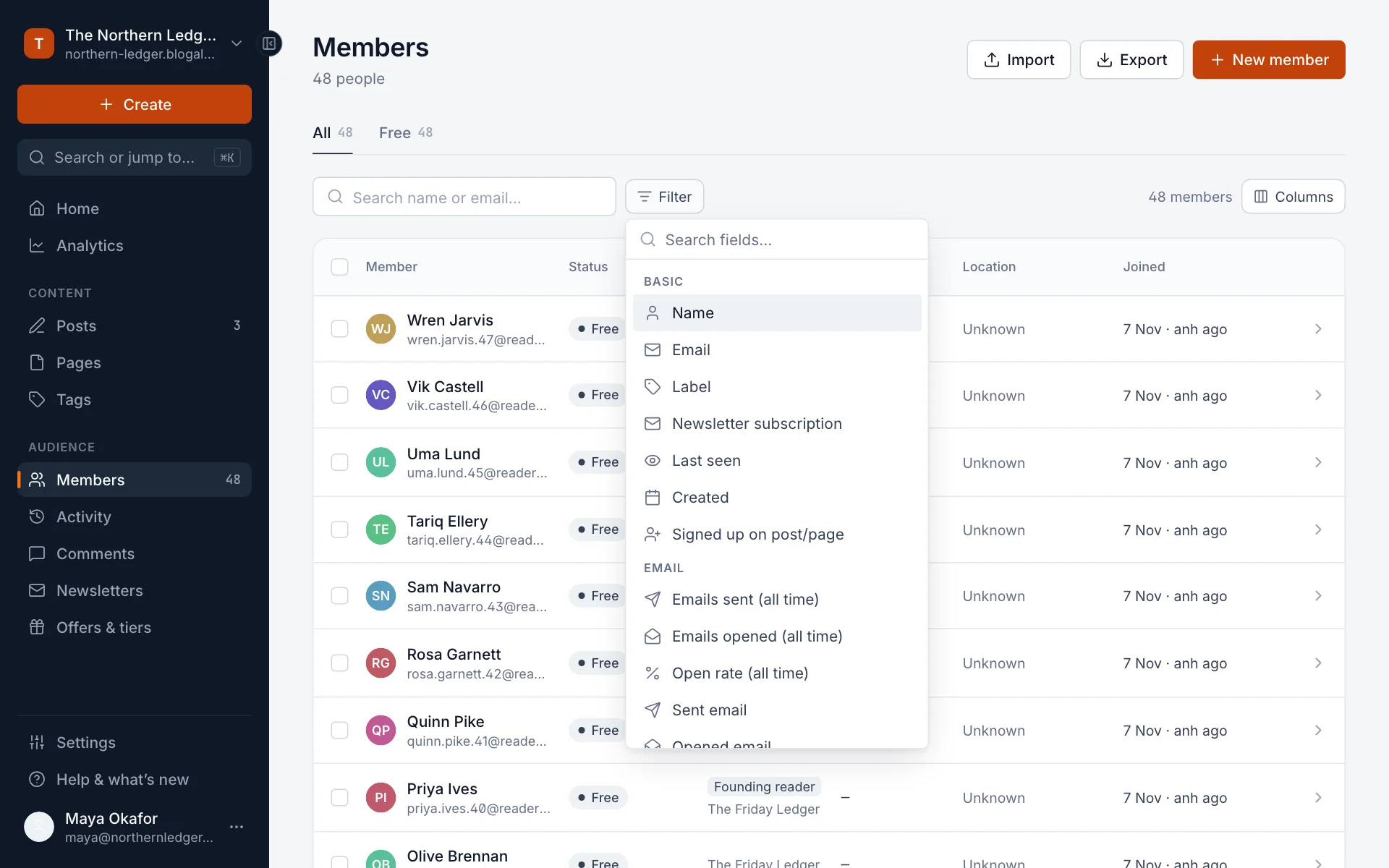
- Basic: Name, Email, Label, Newsletter subscription (subscribed, unsubscribed or email disabled), Last seen, Created and Signed up on post/page.
- Email: Emails sent (all time), Emails opened (all time), Open rate (all time), and whether someone was sent, opened or clicked a particular email. Handy for finding your most engaged readers, or people who haven’t opened anything in months.
- Subscription fields (status, tier, billing period, offer and more) appear once you take payments.
Add as many filters as you need; members must match all of them. Each filter shows as a chip you can change or remove, and Clear removes them all. The count on the right updates as you go.
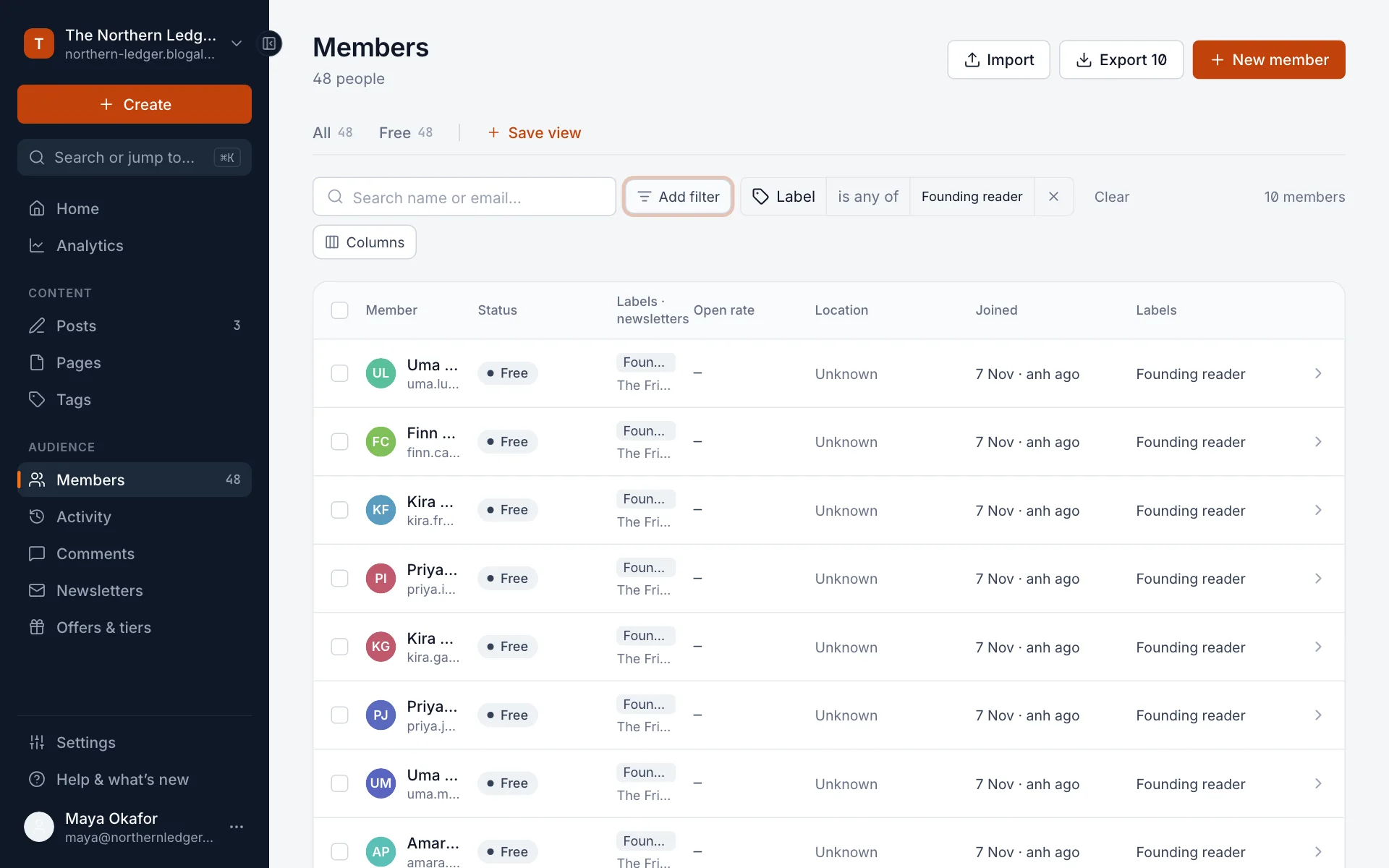
Use a filter often? Select Save view and give it a name. It appears as a tab next to All and Free.
Columns chooses which columns the list shows, such as labels, open rate, location and join date.
Act on many members at once
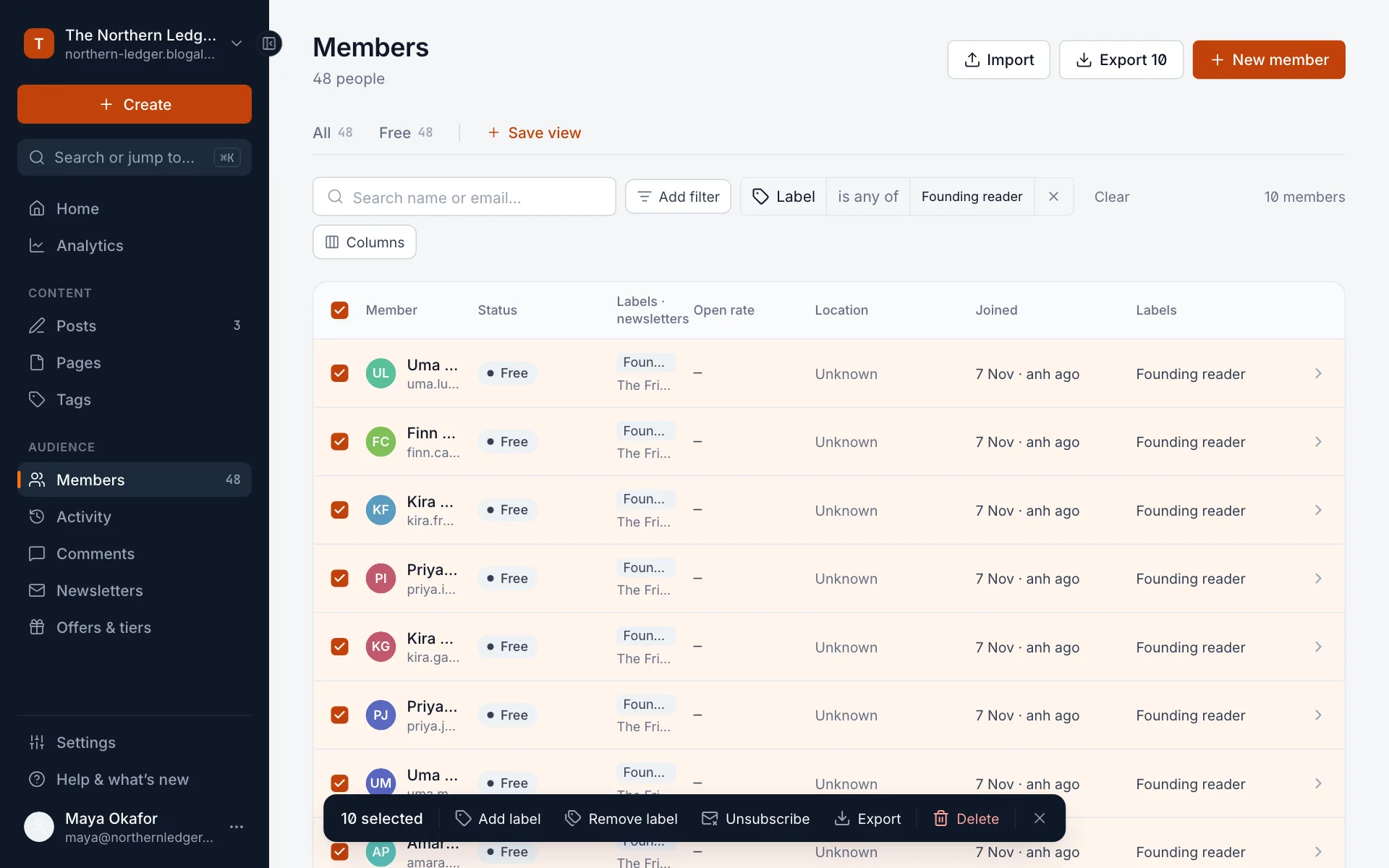
Tick members one by one, or tick the box in the header to select everyone in the current list. A bar appears at the bottom:
| Action | What it does |
|---|---|
| Add label / Remove label | Adds or removes one or more labels on everyone selected. You can create a new label as you go. |
| Unsubscribe | Unsubscribes them from all newsletters, or from the ones you pick. They stay members. |
| Export | Downloads the selected members as a CSV. |
| Delete | Deletes the selected members. You’re offered a backup CSV first. This can’t be undone. |
Labels
Labels are private tags for members: “Founding reader”, “Met at the winter fair”, “Press”. Readers never see them. Use them to filter your list and to send a post to just one group. Add them on a member’s profile, in bulk as above, or while importing. To rename or delete a label, open the label picker on any member and edit it from there.
One member’s profile
Select a member to open their profile at the side. The icon at the top opens it as a full page.
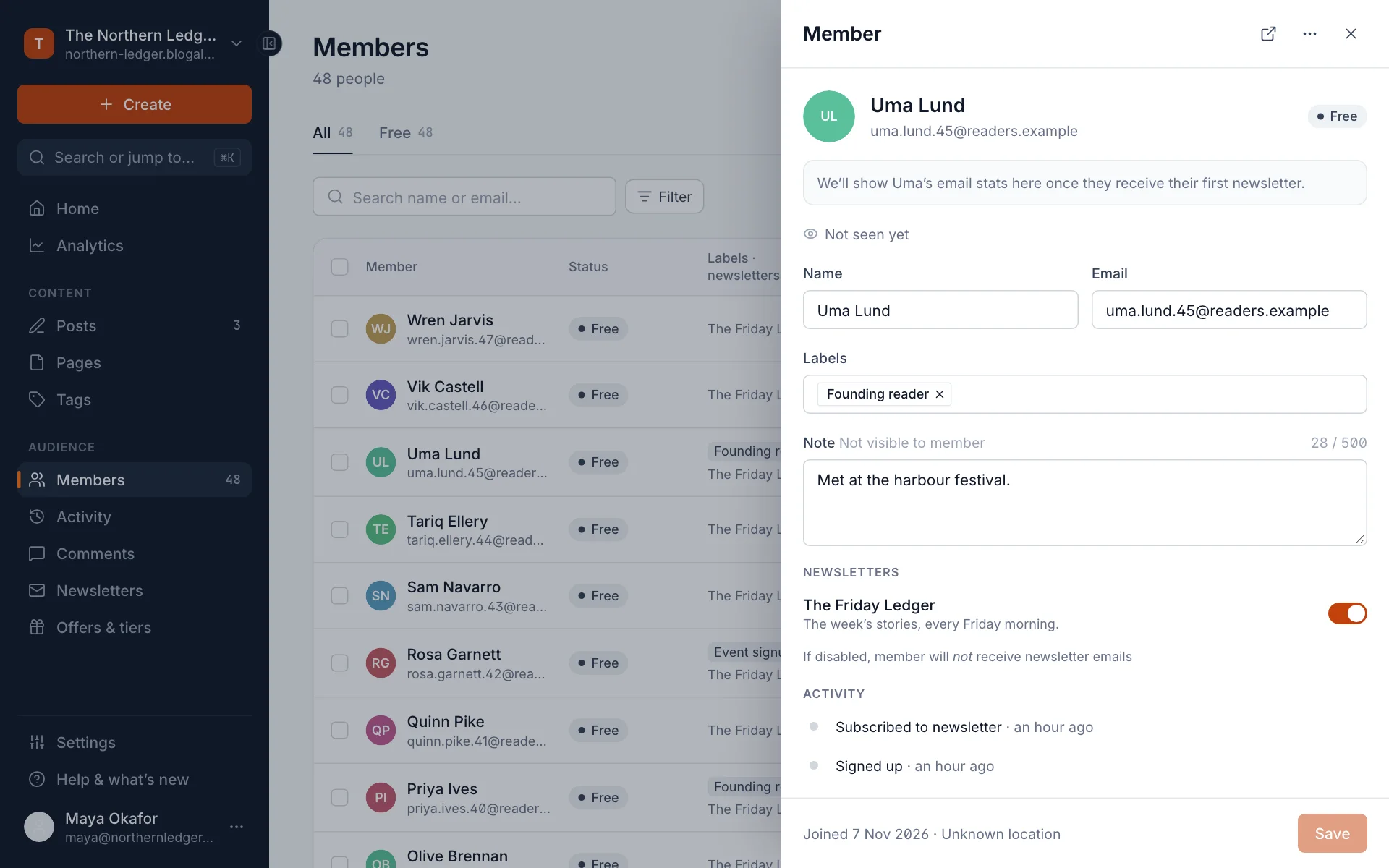
- Edit their Name, Email, Labels and a Note. Notes are never shown to the member.
- Turn individual Newsletters on or off for them. If their email is disabled, you’ll see it here. See Disabled email addresses.
- Activity shows when they signed up, subscribed, opened emails, commented and more.
- Once they’ve received a few newsletters, their email stats appear at the top.
- Select Save after any change.
The ··· menu at the top has a few more actions:
| Action | What it does |
|---|---|
| Impersonate | Gives you a one-time sign-in link to see your site exactly as this member does. Useful for checking what a paid member can read. |
| Sign out of all devices | Signs the member out everywhere. They can sign in again with a new link. |
| Disable commenting | Stops this member commenting, without removing them. |
| Delete member | Removes them for good. If they pay through Stripe, you can also cancel their subscription. |
Export your members
Select Export at the top of Members. With no filter, you get everyone; with a filter or search, only the members shown (the button says how many). You get a CSV file that opens in any spreadsheet app, with each member’s email, name, note, newsletter subscription, labels, status and signup date. The same file can be imported into another Blogaly site.
Good to know
- Deleting a member doesn’t stop them signing up again later.
- Keep exported files safe: they contain your readers’ personal data.
- Deleting members you no longer email is the quickest way back under your plan’s member limit. See Members: free and paid readers.
Last checked against the product on 7 November 2026.
Related
Still stuck?
Tell us what you were trying to do and what you saw, and we’ll help you sort it out.
Contact us