How Blogaly keeps your site safe
HTTPS everywhere, staff roles, sign-in codes and nightly off-site backups, plus what to do if an account is compromised.
Running the servers is our job. Here’s what we do to keep your site and your readers’ data safe, and the few things worth doing on your side.
HTTPS everywhere
- Every site is served over HTTPS, at
your-name.blogaly.ukand on your own domain. We get and renew the certificates; there’s nothing to install. - Browsers are told to always use HTTPS for your site, so a mistyped
http://link still arrives securely. - Each site runs separately, with its own database, so one site’s problems stay with that site.
Give each person only the access they need
Everyone who works on your site gets their own staff account, so you never share a password, and you can remove one person without affecting anyone else. Pick the smallest role that does the job:
| Role | Can |
|---|---|
| Contributor | Write and edit their own posts, but not publish them |
| Author | Create, edit and publish their own posts, but not change others’ |
| Editor | Edit and publish any post, and manage Authors and Contributors |
| Administrator | Everything: content, settings, staff and integrations |
| Owner | Everything an Administrator can, and there is only one |
How many staff accounts you can have depends on your plan. See staff and roles.
Passwords and sign-in codes
- Passwords need at least 10 characters, and common or easily guessed ones are refused.
- When anyone on your staff signs in from a new device, we email them a 6-digit code to finish signing in. A stolen password alone isn’t enough. See signing in.
- The owner and administrators can require that code on every sign-in, on every device: Settings → Staff → Security settings.
- Your dashboard at dash.blogaly.com has its own password. Use a different one from your site’s.
Backups
Every night we back up each site: its database (posts, pages, members, settings) and its uploaded files and themes. The backup is encrypted on our server before it leaves, then stored off-site with a separate storage provider, so the copy that leaves our server is unreadable without our key. We keep a rolling set of recent daily, weekly and monthly copies.
If you need something restored, contact us and tell us your site and roughly when things were last right. For a copy you hold yourself, export your content and members from Admin whenever you like.
If an account is compromised
Signs include a sign-in code you didn’t ask for, a staff member you don’t recognise, posts or settings you didn’t change, or your password suddenly not working. Act quickly, in this order:
- Secure your email first. Sign-in codes and password resets go there. Change its password and turn on its own two-factor authentication.
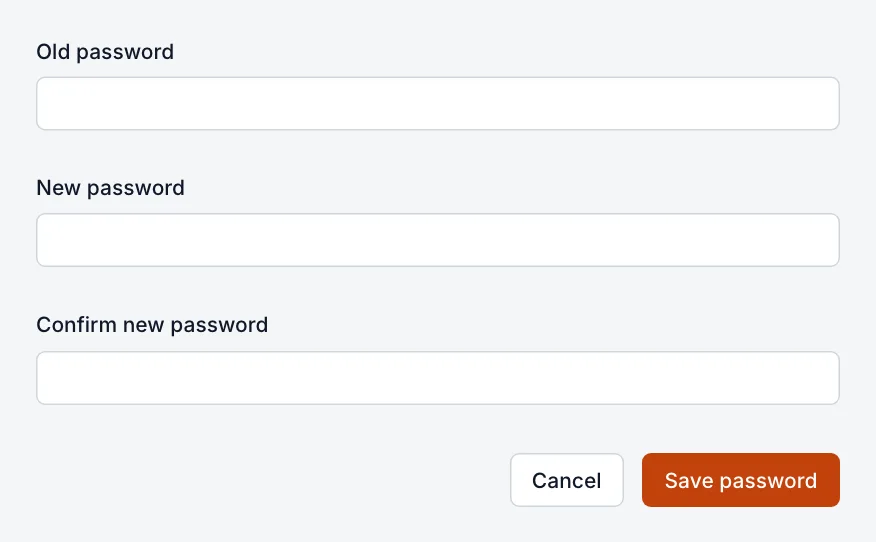
- Change your site password. Go to Settings → Staff, open your profile, and next to Password select Change. Changing it signs you out everywhere else. If you can’t get in, use Forgot password? on the sign-in screen.
- Check your staff. In Settings → Staff, open anyone you don’t recognise and use the ⋯ menu to Suspend user or Delete user. On the Invited tab, Revoke any invitation you didn’t send.
- Turn on codes for every sign-in, under Security settings in the same place.
- Replace your keys. In your profile, regenerate your Staff access token. In Settings → Integrations, open each custom integration and select Regenerate next to its keys, and delete any integration or webhook you didn’t create.
- See what changed. Settings → History lists recent changes and who made them.
- Check your dashboard. Change your dash.blogaly.com password too, especially if it was the same.
- Contact us. We can help you check what happened and restore content from a backup if anything was lost.
Last checked against the product on 7 November 2026.
Related
Still stuck?
Tell us what you were trying to do and what you saw, and we’ll help you sort it out.
Contact us