Pages and your site’s navigation
Create standalone pages like About and Contact, and choose what appears in your site’s menus.
Who can do this: Owners, Administrators and Editors can create pages. Only Owners and Administrators can change the navigation.
Posts are the stream of things you publish. Pages are for content that stays put: About, Contact, Advertise, a reading list, your editorial policy. Pages aren’t part of your homepage list or RSS feed and are never emailed, so they’re right for anything that isn’t news.
Create a page
- Select Pages in the sidebar, then New page.
- Write it in the same editor you use for posts. Every card works on pages too.
- Select Publish, then Publish again in the panel. Pages only go to your site; there’s no email option.
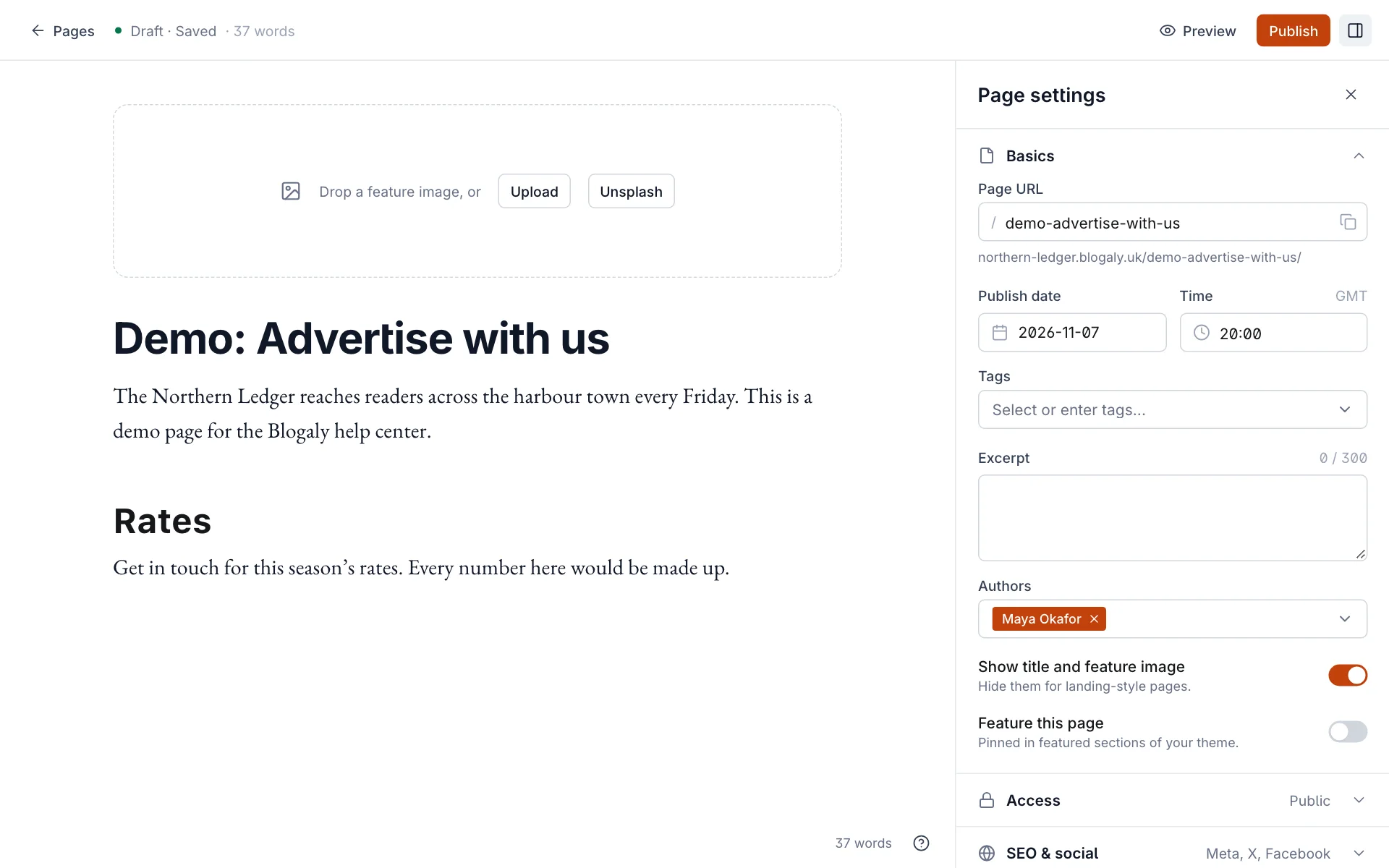
Page settings work like post settings. Two are worth knowing about:
- Page URL sets the address. Keep it short and simple, like
aboutoradvertise. Copy the full address with the button inside the field, ready to add to your menu. - Show title and feature image hides the title and feature image for landing-style pages, where you’d rather start with a Header card. If your theme doesn’t support this, the panel tells you.
Add a page to your menu
Publishing a page doesn’t add it to your menu. You choose exactly what goes there.
- Go to Settings → Navigation and select Customize.
- On the Primary tab, type a label in New item label, such as
Advertise. - In the box next to it, enter the address. You can paste the page’s full address, or any other link: a tag page, an external site, an email address.
- Select + to add the item, then Save.

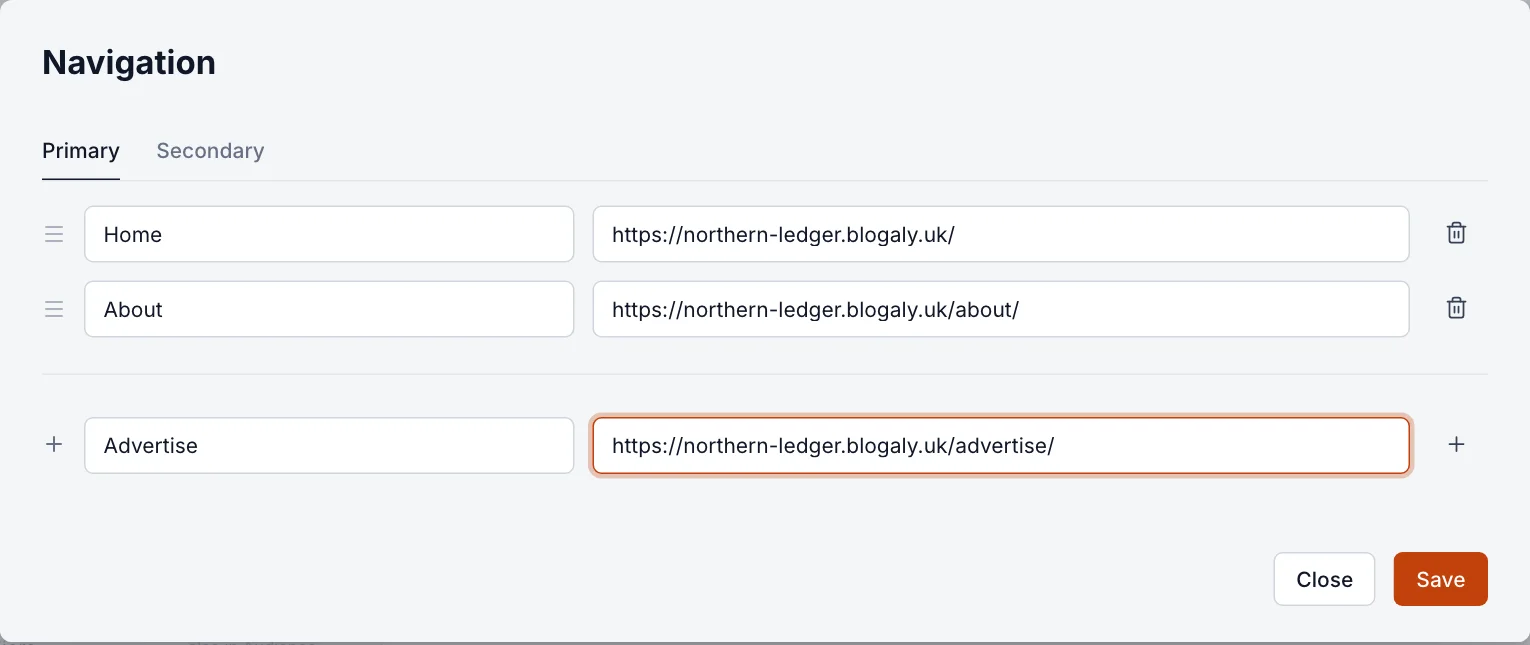
- Reorder items by dragging the handle on the left.
- Rename an item by editing its label.
- Remove an item with the bin icon on the right.
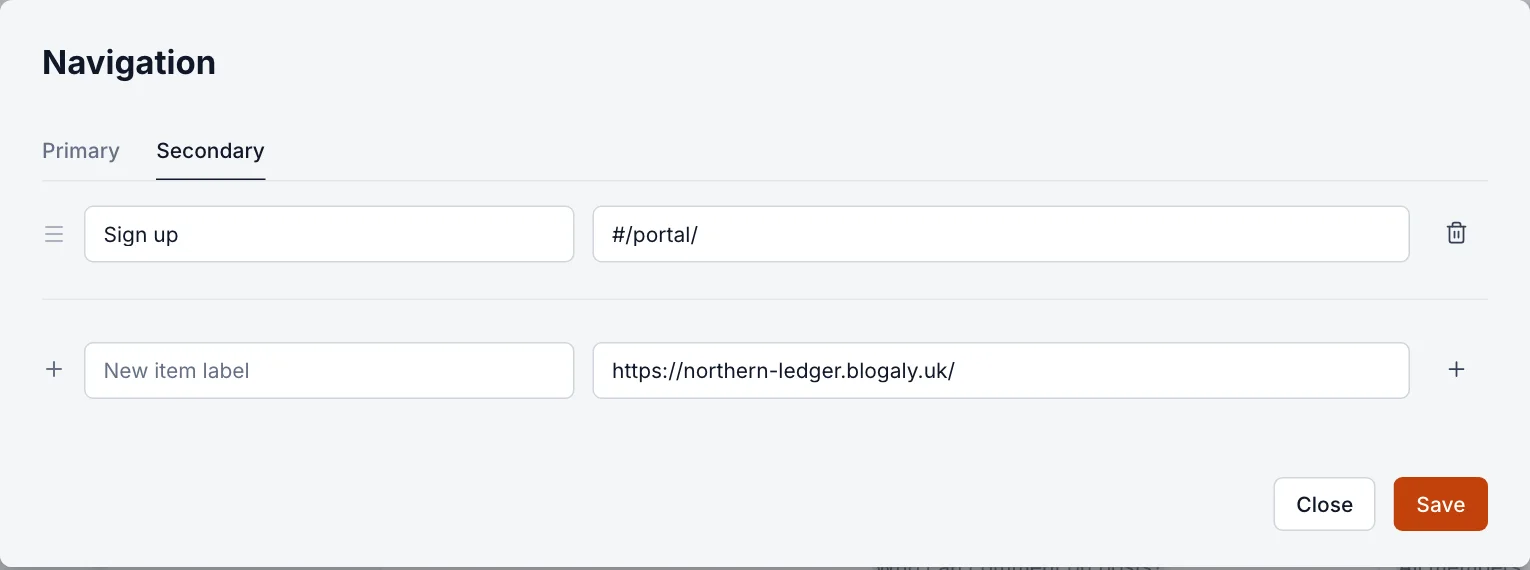
Primary and secondary menus
The Primary menu is the main one, usually at the top of every page. The Secondary menu is for less important links. Where each appears is up to your theme; many put the secondary menu in the footer. A new site’s secondary menu has a Sign up link, which opens the signup pop-up.

Good to know
- Links to your own site are saved relative to it, so your menu keeps working if you connect your own domain later.
- Menu links starting with
#/portal/open the signup and account pop-up.#/portal/signupopens straight to signup and#/portal/signinto sign-in. See the signup and account pop-up. - Changing a page’s URL breaks links to the old address, including menu items. Update the menu, and add a redirect for links elsewhere.
- Pages can be members-only, just like posts. See who can read a post.
- Menus that are too long wrap or collapse on phones. Five or six items is plenty.
Last checked against the product on 7 November 2026.
Related
Still stuck?
Tell us what you were trying to do and what you saw, and we’ll help you sort it out.
Contact us