Invite staff and choose their roles
Invite writers and editors to your site, pick what each of them can do, and change or remove their access later.
Who can do this: The owner and Administrators can invite anyone. Editors can invite Authors and Contributors. How many staff you can have depends on your plan.
Staff are the people who work on your site: writers, editors, other admins. They sign in to your site’s admin with their own email address and password, and each has a role that decides what they can do. Staff are separate from members, the readers who subscribe to your site.
The roles
| Role | What they can do |
|---|---|
| Contributor | Write and edit their own drafts. They can’t publish: an Editor or Administrator publishes for them. |
| Author | Write, edit and publish their own posts. They can’t change anyone else’s. |
| Editor | Edit and publish any post, and invite and manage Authors and Contributors. No access to settings. |
| Administrator | Everything: all content, all staff, members and every setting. |
| Owner | An Administrator who also controls ownership. There is exactly one, and only they can hand it on. |
Give people the smallest role that lets them do their job. You can raise it later in a few clicks.
How many staff your plan includes
| Plan | Staff users |
|---|---|
| Starter | 1 (just you) |
| Publisher | 3 |
| Business | 15 |
- Contributors don’t count. You can invite as many Contributors as you like on every plan, including Starter.
- You, the owner, count as one. So do pending invitations and every Author, Editor and Administrator.
- Suspended staff don’t count, so suspending someone frees a place.
- Need more? See plans and what each includes.
1. Invite someone
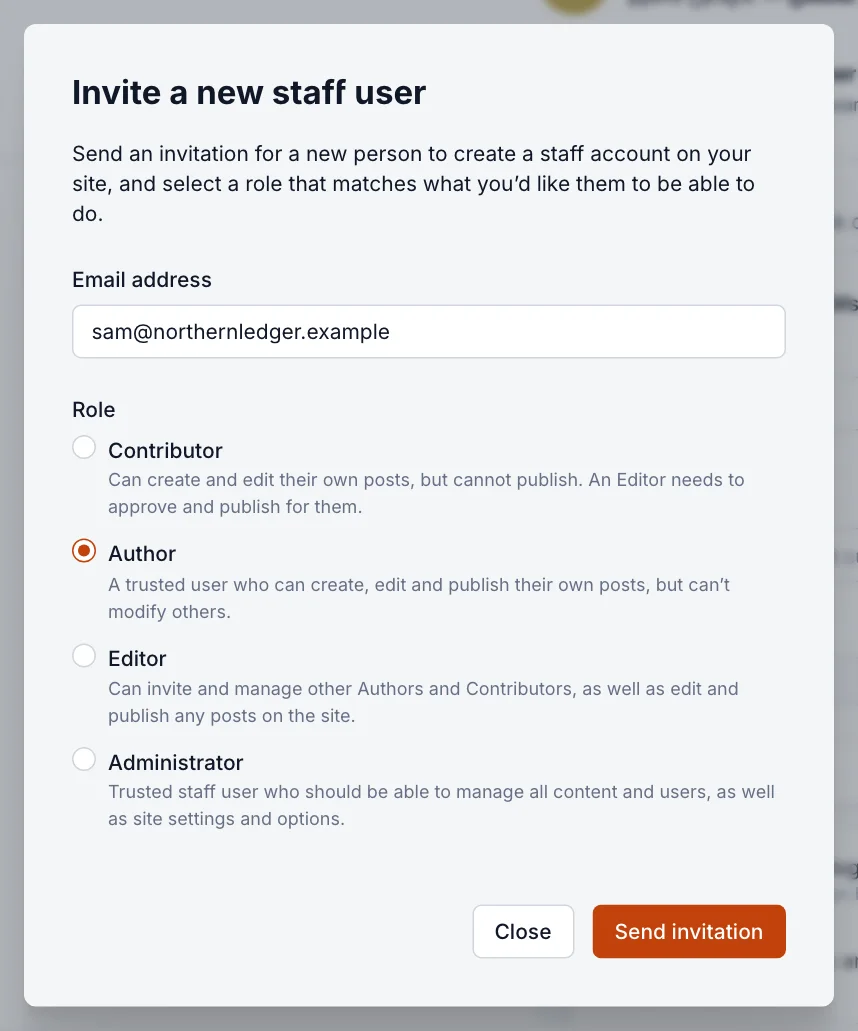
- Go to Settings → General → Staff and select Invite people.
- Enter their email address.
- Choose a Role.
- Select Send invitation.

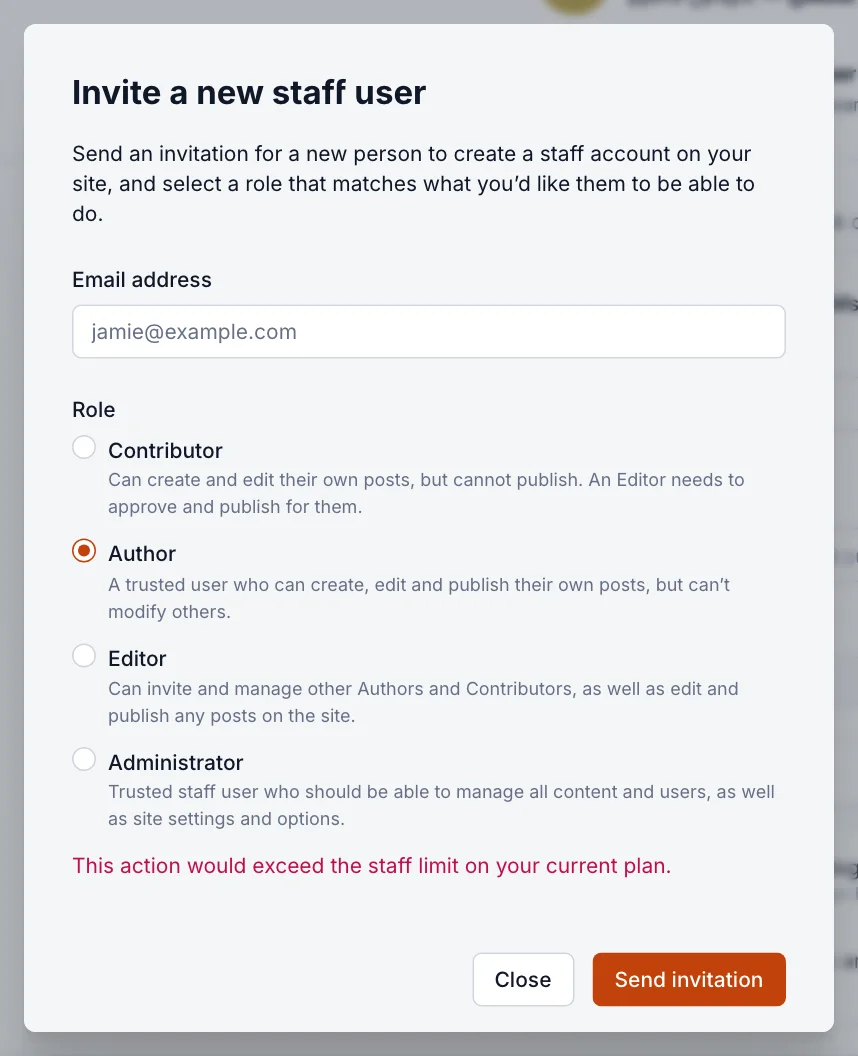
If your plan has no room for another staff user, the dialog tells you before you send: This action would exceed the staff limit on your current plan. Choose Contributor instead, suspend someone, or upgrade.
2. While the invitation is pending
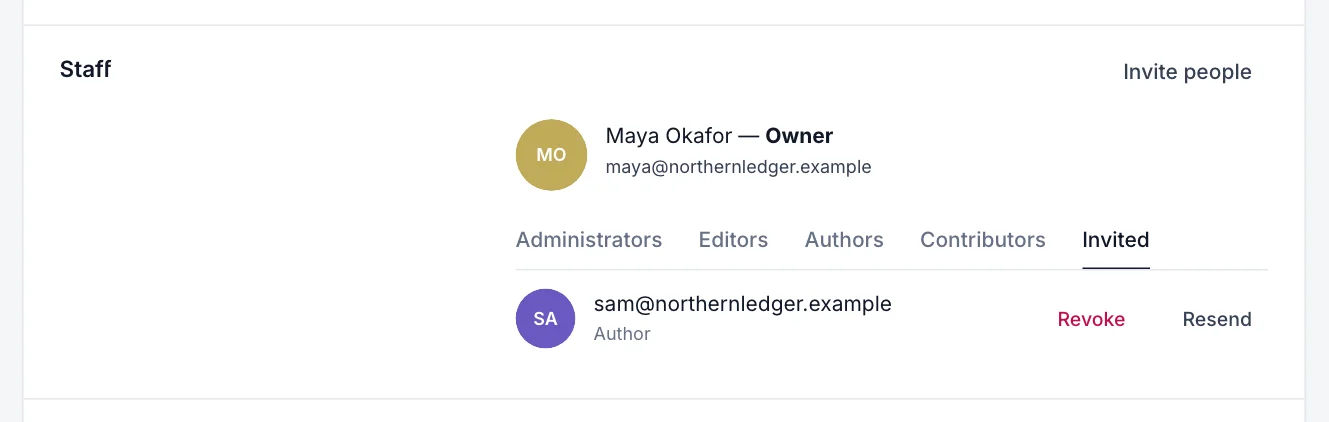
The invitation appears under the Invited tab. From there you can Resend it if it went astray, or Revoke it if you change your mind. An invitation link stops working after a week; resend it to give them a fresh one.
3. What your new staff member does
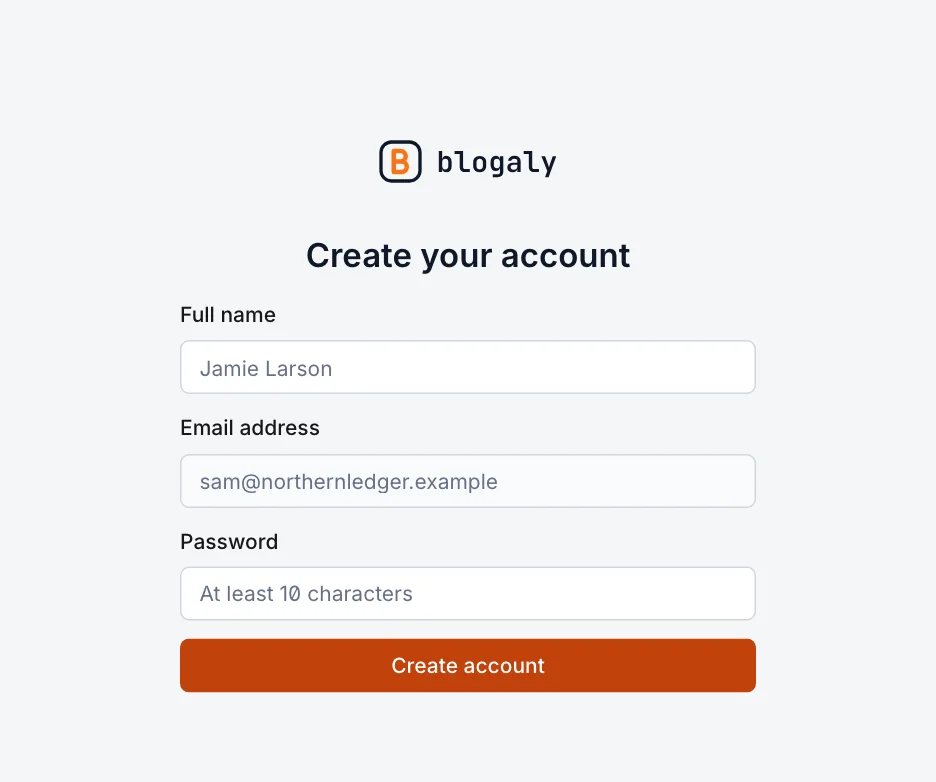
They get an email from your publication with a button to activate their account. It opens a page on your site where they enter their name and choose a password of at least 10 characters. Then they’re signed straight in to your admin, at your-name.blogaly.uk/admin.
Change someone’s role
Accepted staff are listed under tabs by role. Select a person to open their profile.
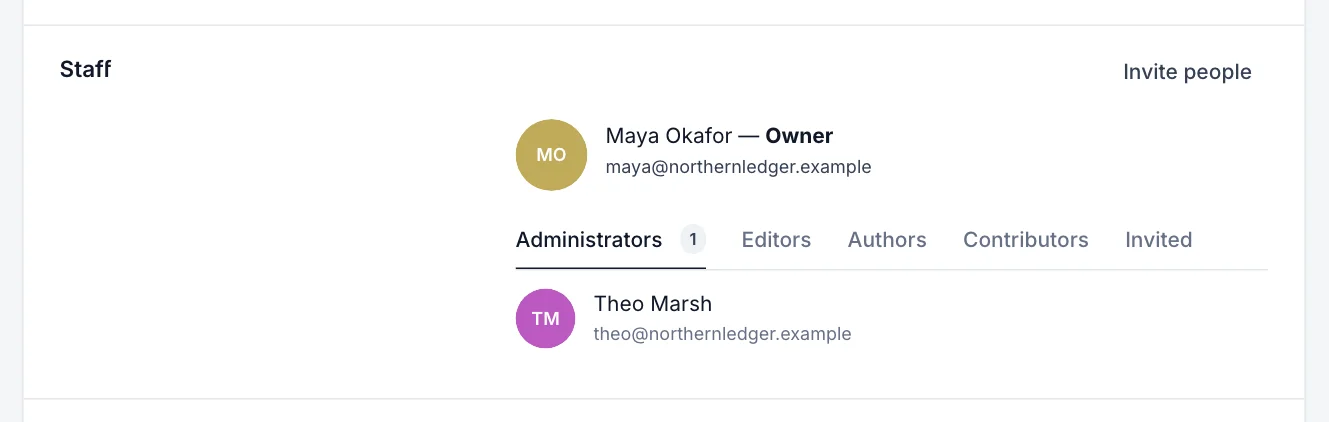
- Select the person’s name.
- Open the Role menu and choose the new role.
- Select Save.
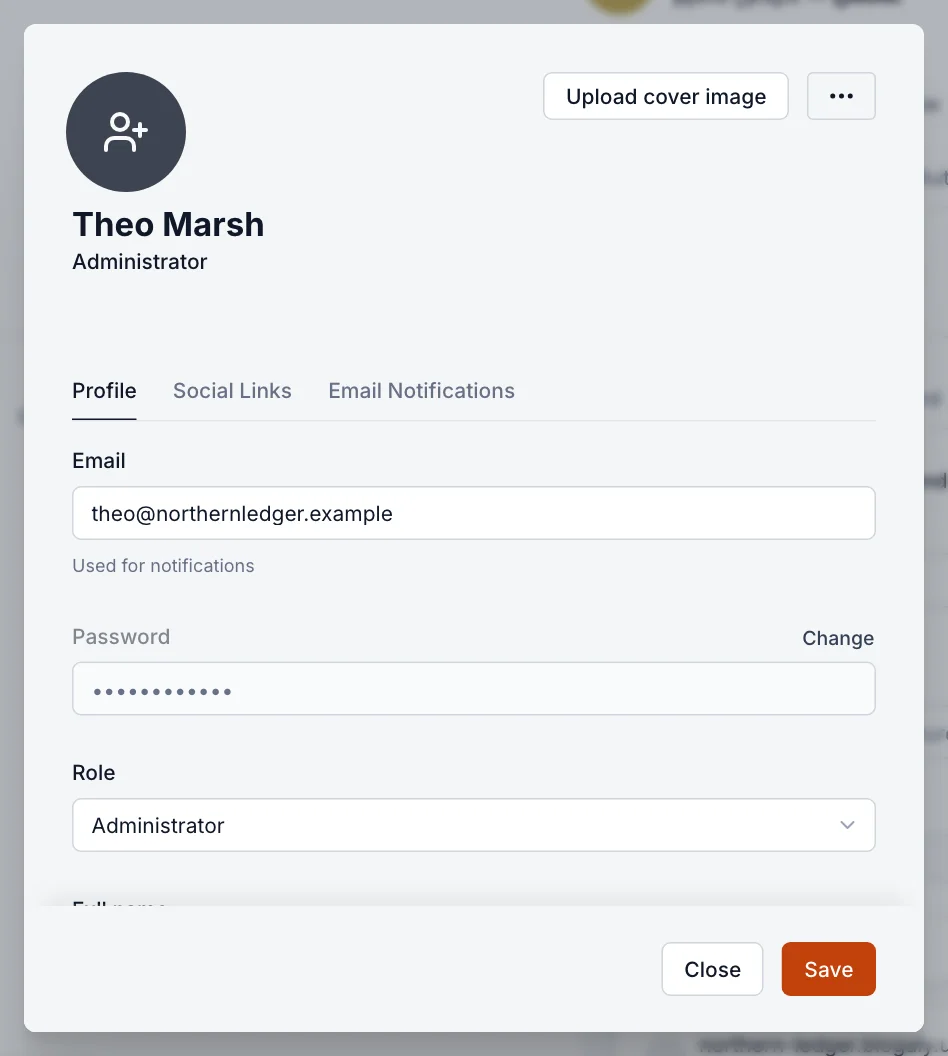
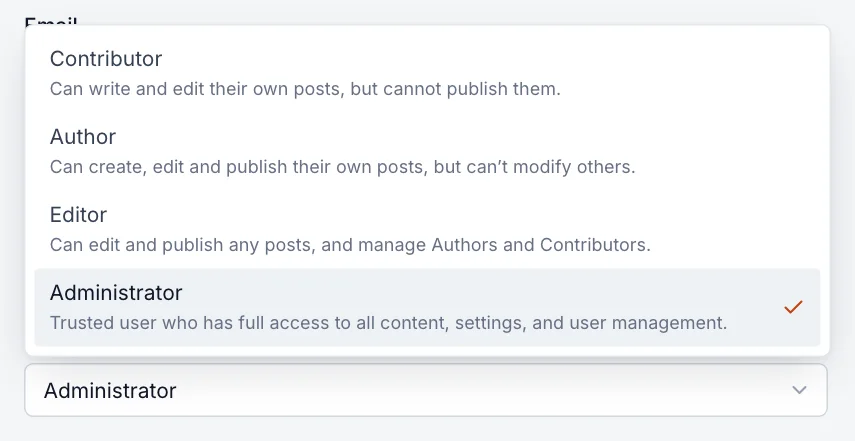
Raising someone from Contributor to Author or above counts against your plan’s staff limit, so it may be blocked on Starter.
Suspend or delete a staff user
Open the person’s profile and select the … button at the top right.
- Suspend user: they can no longer sign in, but their posts stay exactly as they are and they keep their byline. Choose Un-suspend user to let them back in with the same role.
- Delete user: removes them for good. Their posts aren’t deleted: they’re reassigned to the owner and given an internal tag with the person’s name, so you can find them later.
- View user activity: a history of what they’ve changed recently.
Good to know
- Everyone edits their own profile (name, picture, bio, password) from their avatar at the bottom of the sidebar.
- Editors can suspend and delete Authors and Contributors, but not Administrators.
- Administrators can’t suspend or delete the owner. To change who that is, see transfer ownership.
- Staff you bring in with an import arrive as Contributors who need to reset their password before signing in. See move your site to Blogaly.
- Staff sign in to your site’s admin only. Billing and your plan stay with whoever owns the Blogaly account in the dashboard.
Last checked against the product on 7 November 2026.
Related
Still stuck?
Tell us what you were trying to do and what you saw, and we’ll help you sort it out.
Contact us