Choose and switch themes
Browse the official themes, preview one and make it your site’s design. Your posts, pages and members stay exactly as they are.
Who can do this: Owners and Administrators. Starter sites use the Source theme; Publisher and Business sites can use any official theme, or upload their own.
A theme decides how your site looks to readers: the layout of the homepage, how posts are set, the header and footer. Your writing, members and settings live separately, so you can switch themes as often as you like without losing anything.
Every Blogaly site comes with 32 official themes, already installed and kept up to date for you. New sites start on Source, a clean, general-purpose theme that suits most publications.
1. Open the theme library
- In your site’s admin, go to Settings.
- Under Site, find Theme. It shows your Active theme and its version.
- Select Change theme.

The library opens on Official themes. Each card shows a screenshot of the theme with demo content and what it’s designed for.
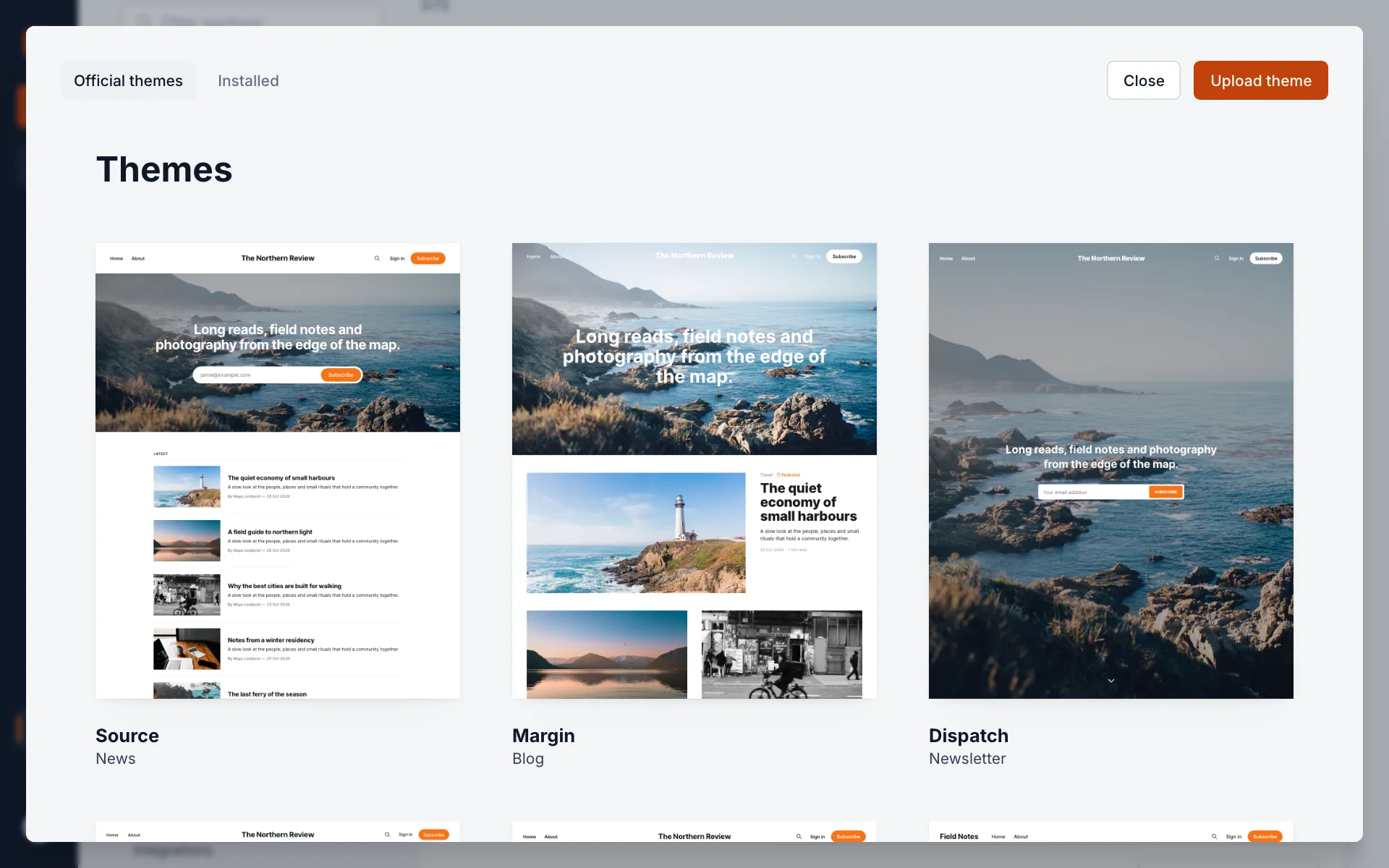
| Made for | Themes |
|---|---|
| News | Source |
| Blogs and personal writing | Margin, Linen, Monogram, Salon |
| Newsletters | Dispatch, Courier, Morrow, Precis, Quire |
| Magazines | Broadsheet, Folio, Gilt |
| Photography | Lens, Aperture |
| Podcasts | Cadence, Studio |
| Documentation | Primer |
| Churches | Nave, Basilica, Iconostasis, Chapel, Assembly, Covenant, Fellowship |
| Restaurants and cafés | Mise, Noir, Bistro, Trattoria, Counter, Orchard, Cafe |
2. Preview a theme
Select a theme’s card to see a larger preview. The preview is a picture of the theme with demo content, so it shows the layout and style rather than your own posts. To see your own content in a theme, activate it: you can always switch back.
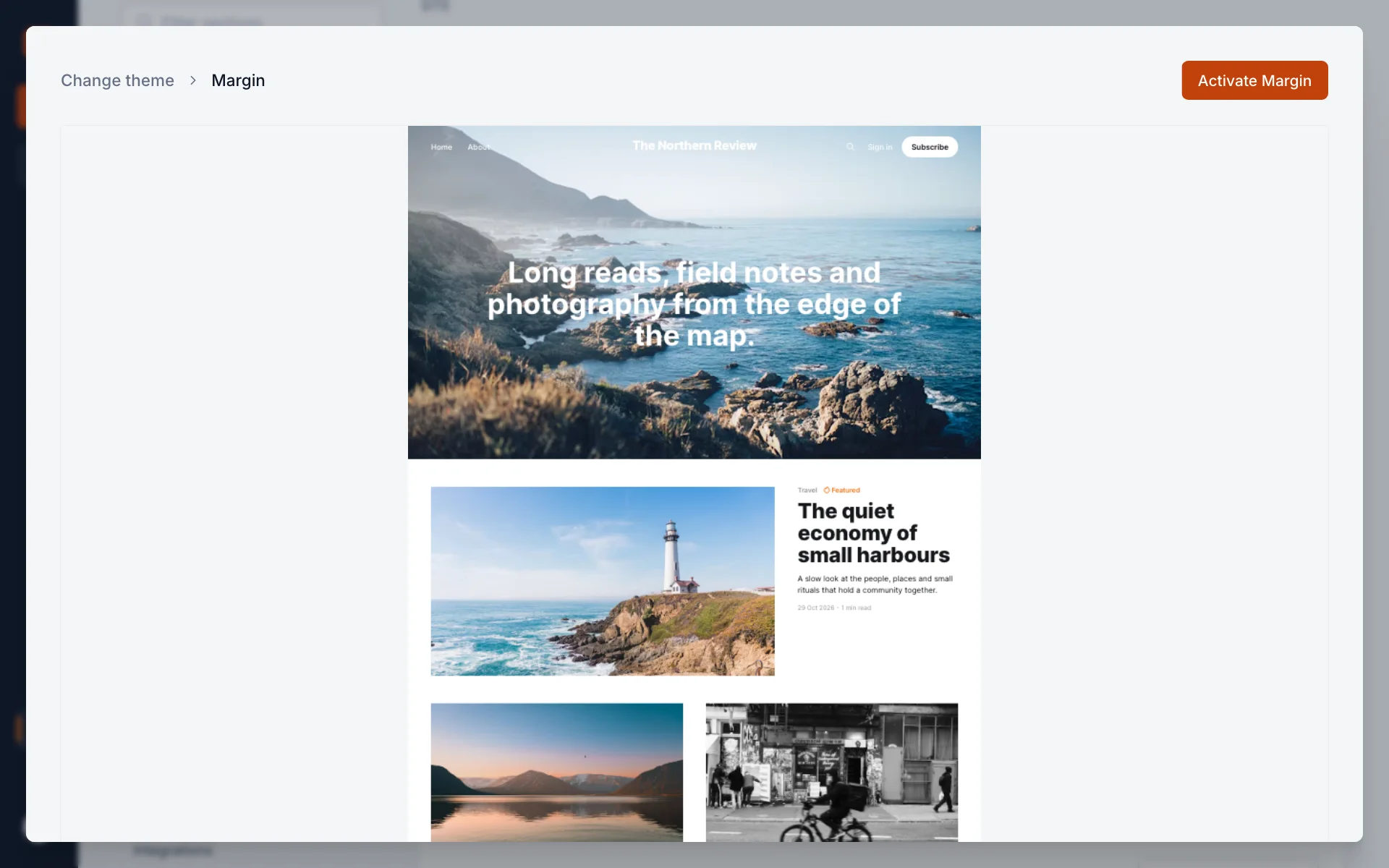
Select Change theme in the breadcrumb at the top to go back to the library.
3. Activate it
- In the preview, select Activate followed by the theme’s name, for example Activate Margin.
- Confirm with Activate theme. Choose Close if you change your mind.
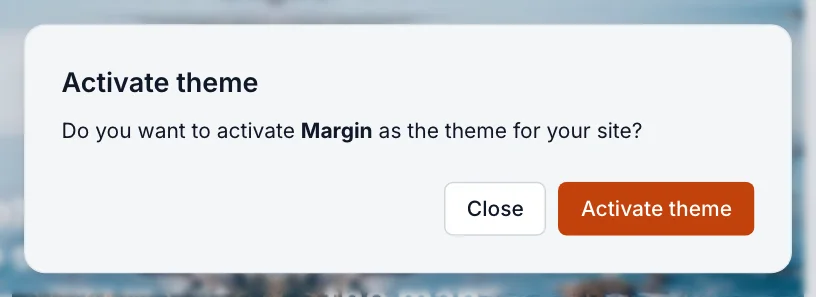
The change is live straight away for everyone who visits your site. There’s no draft stage for themes, so if you want to try one quietly, do it at a time when few readers are around, and check your homepage, a post and a page afterwards.
Switch between installed themes
The Installed tab lists every theme on your site: the official ones, marked (built-in), and any you’ve uploaded. The active theme is at the top, marked Active. Source is marked (default).
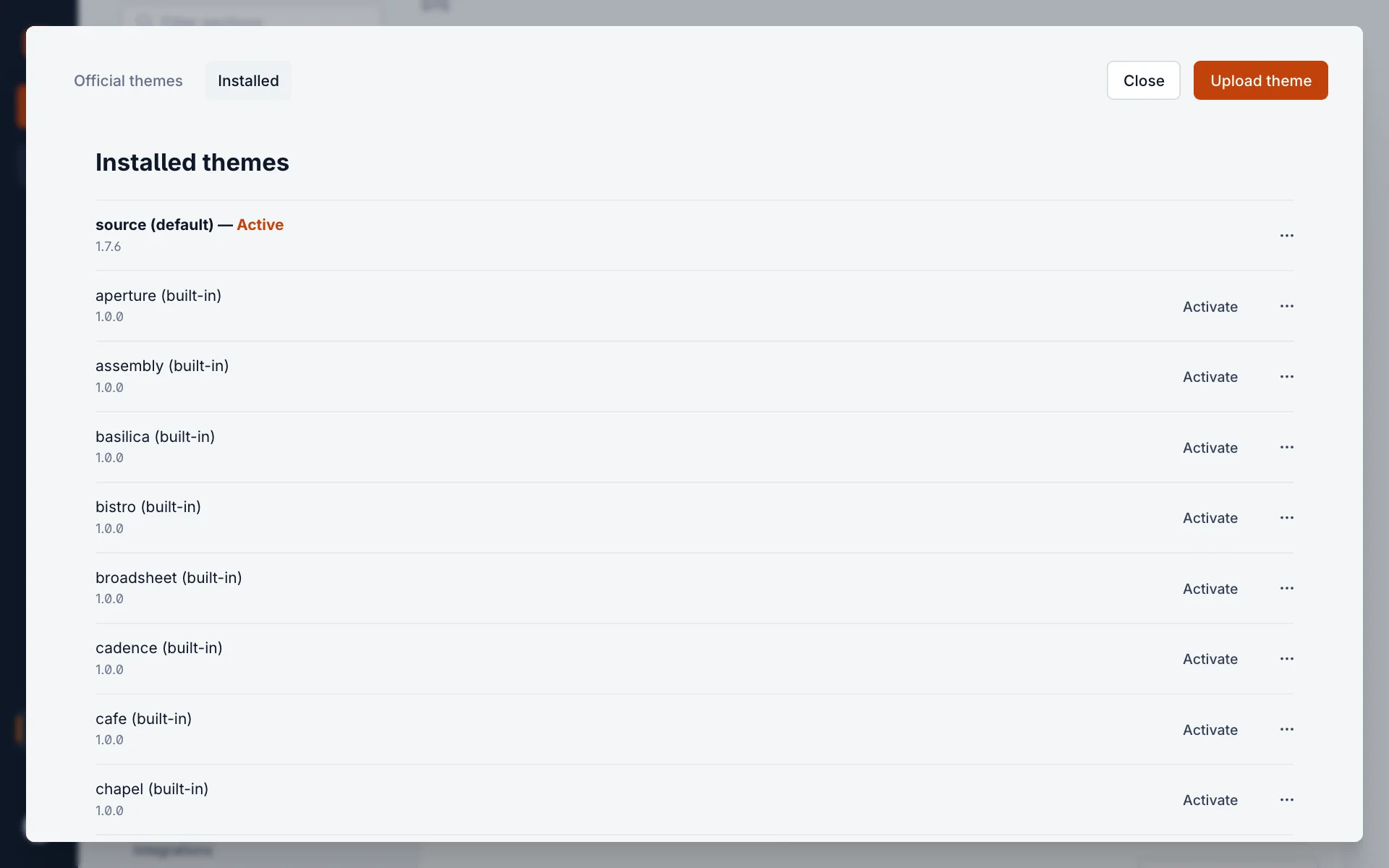
- Activate switches to that theme in one step, with no preview.
- The ⋯ menu has Edit code and Download. Delete appears only for themes you uploaded, and never for the active one. See upload your own theme.
What changes when you switch
| Stays the same | Changes |
|---|---|
| Posts, pages, tags, members, newsletters and comments | Layout, typography and colours that the theme controls |
| Your brand settings: accent colour, icon, logo, cover image and fonts | The Theme tab in the design editor, which lists the new theme’s own options |
| Your navigation menus and their links | Where the menus appear, and how many items fit |
Theme options (things like header style or whether to show related posts) belong to each theme. If you switch away and come back later, the first theme remembers what you set. After switching, open the design editor to set the new theme’s options.
Themes and your plan
- Starter: your site uses Source, the default theme. If you choose another theme, you’ll be asked to upgrade.
- Publisher and Business: any official theme, plus themes you upload.
- See plans and limits for everything each plan includes.
Good to know
- Official themes are updated by Blogaly. You don’t need to install updates, and you can’t delete or overwrite them.
- Your menus are managed separately, in Settings › Navigation. See pages and navigation.
- Something look wrong after switching? A logo sized for the old theme or a missing cover image are the usual causes. Check Design & branding first.
- Only Owners and Administrators can change the theme. Editors, Authors and Contributors don’t see these settings.
Last checked against the product on 7 November 2026.
Related
Still stuck?
Tell us what you were trying to do and what you saw, and we’ll help you sort it out.
Contact us