How a single post is doing
See how many people read a post, how many opened it as a newsletter, and how many signed up because of it.
Who can do this: Owners and Administrators, on every plan.
Each published post has its own analytics: how many people read it on the web, how it did as a newsletter, and how many members it brought in. Here’s where to find them and what they mean.
At a glance, in your post list
Go to Posts. On a wide enough screen, the Performance column shows each published post’s main numbers. Each number links to the matching part of the post’s analytics.
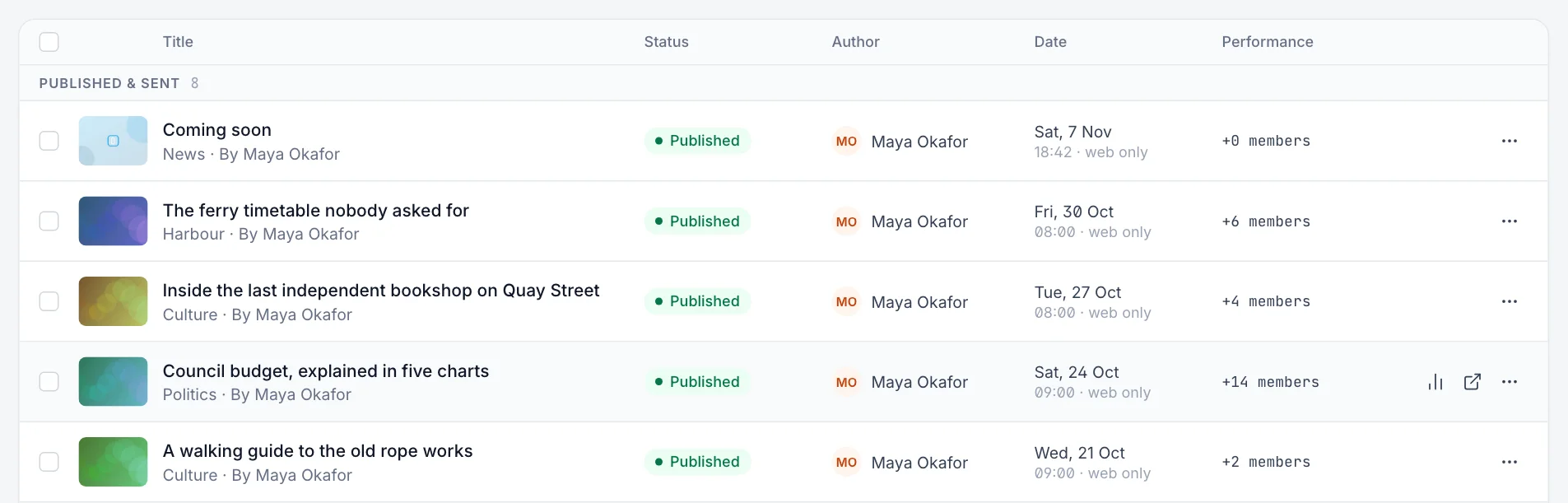
| In the Performance column | What it is |
|---|---|
| Visitors | People who read the post on your website. |
| Opens and Clicks | For posts sent as a newsletter: the share of recipients who opened the email, and who clicked a link in it. |
| Sent | For newsletters where opens and clicks aren’t available: how many people the email went to. |
| + members | People who signed up, or started paying, after reading this post. |
Open a post’s analytics
Hover over the post in the list and select the Analytics button (the bar chart icon). You can also get there from a send on the Newsletters tab of Analytics, or from your top posts on Home.
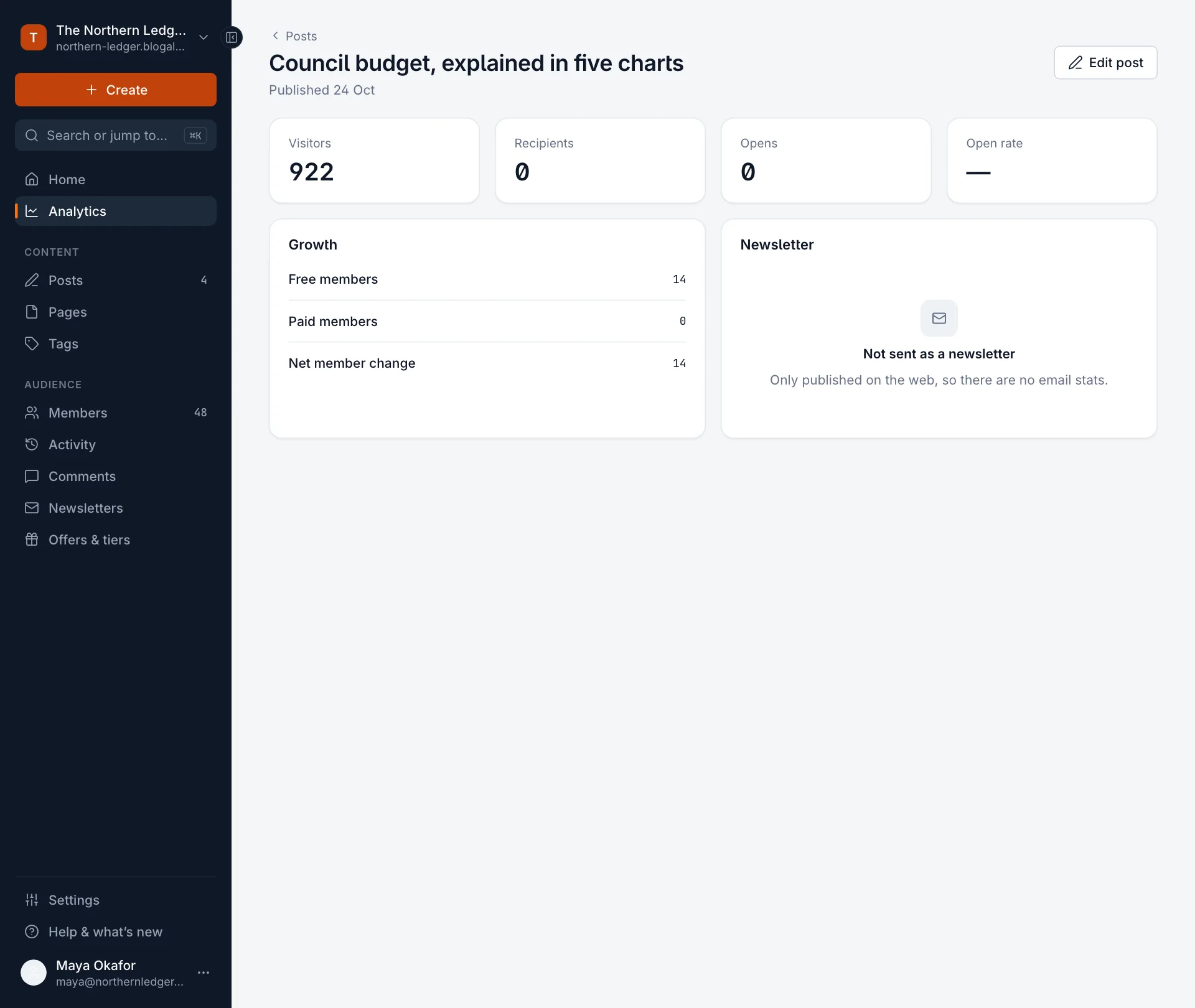
| Number | Meaning |
|---|---|
| Visitors | People who read the post on your website since it was published. Counted without cookies, so it’s an estimate. See how we count. |
| Recipients | How many members the newsletter was sent to. |
| Opens | How many recipients opened the email at least once. Opening it twice still counts once. |
| Open rate | Opens divided by recipients. |
| Free members and Paid members | People who signed up for free, or started a paid subscription, after reading this post. Each signup is credited to the post or page the person was reading when they signed up. |
| Net member change | The total members this post brought in. |
If a post was only published on the web, the Newsletter card says Not sent as a newsletter and the email numbers stay empty. For a post that was emailed, the card shows who it was sent to, how many opened it and the open rate.
Other buttons on this page
- Edit post opens the post in the editor.
- Debug appears on posts that were sent by email. It shows the details of the send, which helps if an email didn’t reach everyone. See how delivery works.
- Gift link appears on some paid posts and lets you share the full post with a non-subscriber. See gift subscriptions.
Good to know
- Only published posts have analytics. Drafts, scheduled posts and pages don’t.
- Email opens are recorded with a tiny image in the email. Some email apps load images automatically, which counts as an open even if nobody read it; others block images, so some real readers aren’t counted. Treat open rates as a trend rather than an exact figure.
- Readers who open the email don’t count as web Visitors unless they also click through to your site.
- The Performance column is hidden on narrow windows. Make the window wider, or open the post’s analytics directly.
Last checked against the product on 7 November 2026.
Related
Still stuck?
Tell us what you were trying to do and what you saw, and we’ll help you sort it out.
Contact us