Organising content with tags
Group posts by topic with tags, give each topic its own page, and use internal tags to organise things behind the scenes.
Who can do this: Owners, Administrators and Editors manage tags. Authors can add tags to their posts and create new ones while writing. Contributors can’t change tags.
Tags are how you group posts. A tag like Harbour or Politics gives readers a page with every post on that topic, and gives you a quick way to filter your own list. Most themes show a post’s first tag above its title.
There are two kinds: public tags, which readers see, and internal tags, which only you and your staff see.
Your tags
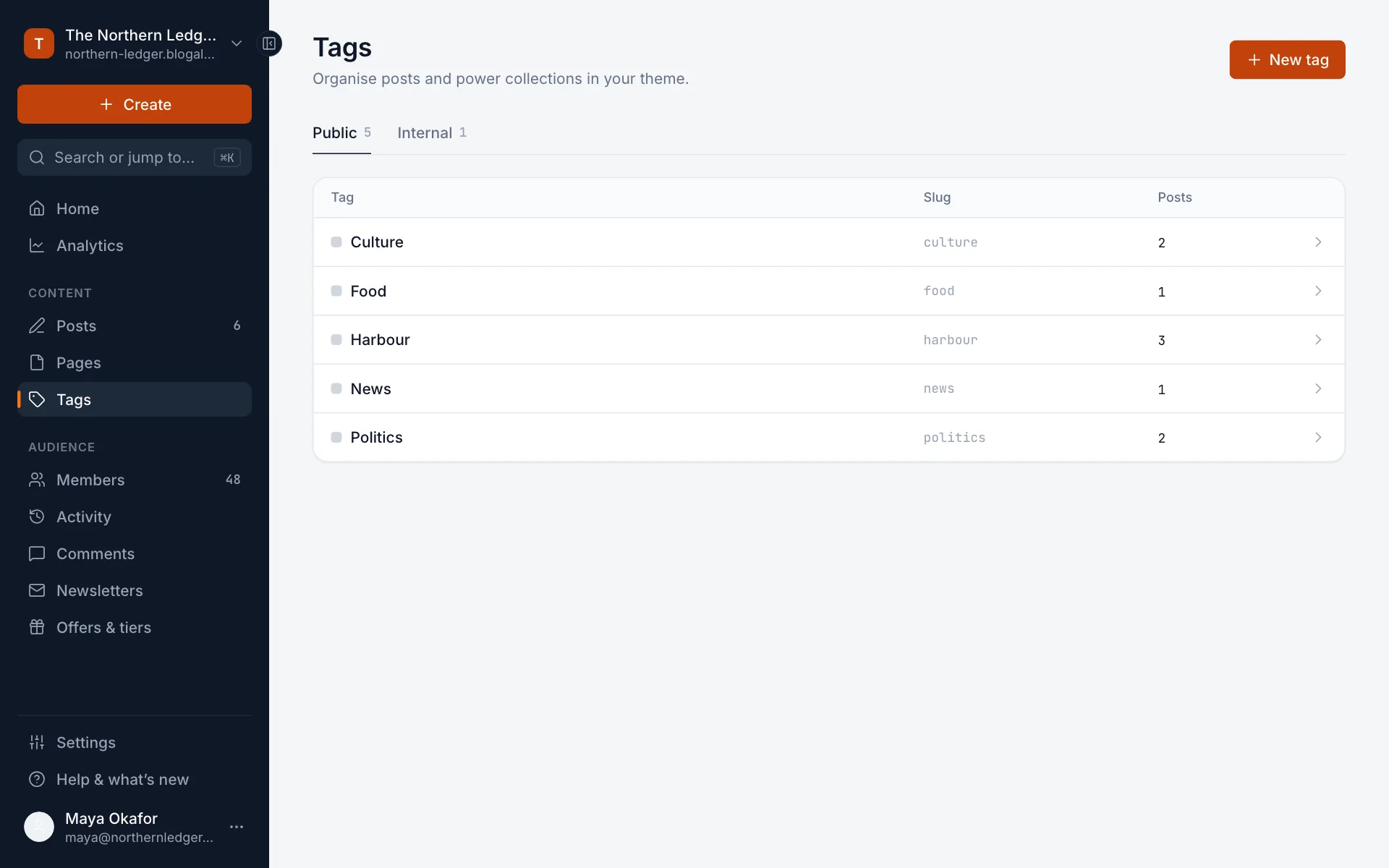
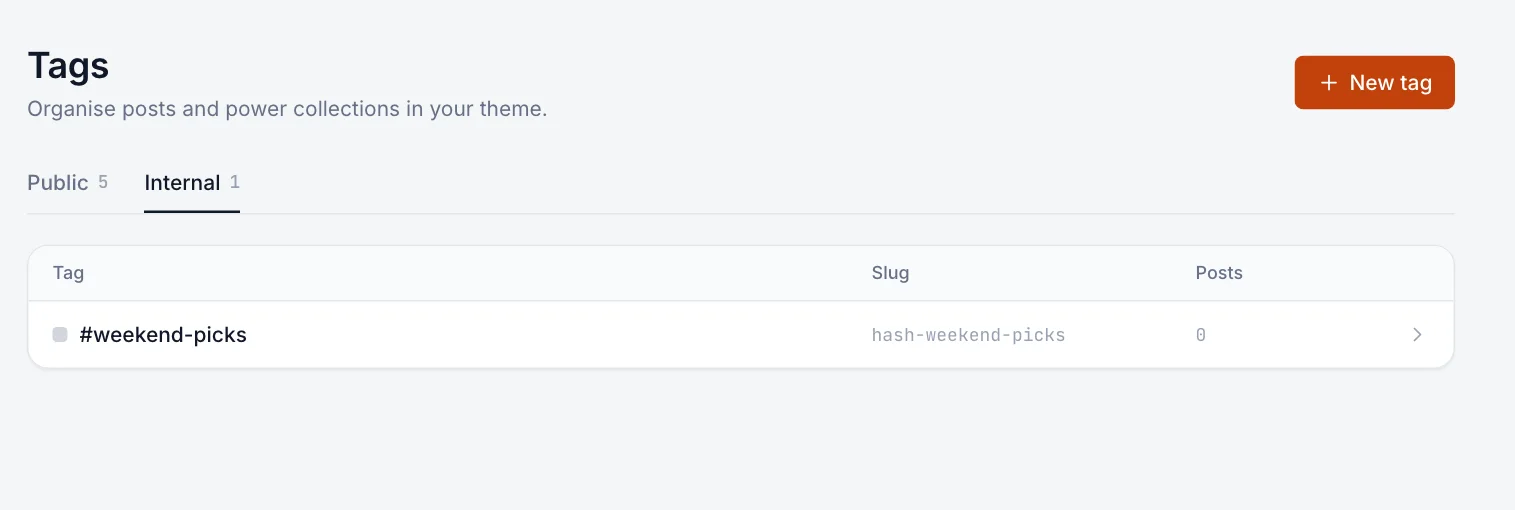
Select Tags in the sidebar. The list shows each tag’s name, its address (slug) and how many posts use it. Switch between Public and Internal at the top.
Create a tag
- On the Tags screen, select New tag.
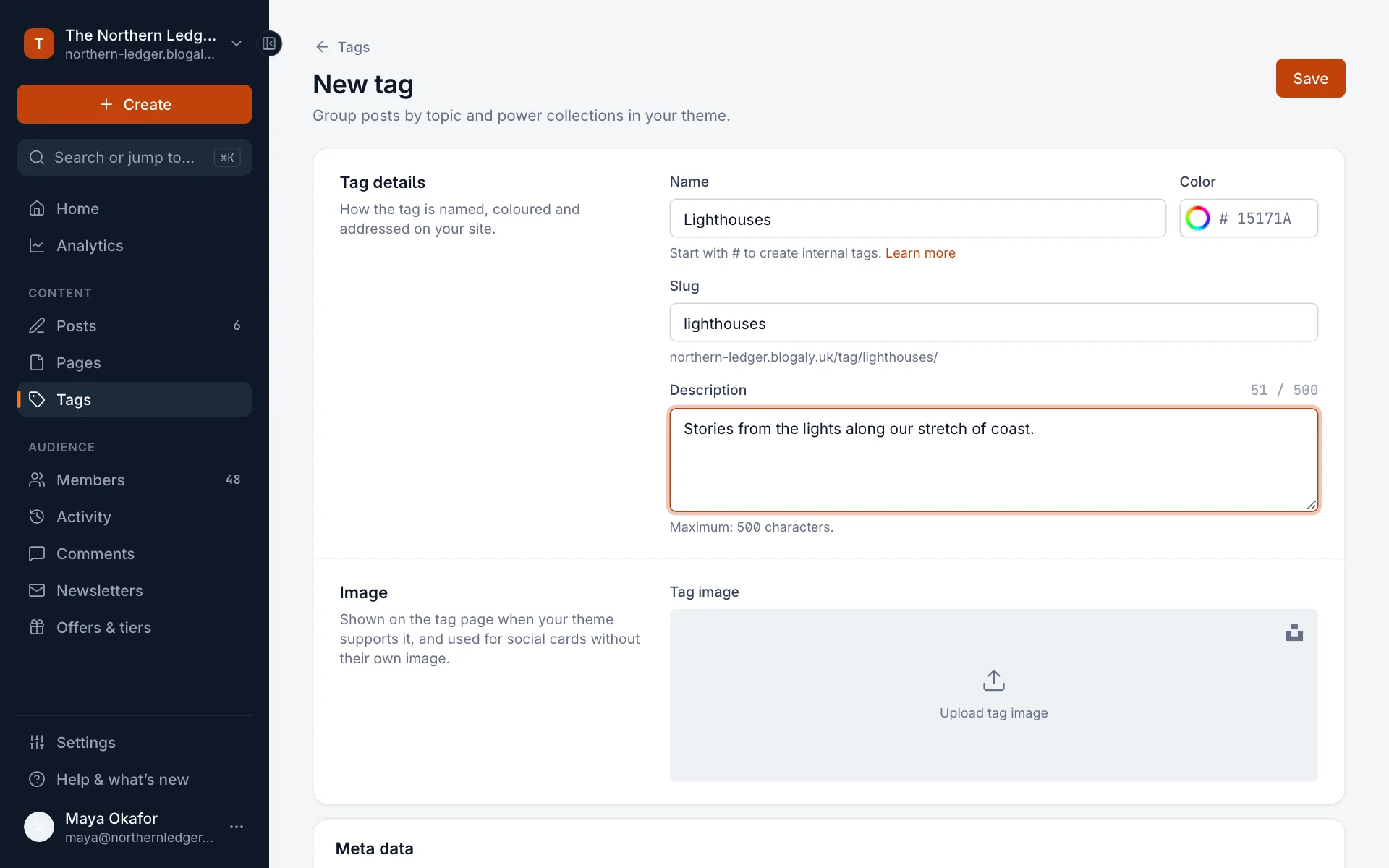
- Type a Name. The Slug fills in from it; this is the end of the tag page’s address, such as
/tag/lighthouses/. - Optionally add a Description (up to 500 characters), a Color and a Tag image. Whether and where these appear depends on your theme.
- Select Save.
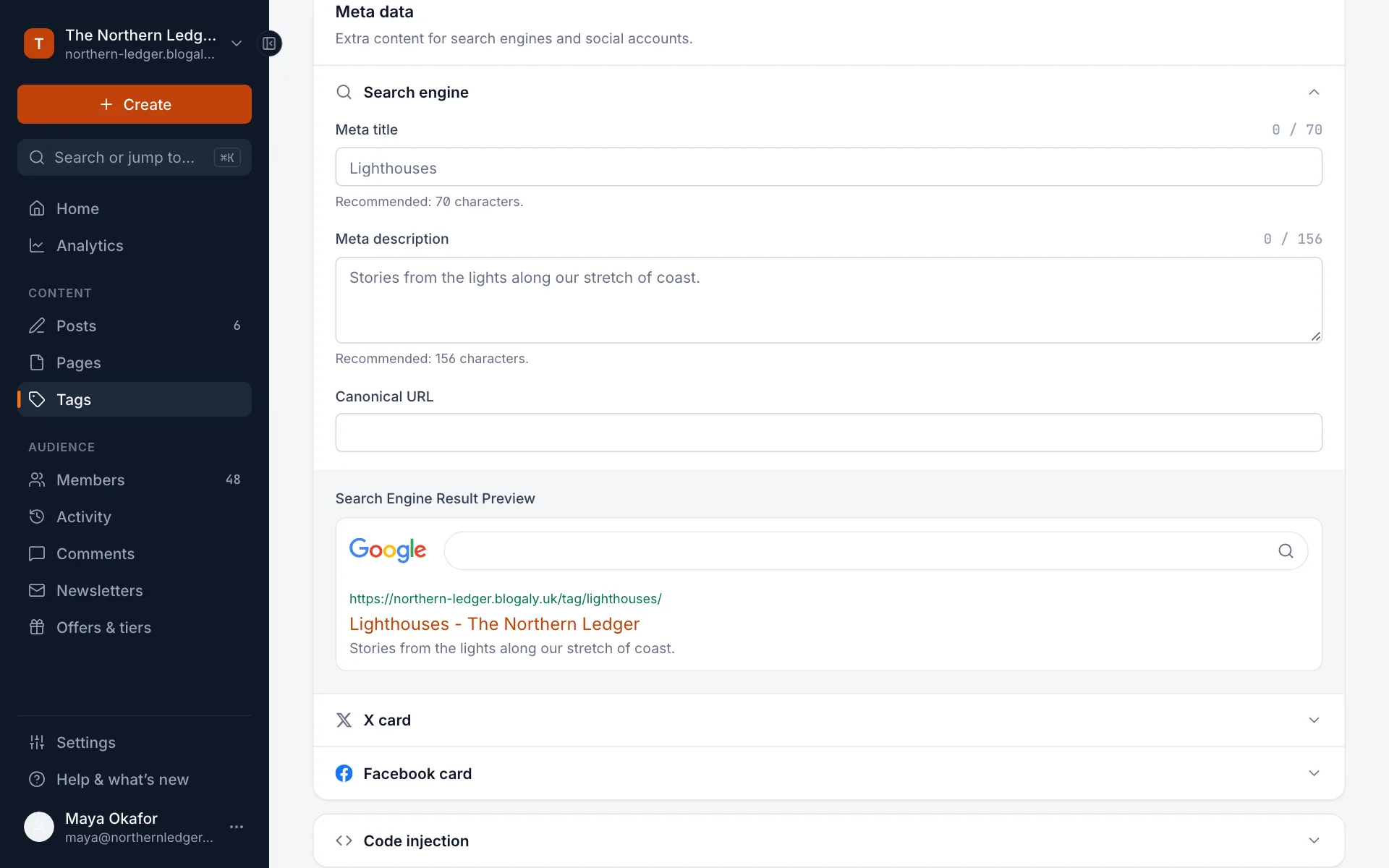
Further down are Meta data (the tag page’s title and description in search results, with a preview, plus a canonical URL), X card and Facebook card (how the tag page looks when shared), and Code injection for code that only runs on that tag’s page. Leave them empty and sensible defaults are used.
Add tags to a post
- In the editor, open Post settings (the panel icon at the top right).
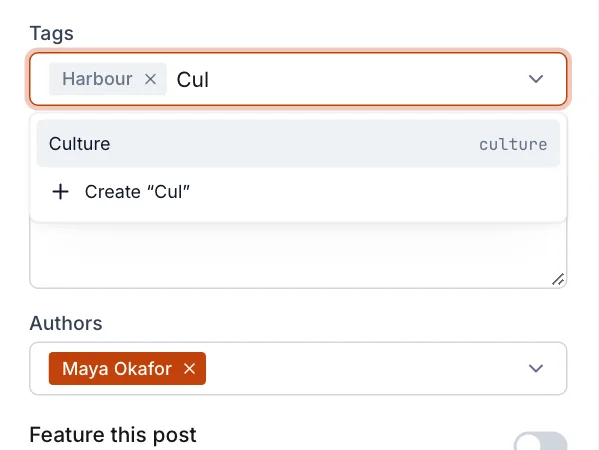
- Under Basics, click Tags and start typing. Pick a tag from the list, or select Create “…” to make a new one on the spot.
- Add as many as you like. To remove one, click it, or press Backspace in the empty field.
Internal (private) tags
Start a tag’s name with # and it becomes an internal tag, for example #weekend-picks or #needs-photo. Internal tags never appear on your site: not on posts, not as tag pages, not in your theme’s tag lists. They’re for you.
- Keep track of work:
#needs-photo,#from-the-archive,#sponsored. - Filter your Posts list by an internal tag to find those posts quickly.
- Collect posts for a special section. Some themes can show posts with a given internal tag in their own place on your site, such as a “Featured” strip.
Tag pages on your site
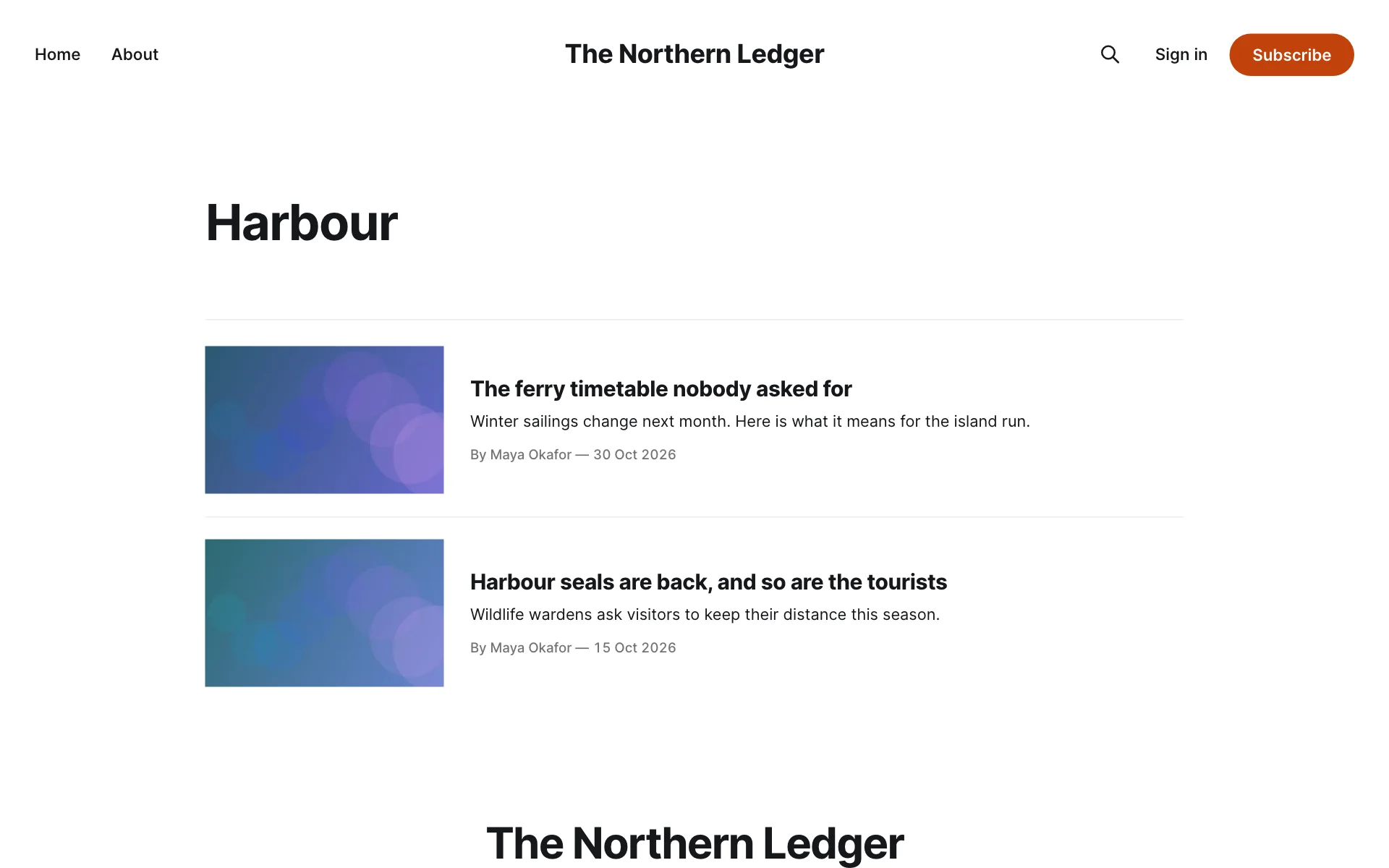
Every public tag with at least one published post has its own page at your-site/tag/slug/, listing its posts newest first. Link to it from your navigation to give a topic its own section. Each tag page also has its own RSS feed at /tag/slug/rss/.
Rename, merge or delete a tag
- Rename: open the tag, change its Name and Save. Every post with the tag updates. If you also change the Slug, the tag page’s address changes and old links to it stop working, so add a redirect.
- Delete: open the tag and select Delete tag at the bottom. The tag is removed from every post; the posts themselves aren’t touched.
- Merge two tags: there’s no merge button. Filter your Posts list by the old tag, add the new tag to those posts, then delete the old one.
Good to know
- A handful of clear tags works better than dozens of one-off ones. Readers browse topics, not keywords.
- Tags and pages are different things: tags group posts; pages are standalone pages like About.
- Only Owners, Administrators and Editors can rename or delete tags. Authors can create a tag by typing a new name in a post’s Tags field.
Last checked against the product on 7 November 2026.
Related
Still stuck?
Tell us what you were trying to do and what you saw, and we’ll help you sort it out.
Contact us