Update your card, invoices and plan
Manage billing in your dashboard opens a secure Stripe page for your payment method and invoices.
Who can do this: The account owner, in the dashboard at dash.blogaly.com.
Your Blogaly subscription is billed through Stripe. You don’t need a Stripe account of your own for this: Stripe simply hosts the billing page, and your card details go to them, never to us.
Open your billing page
- Log in at dash.blogaly.com.
- Select Manage billing, below your list of sites.
- You’re taken to the billing page for your site’s subscription. When you’re done, use the link back to return to your dashboard.
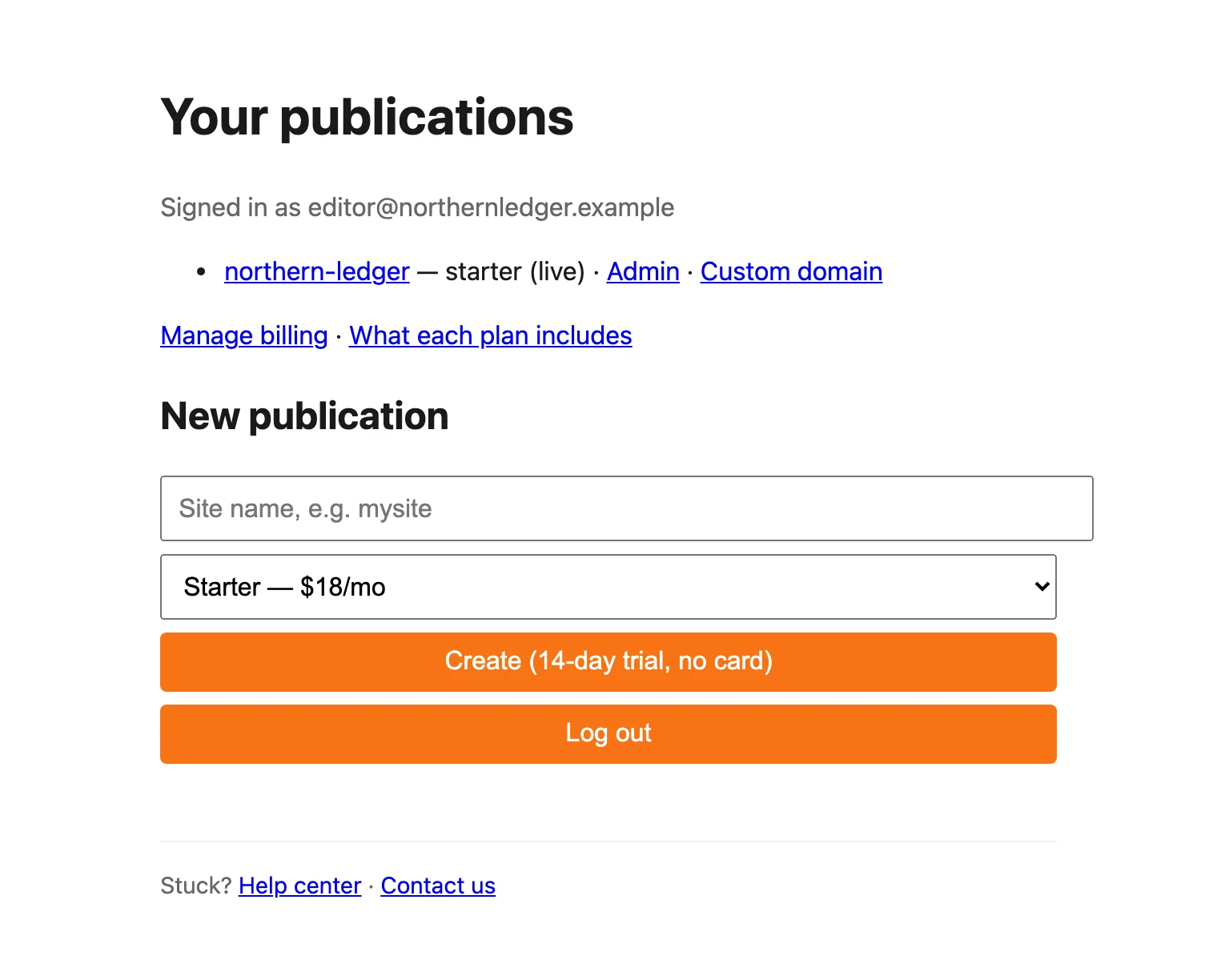
The link appears once your site has a subscription, which is as soon as you create it. If you see Billing portal is unavailable right now. Try again later., wait a few minutes and try again.
What you can do there
- Add or change your payment method. Do this during your free trial to keep your site afterwards, or when a card expires.
- See your invoices and receipts, and download them.
- See your current plan and when the next payment is due.
If a payment fails
Your site stays online while Stripe retries the payment over the following days. Update your card under Manage billing and the next attempt should go through. If every retry fails, the site is paused until it’s paid. See why a site is paused.
Good to know
- Prices are in US dollars, billed monthly. Your bank may add a fee for paying in another currency.
- This is for your Blogaly plan only. Payments from your own paid members go to your own Stripe account, connected in your site’s admin. See connect Stripe.
- Need a different name, address or tax number on invoices? Check the billing page first; if you can’t change it there, contact us.
Last checked against the product on 7 November 2026.
Related
Still stuck?
Tell us what you were trying to do and what you saw, and we’ll help you sort it out.
Contact us