The signup and account pop-up
How readers sign up and manage their account on your site, and how to choose who can join and what the pop-up looks like.
Who can do this: Administrators. Paid options appear on Publisher and Business once Stripe is connected.
Every Blogaly site has a built-in pop-up where readers sign up, sign in and manage their account. It opens over your site, so there’s no separate page to build. Your theme’s Subscribe and Sign in buttons open it, and so do the links listed below.
What a reader sees
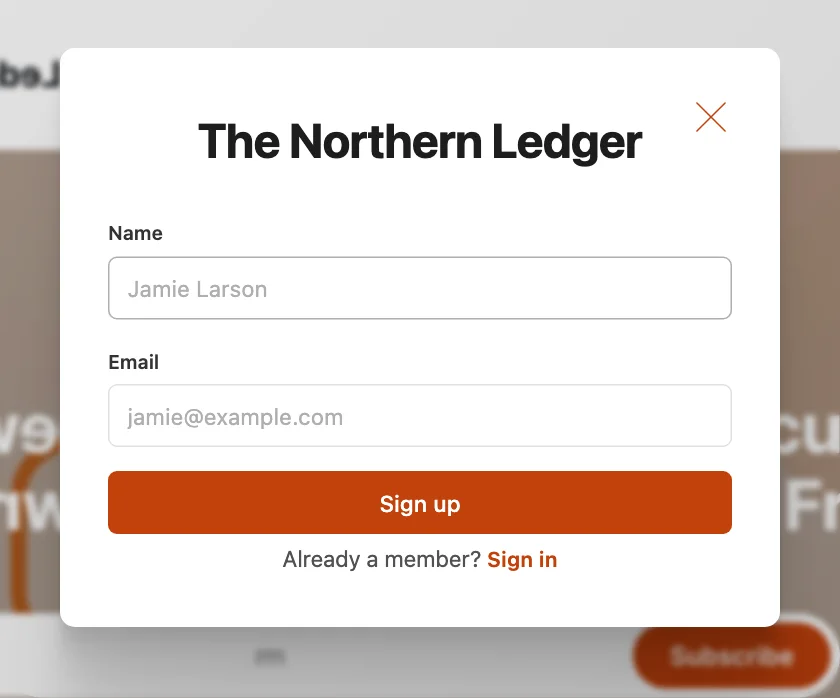
- They select Subscribe on your site and the pop-up opens, with your site name, a name field (optional, see below) and an email field.
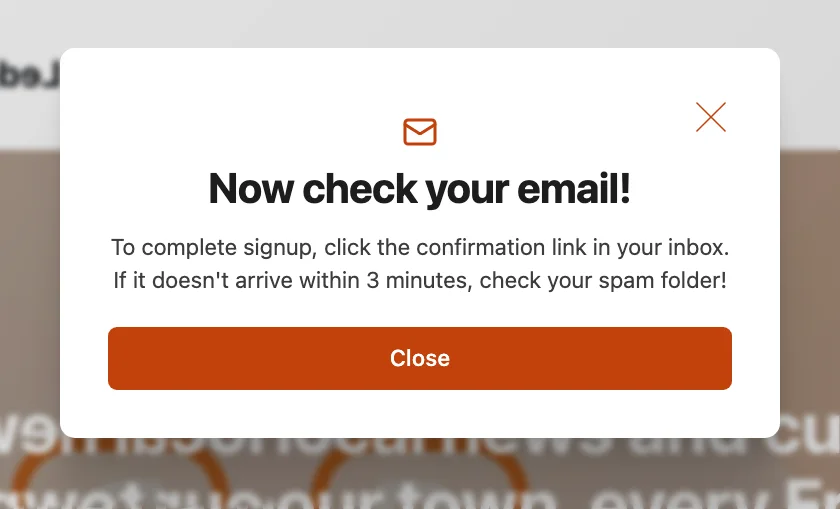
- They enter their details and select Sign up. The pop-up asks them to check their email.
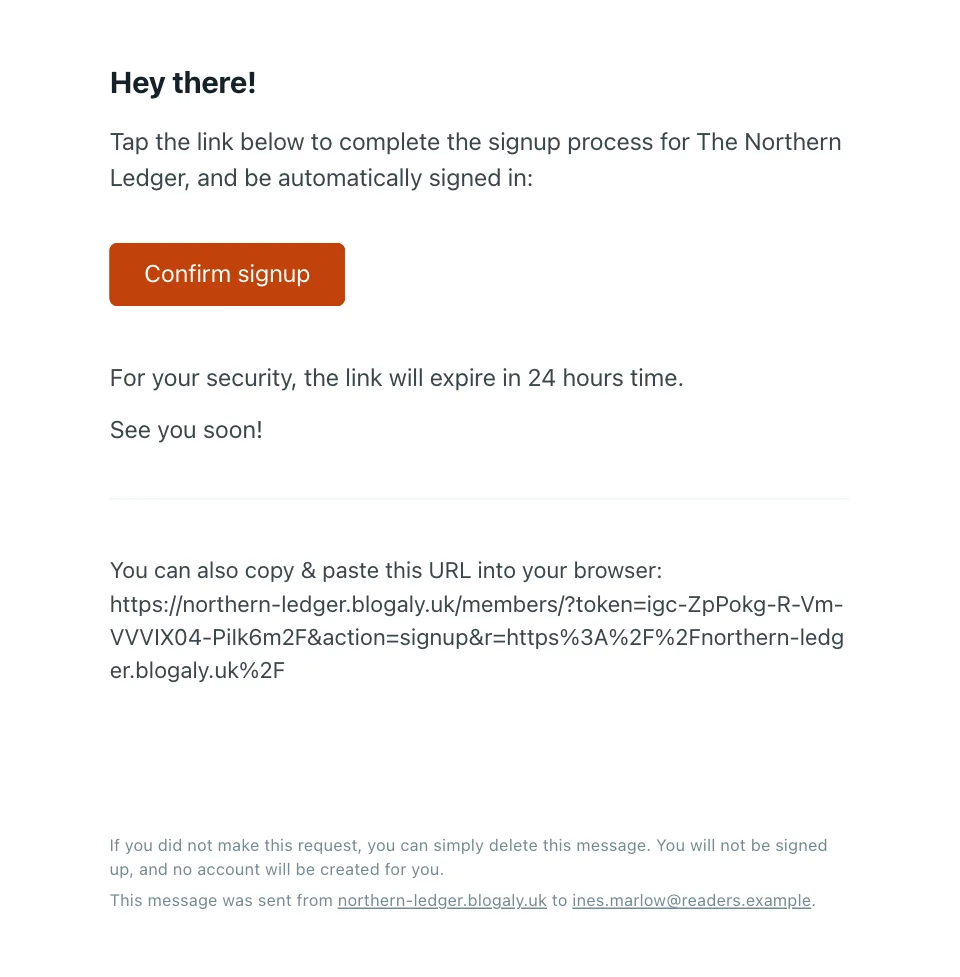
- They open the email and select Confirm signup. That signs them in and makes them a member. The link works for 24 hours.
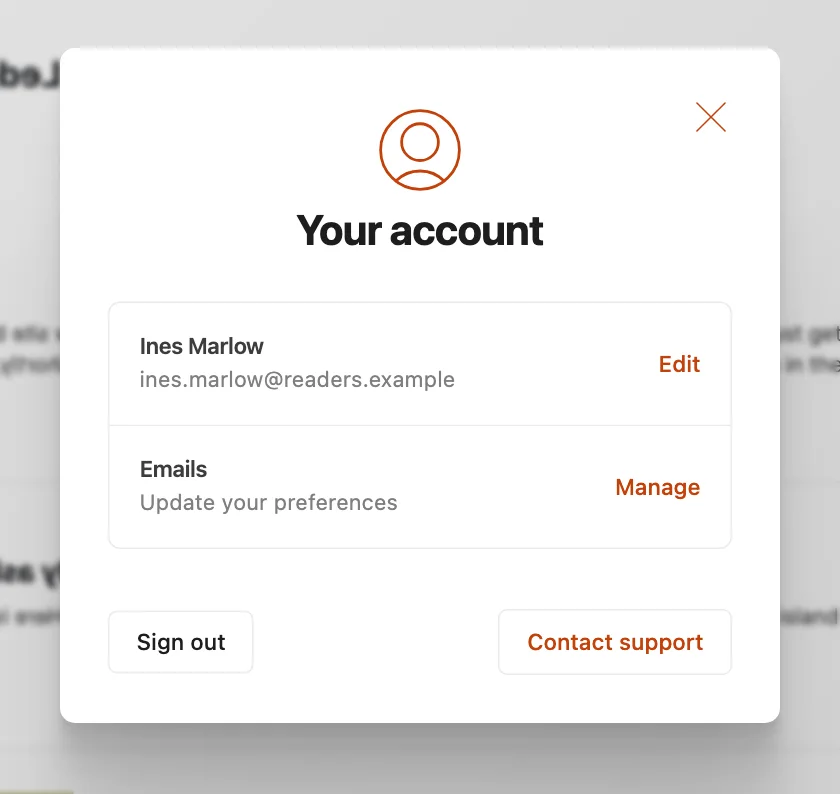
- From then on, Account on your site opens their account: their details, email preferences, and a way to contact you.
If you’ve switched on a welcome email, it arrives right after they confirm.
Who can sign up
Go to Settings → Access.
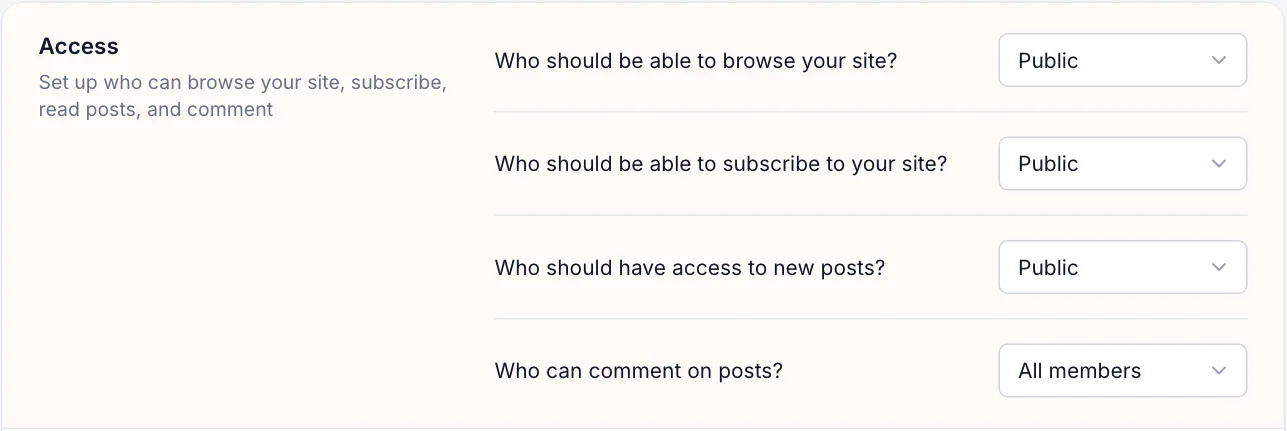
| Who should be able to subscribe to your site? | What happens |
|---|---|
| Public | Anyone can sign up and sign in. |
| Paid-members only | A paid subscription is required to sign up. Needs Stripe. |
| Invite-only | People you’ve added can sign in, but nobody new can sign up. |
| Nobody | Turns off all member features, including the pop-up, sign-in and newsletters. |
The same section sets whether the site is Public or Private (behind an access code), who can read new posts by default, and who can comment.
Customise the pop-up
- Go to Settings → Signup portal and select Customize.
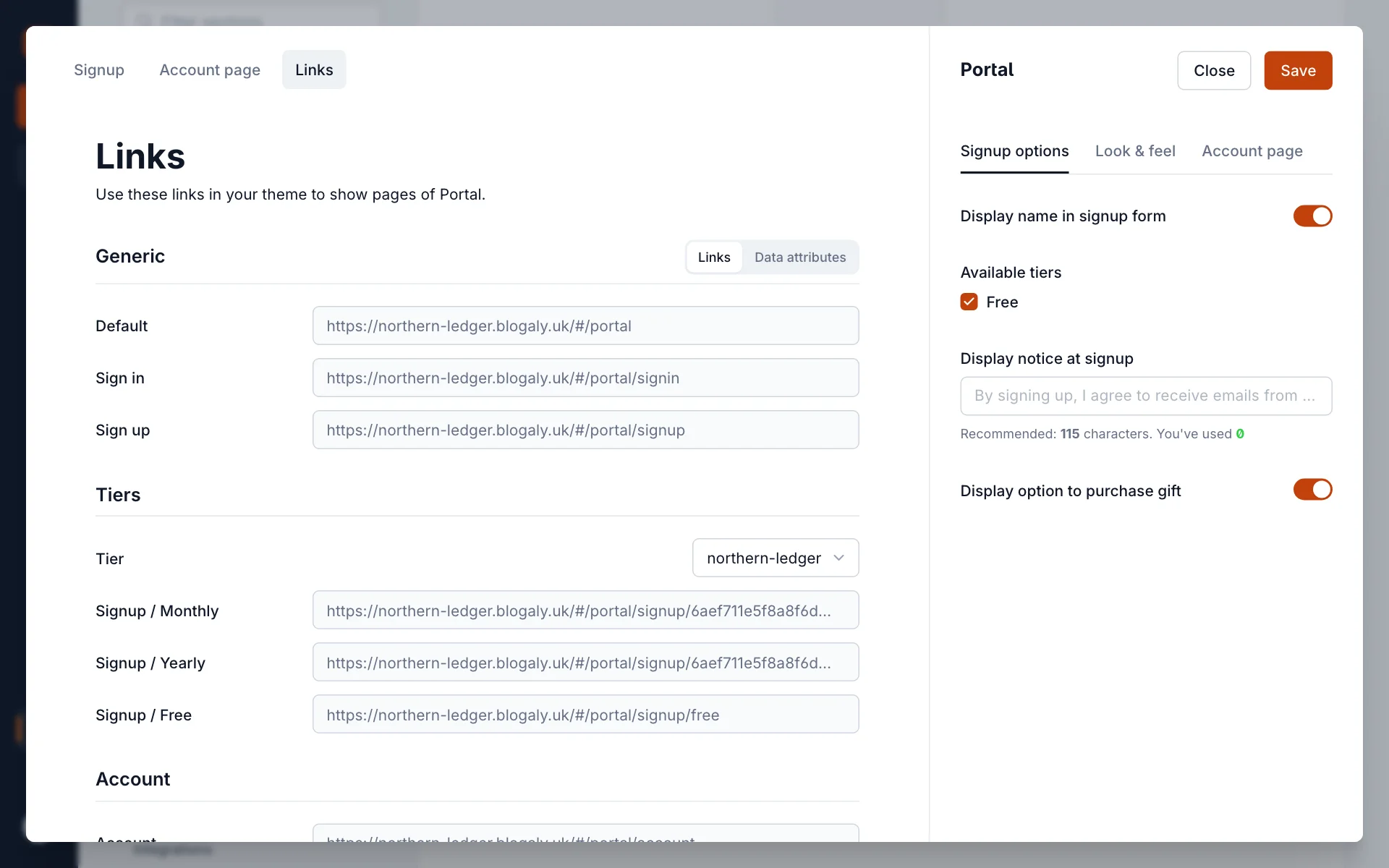
- Use the three tabs on the right. The preview on the left shows the result, and the Signup, Account page and Links buttons above it switch what you’re previewing.
- Select Save.
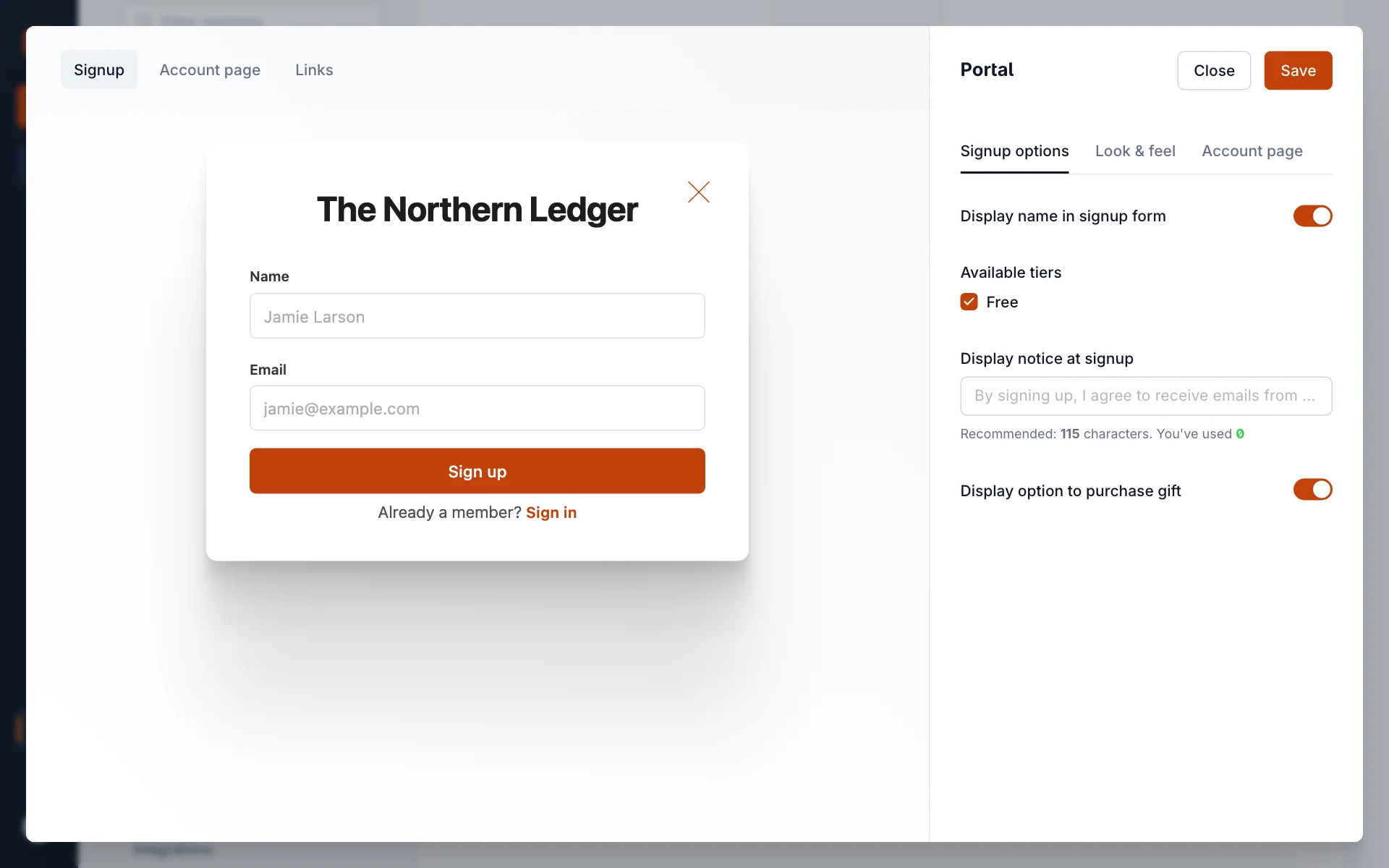
| Signup options | What it does |
|---|---|
| Display name in signup form | Asks for a name as well as an email. Turn it off for the shortest possible form. |
| Available tiers | Which tiers readers can choose when signing up. With only Free, sign-up is free. |
| Display notice at signup | A line of text under the form, such as “By signing up, I agree to receive emails from…”. Keep it short: about 115 characters. |
| Require agreement | Appears once you add a notice. Readers must tick a box before they can sign up. |
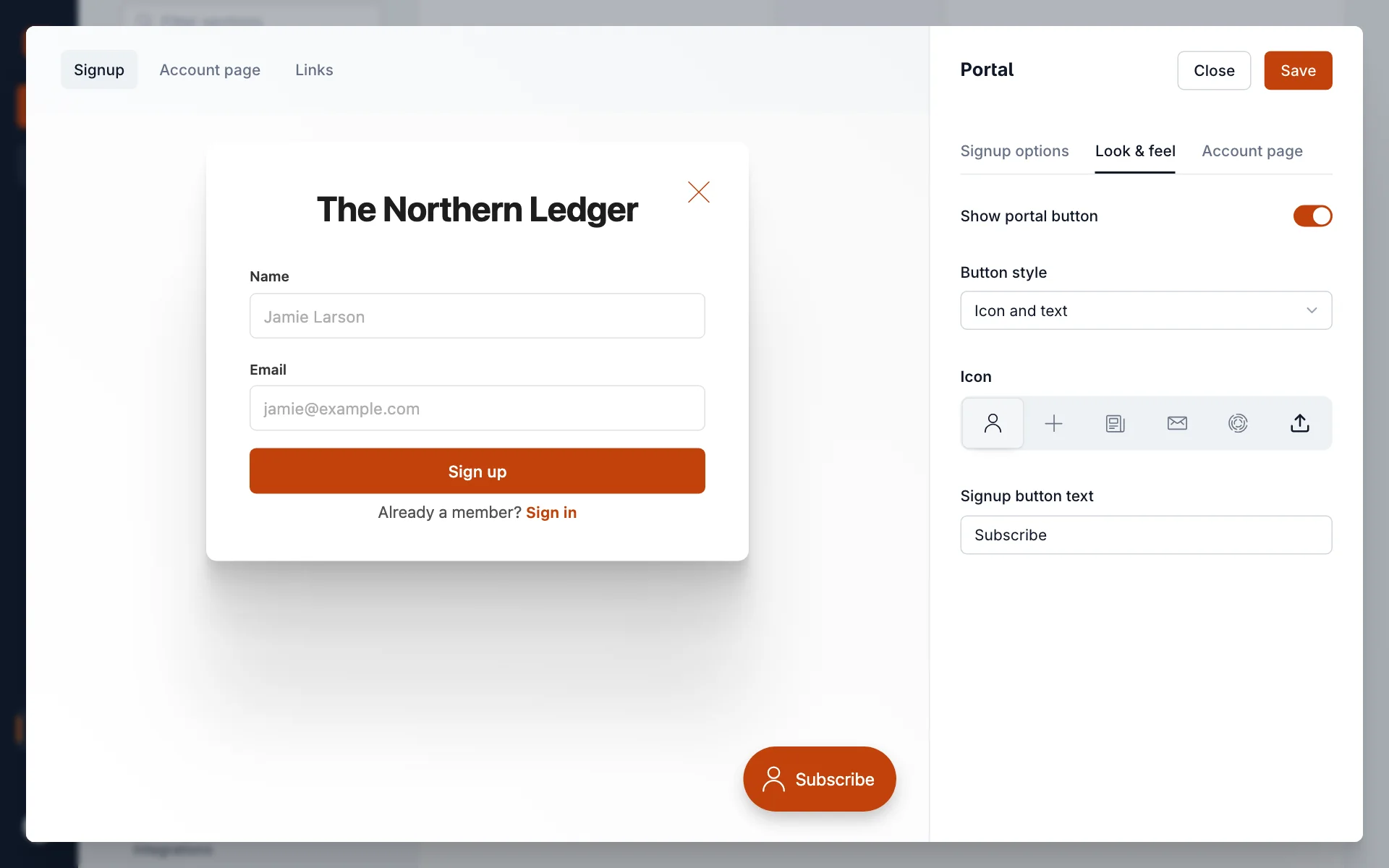
On Look & feel, Show portal button adds a floating button to the bottom corner of every page. Choose the Button style (icon and text, icon only, or text only), an Icon, and the Signup button text. Many themes already have their own Subscribe buttons, so you may not need it. The pop-up uses your site’s accent colour from Design & branding.
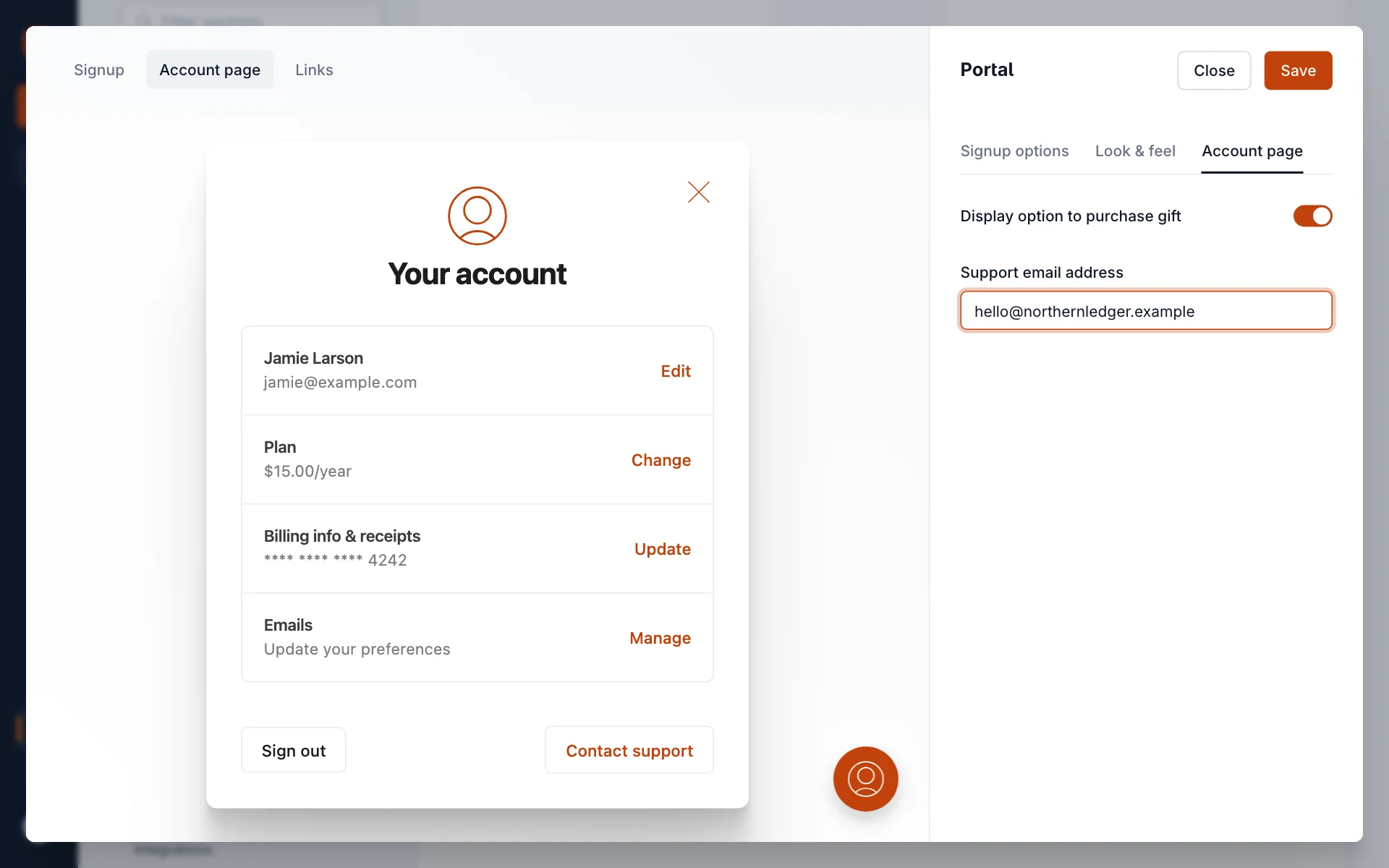
On Account page, set the Support email address: where Contact support in a reader’s account goes. Use an inbox you read. When you change it, we send a confirmation link to the new address first.
Link to the pop-up from anywhere
The Links preview lists addresses that open the pop-up directly. Put them in your navigation, a post or a button: /#/portal/signup opens sign-up, /#/portal/signin opens sign-in, and /#/portal/account opens a member’s account.
Good to know
- Members never set a password. Each time they sign in, we email them a link.
- Sign-up and sign-in emails come from Blogaly’s sending address, with your site’s name. Readers who don’t see one should check spam. See How delivery works.
- New members are added to every newsletter that has Subscribe new members on signup turned on. See Set up your newsletters.
- Sign-up forms built into your theme use the same flow and send the same confirmation email.
Last checked against the product on 7 November 2026.
Related
Still stuck?
Tell us what you were trying to do and what you saw, and we’ll help you sort it out.
Contact us