Log in to your dashboard, reset your password
Log in at dash.blogaly.com, reset a forgotten password, and fix the usual sign-in problems.
Blogaly has two logins, and it helps to know which is which:
| Where | For | |
|---|---|---|
| Dashboard | dash.blogaly.com | Your account: creating your site, billing, custom domains. |
| Site admin | your-name.blogaly.uk/admin | Your site: writing, members, newsletters, settings. See sign in to your admin. |
They have separate passwords, even if you use the same email address for both. Resetting one doesn’t change the other. This article is about the dashboard.
Log in
- Go to dash.blogaly.com. If you aren’t logged in, you’ll see Welcome back.
- Enter the email address and password you signed up with, and select Log in.
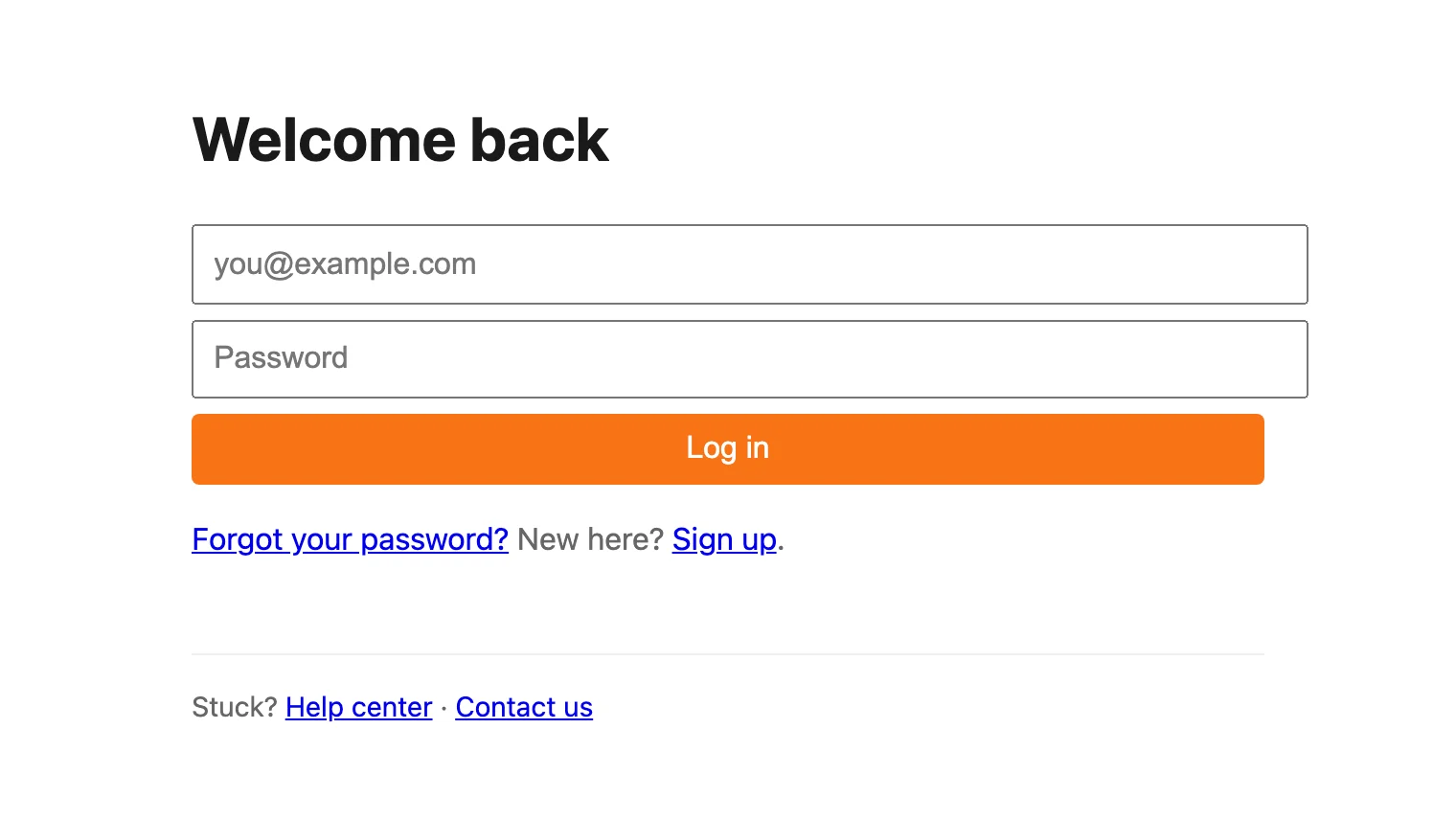
You stay logged in on that browser for up to 30 days, or until you haven’t used the dashboard for 3 days. Log out is at the bottom of the dashboard.
Reset a forgotten password
- On the login page, select Forgot your password?
- Enter your email address and select Email me a link.
- Open the email titled Reset your Blogaly password and select Choose a new password.
- Enter a new password of 10 to 200 characters and select Save password.
- Log in with your new password.
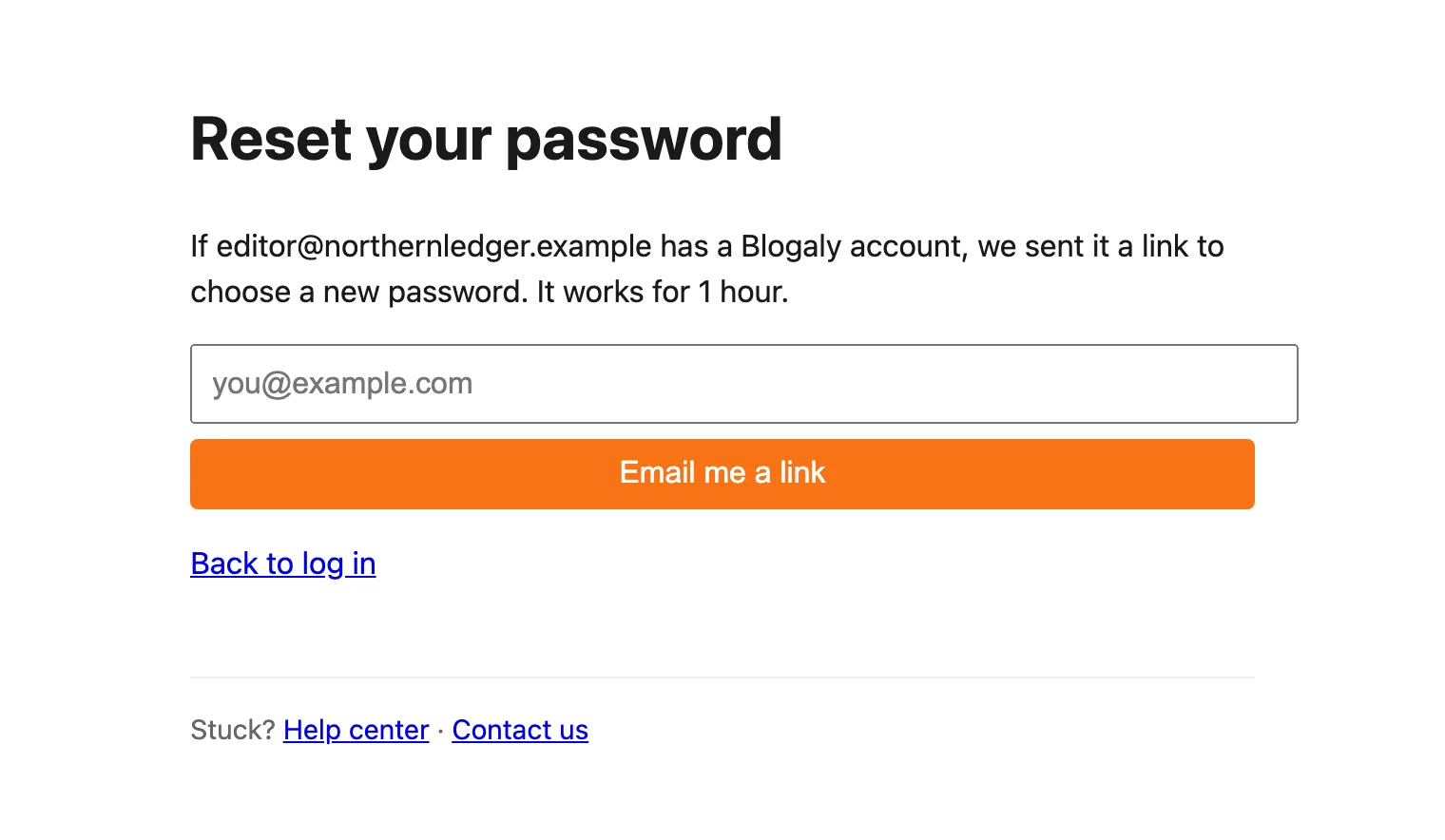
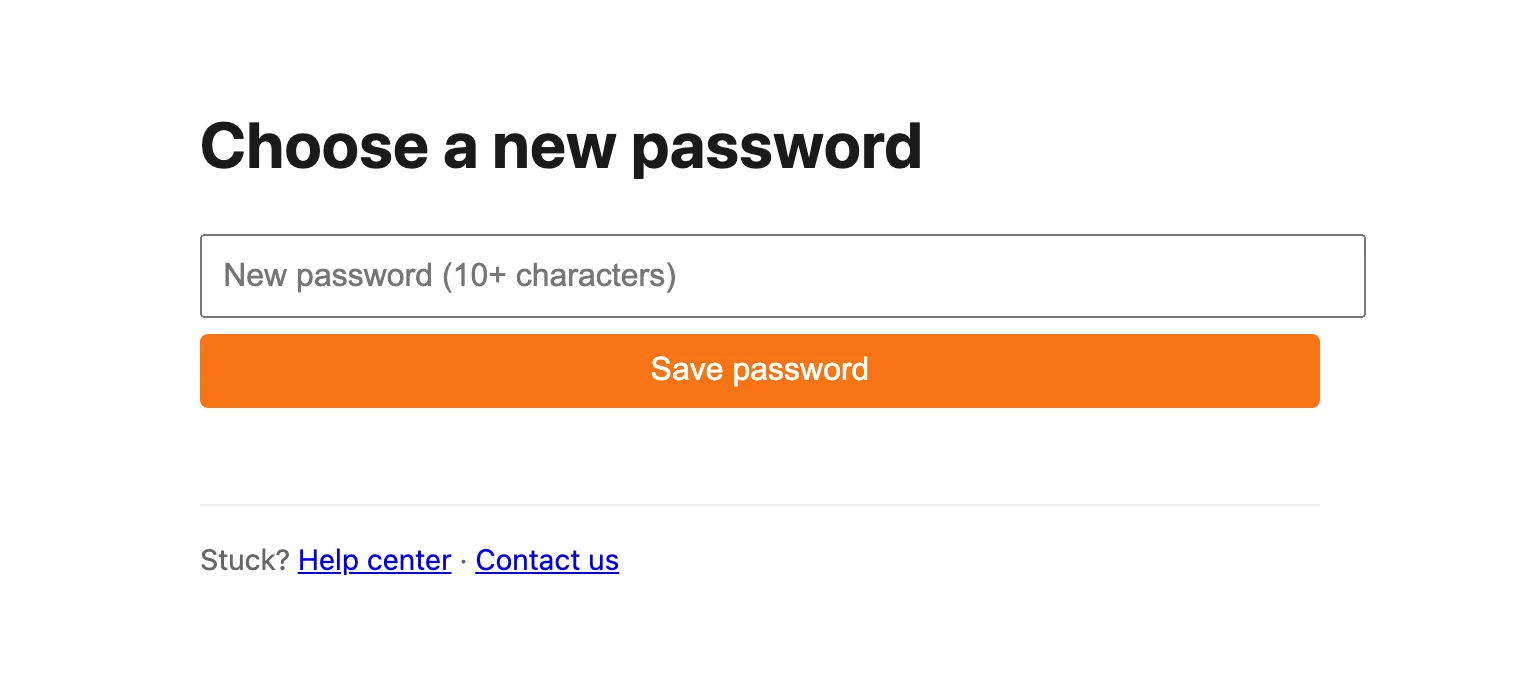
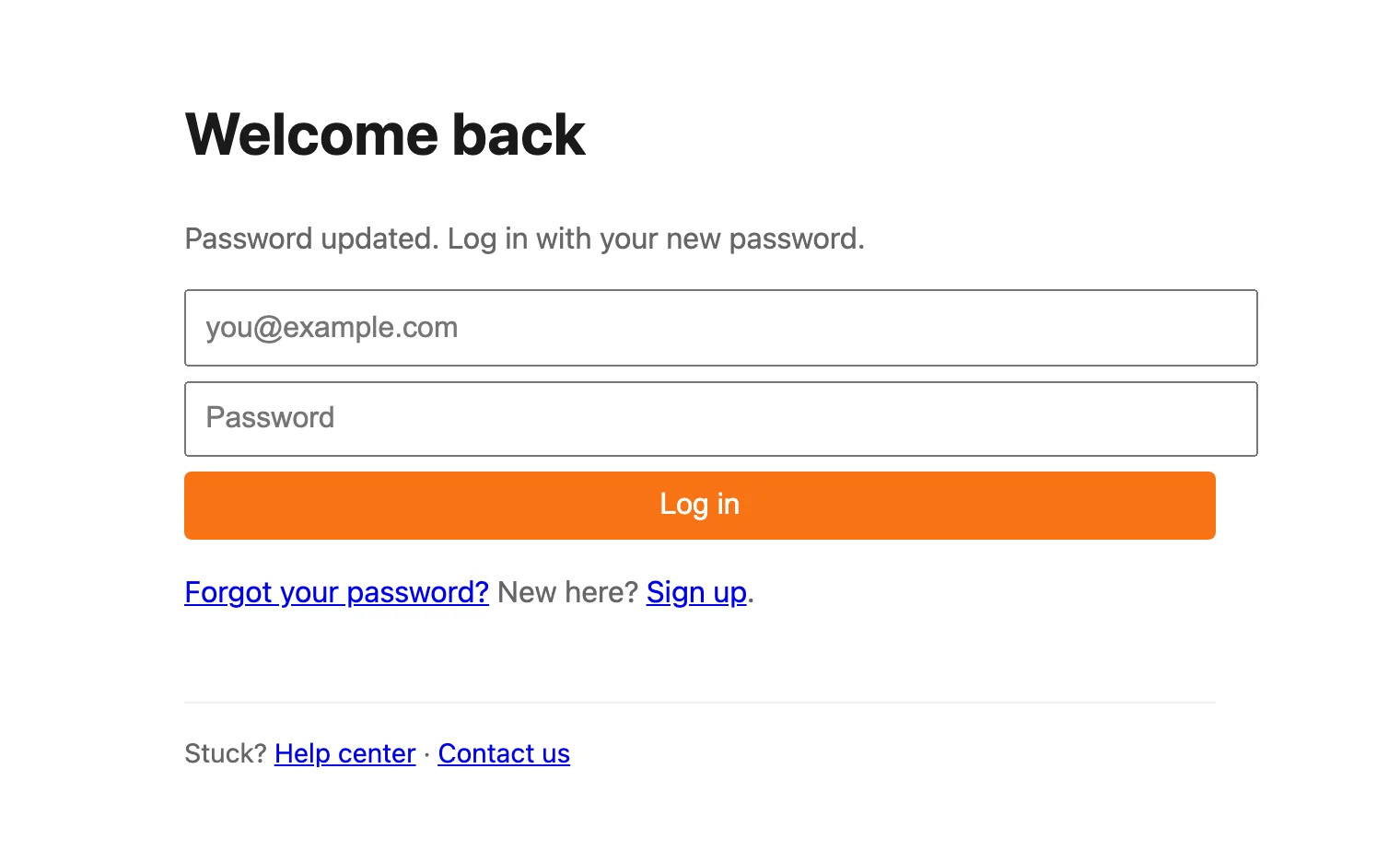
- The link works once, for 1 hour. If it’s older, you’ll see That link expired or was already used. Ask for a new one. Request another.
- Resetting logs you out everywhere, on every device. That’s deliberate: if someone else had your password, they’re out too.
- No email after a few minutes? Check spam, and that you typed the address you signed up with. You can ask for up to 3 links an hour.
Login messages
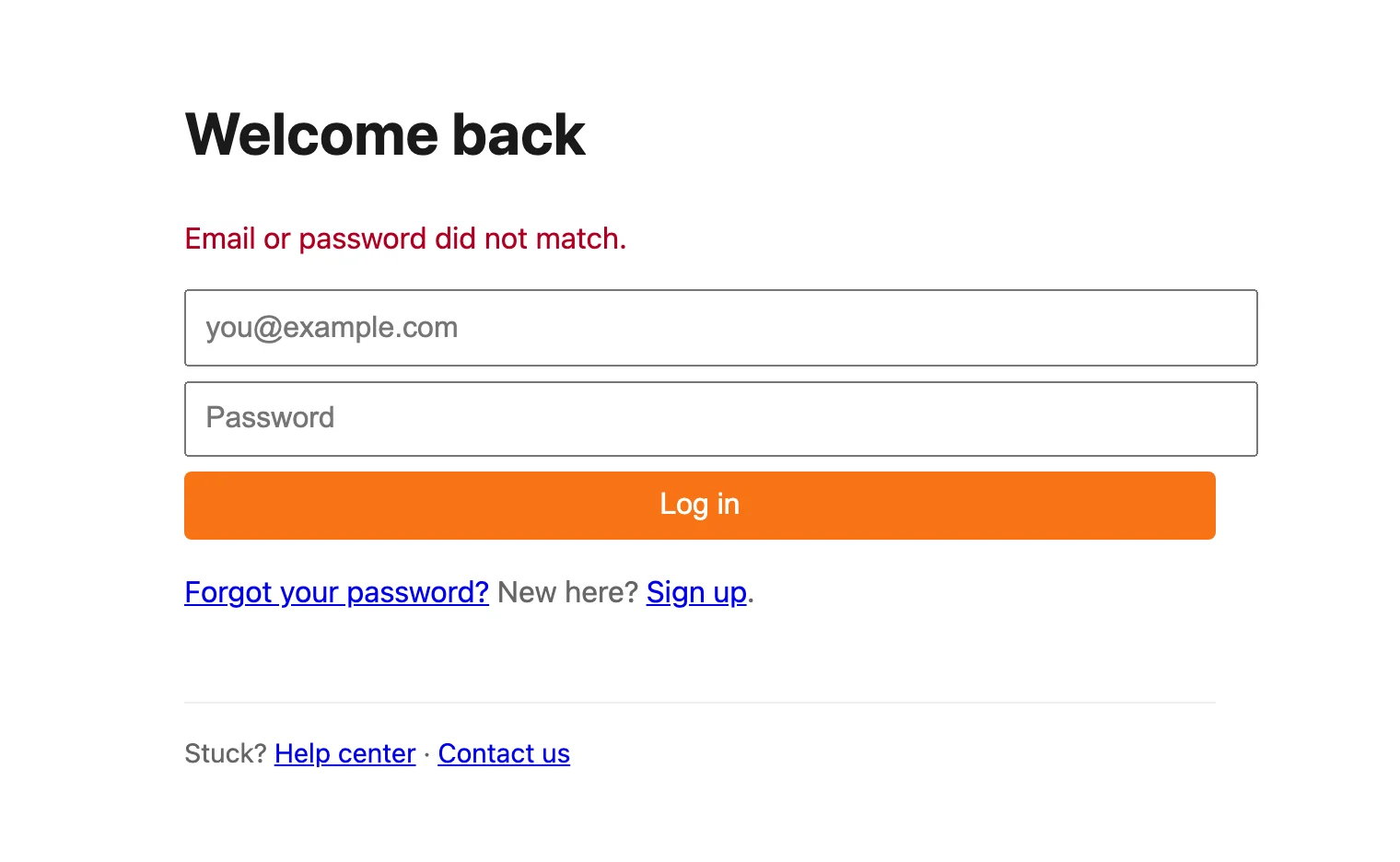
| Message | What to do |
|---|---|
| Email or password did not match. | Check the address for typos, and that you’re using your dashboard password, not your site admin password. Still stuck? Reset it. |
| Too many attempts. Wait a few minutes, or reset your password. | After 5 wrong passwords, that email is locked for a minute, then for longer with each further miss, up to an hour. Resetting your password unlocks it straight away. |
| Please try again in a minute. | Too many requests from your network in a short time. Wait a minute. |
Asked to confirm your email?
New accounts need to confirm their email address before creating a site. Until you do, logging in shows Confirm your email.
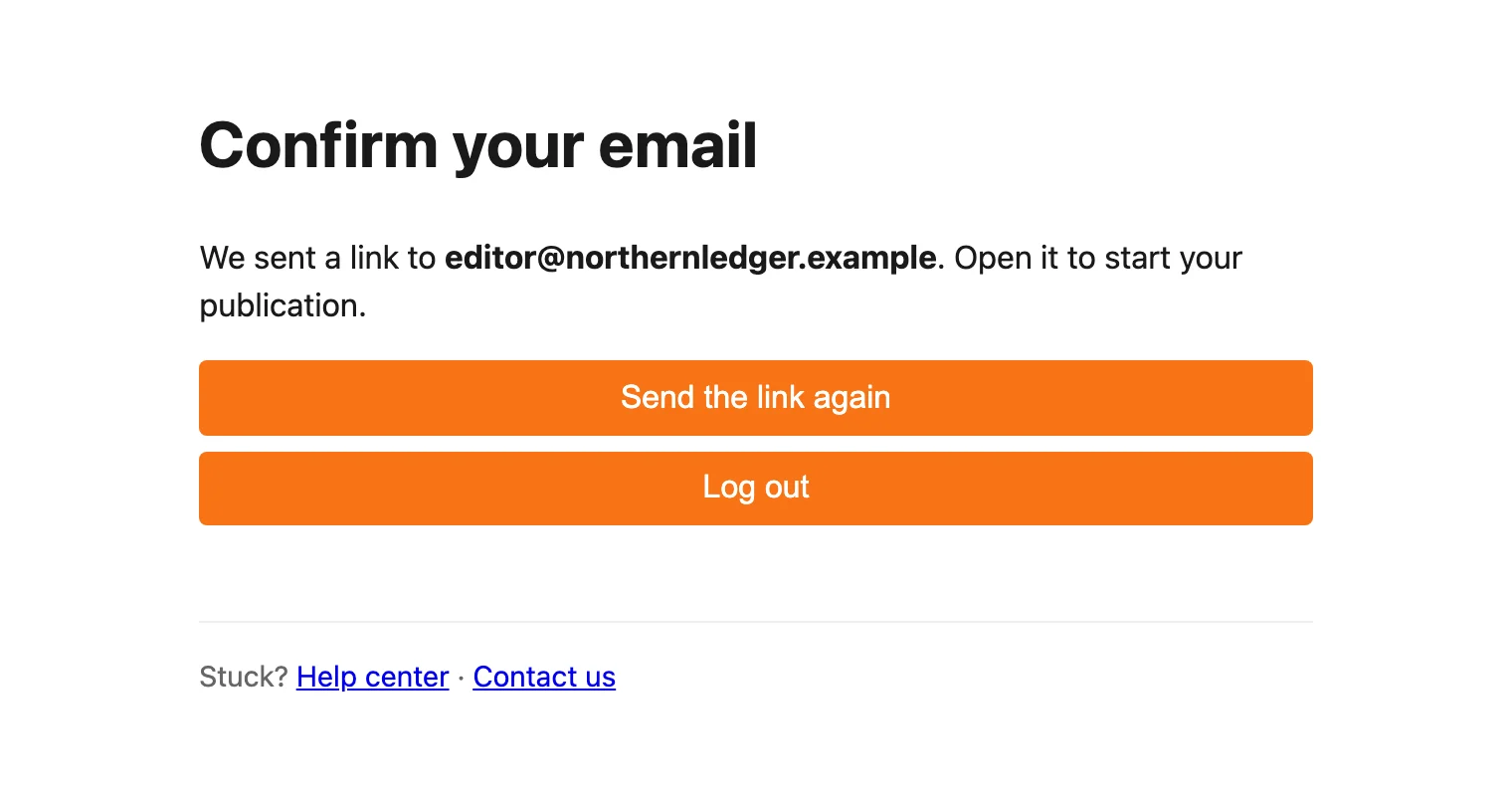
- Open the email titled Confirm your email for Blogaly and select Confirm my email. The link works for 24 hours.
- Lost it or it expired? Select Send the link again. You can ask once a minute.
- Resetting your password also confirms your email, since the link proves the inbox is yours.
- Accounts that aren’t confirmed within 48 hours are removed. Just sign up again.
Good to know
- To change your password while logged in, log out and use Forgot your password? There’s no separate setting for it.
- You can’t change the email address on your account from the dashboard. Contact us from your current address.
- Lost access to the email address itself? Contact us. We’ll need to check it’s really you before making any change.
Last checked against the product on 7 November 2026.
Related
Sign in to your site’s adminSign in at your-name.blogaly.uk/admin, reset a forgotten password, and use the code we email when you sign in on a new device.Create your publicationSign up, pick a name and a plan, and your site is live at name.blogaly.uk a few minutes later.Contact usHow to reach a person at Blogaly, and what to include so we can help on the first reply.How Blogaly keeps your site safeHTTPS everywhere, staff roles, sign-in codes and nightly off-site backups, plus what to do if an account is compromised.
Still stuck?
Tell us what you were trying to do and what you saw, and we’ll help you sort it out.
Contact us