Universal import: upload a JSON export
Bring a whole publication across from another publishing platform by uploading its JSON or zip export.
Who can do this: Administrators and the site owner.
Some publishing platforms export a whole site as one JSON file: posts, pages, tags, authors, tiers, newsletters and settings. Universal import reads that file. It’s also how you move content from one Blogaly site to another, using the file from Export your data.
Coming from Substack, WordPress or Medium? Use the importer for your platform instead; see import your content.
Upload your export
- Go to Settings → Advanced → Migration tools and stay on the Import tab.
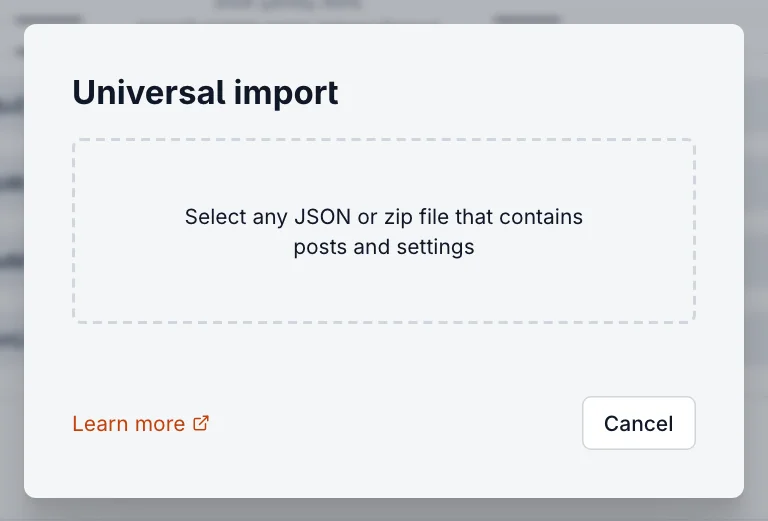
- Select Universal import.
- Drop your
.jsonor.zipfile onto the box, or click it to choose the file. The upload starts straight away. - Select Got it on the Import in progress message. We email you when the import is finished, usually within a few minutes.
JSON or zip?
- A JSON file brings in text, structure and settings. Images stay at their old addresses, so they only keep working while the old site is online.
- A zip file can hold the JSON file together with an
imagesfolder from your old site. Images in the zip are uploaded to your Blogaly site, so posts don’t depend on the old one.
What comes across
| Imported | Not imported |
|---|---|
| Posts and pages, with their tags, authors and dates | Members (import them as a CSV) |
| Tags and their descriptions | Comments |
| Tiers, offers and newsletters | Email statistics and analytics |
| Snippets | Themes (upload them under Design) |
| Most site settings | Payment connections and API keys |
Good to know
- Imports add to your site; they don’t remove anything. A post that already exists with the same address is skipped.
- Staff in the file are added so posts keep their authors. They arrive as Contributors and must reset their password before they can sign in. You can raise their role within your plan’s staff limit.
- Import members from a CSV separately, then add redirects if your old addresses differ.
- Universal import doesn’t take spreadsheets of posts (CSV files).
- If the import fails, the email tells you why. Common causes are a file from a much older version of your old platform or a file that was edited by hand. Get in touch and send us the error.
Last checked against the product on 7 November 2026.
Related
Import your contentBring your posts, pages and subscribers to Blogaly from Substack, WordPress, Medium or another publishing platform.Export your content, members and imagesDownload your posts, settings, members, analytics, theme, redirects and images, for a backup or to move elsewhere.Import members from a CSVBring your subscribers to Blogaly from a spreadsheet or another platform’s export: upload, match the columns, label them and import.Keep old links working with redirectsSend visitors from old addresses to the right page, and change how your site’s addresses are built with a routes file.
Still stuck?
Tell us what you were trying to do and what you saw, and we’ll help you sort it out.
Contact us