How delivery works, and how to keep it good
Blogaly sends your newsletters and member emails for you. Here’s what we handle, what you control, and how to stay out of spam folders.
Who can do this: Anyone sending newsletters. Works the same on every plan.
There’s no email service to sign up for and nothing to configure. Every Blogaly site sends through our own sending service from the day it’s created. That covers your newsletters and the emails members get automatically: signup and sign-in links and welcome emails.
What we handle
- Sending. Large lists go out in batches, so a send to thousands of readers finishes in minutes.
- Authentication. Mail is sent from a sending address Blogaly manages for your site and is signed so inbox providers can check it really comes from us. This is the single biggest factor in landing in the inbox.
- Unsubscribes. Every newsletter has an Unsubscribe link, and email apps that offer a one-click unsubscribe button (Gmail, Apple Mail and others) can use it too.
- Bounces and complaints. If an address bounces permanently or a reader marks your email as spam, we stop sending to it automatically. See Disabled email addresses.
What you control
For each newsletter, in Settings → Newsletters → Edit, you choose the Sender name readers see and the Reply-to email their replies go to. The sending address itself is fixed.
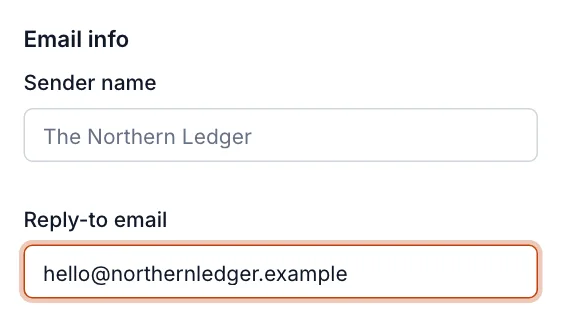
When you change the reply-to, we email that address a confirmation link. The change applies once it’s confirmed, so a typo can’t send your readers’ replies to a stranger.
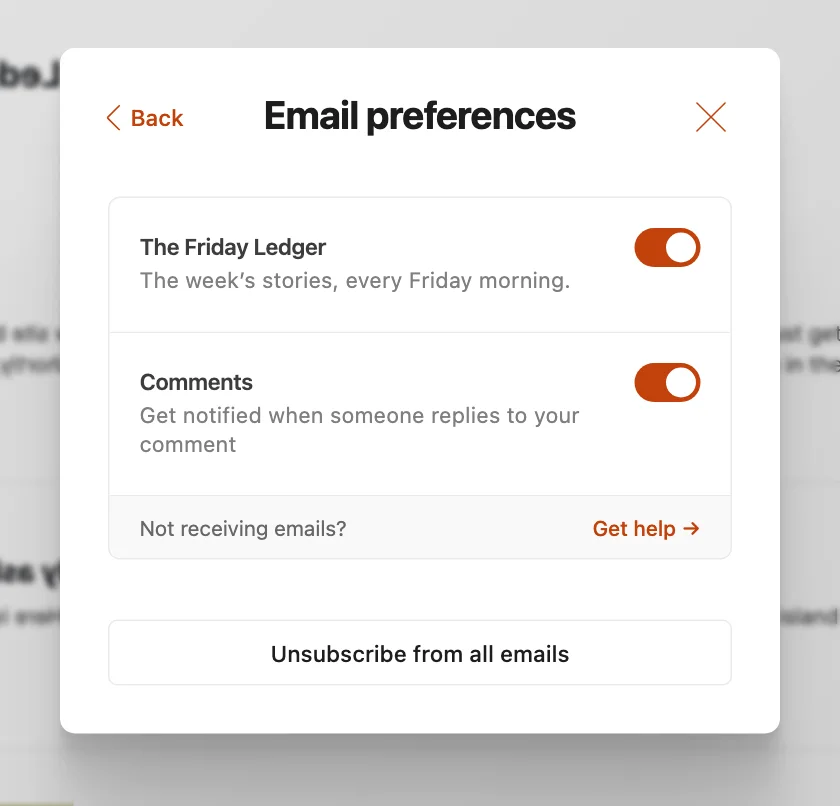
Readers control what they get from their account on your site. Email preferences lists each newsletter with a switch, plus an option to unsubscribe from everything.
Keep delivery good
- Only email people who asked. Never import a bought list or contacts who didn’t sign up. Complaints from people who don’t know you hurt delivery for your whole list.
- Clean up old lists before importing. Addresses that haven’t opened in years tend to bounce or ignore you, and inbox providers notice.
- Send regularly. A steady rhythm, weekly or monthly, keeps readers expecting you. A sudden send after a year of silence often lands in spam.
- Write subject lines like a person. Avoid all-caps, lots of exclamation marks and “free!!!”.
- Ask readers to reply. Replies are a strong signal that your mail is wanted. A welcome email that invites a reply is an easy start.
- Test first. Send yourself a test of every issue and open it on your phone.
- Keep images light. Very large images make emails slow and some apps hide images until the reader allows them.
A reader says your email didn’t arrive
- Ask them to check spam, promotions and other folders, and to search for your site’s name.
- In Members, open their profile. Check they’re subscribed to the newsletter, and look for an Email disabled notice under Newsletters.
- Check the address for typos. If it’s wrong, correct it on their profile.
- Ask them to add your sending address to their contacts, and to mark a newsletter as “Not spam” if it landed there.
Good to know
- Opens and clicks for each email appear in newsletter analytics. Some email apps load images automatically, which can make open rates look higher than they are.
- Members over your plan’s limit pause sending. See Send a post as an email.
- Something still not right? Contact us with the post’s title and the reader’s address.
Last checked against the product on 7 November 2026.
Related
Still stuck?
Tell us what you were trying to do and what you saw, and we’ll help you sort it out.
Contact us