Send a post as an email
Choose publish and email, publish only, or email only, pick who gets it, preview and test it, then send now or on a schedule.
Who can do this: Staff who can publish posts. Contributors can’t publish, so they don’t see this screen.
Sending a newsletter is part of publishing. When a post is ready, you decide in one screen whether it goes to your site, to your subscribers’ inboxes, or both.
1. Open the publish screen
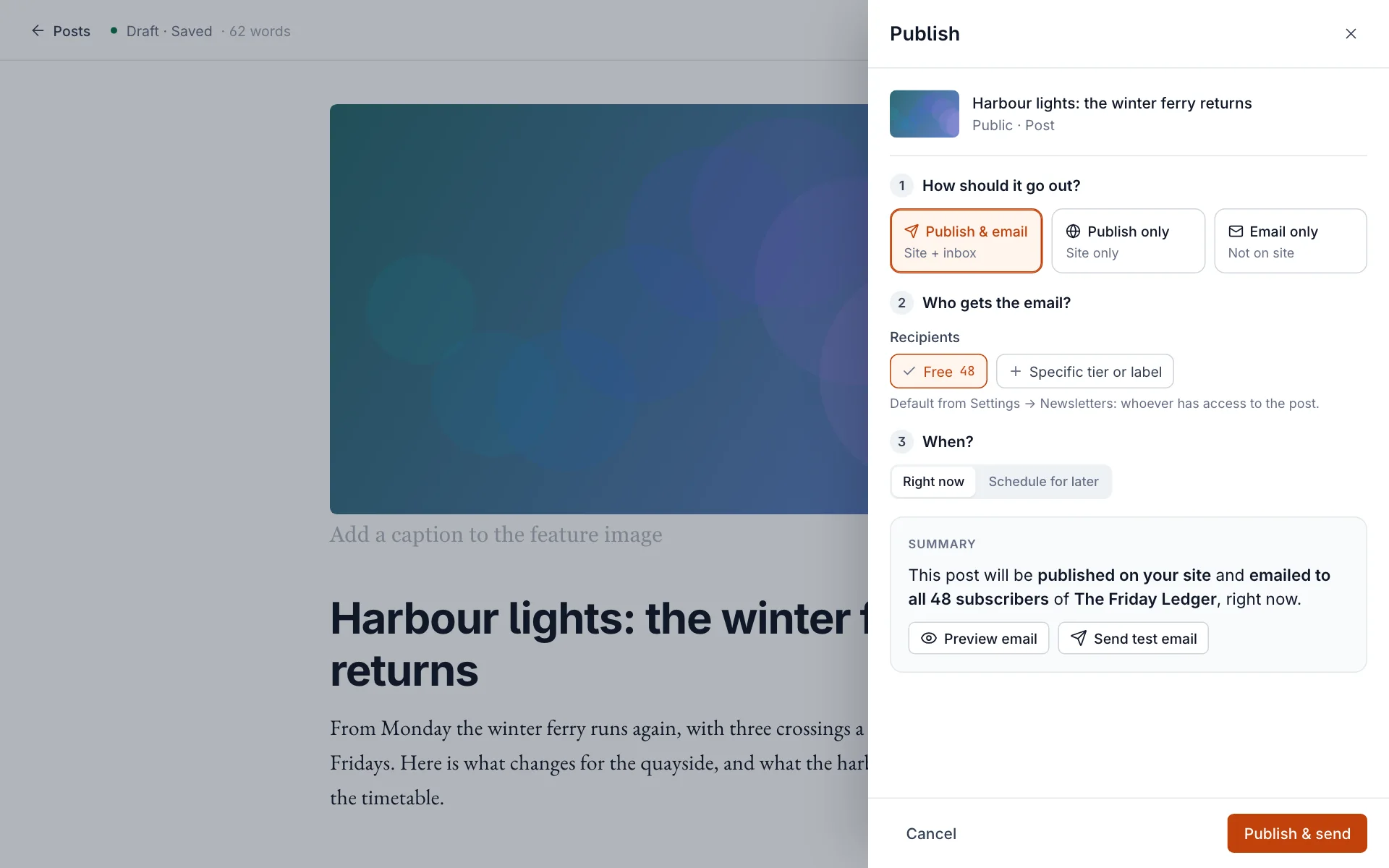
In the editor, select Publish at the top right. A panel opens on the right with three numbered steps and a summary of what will happen.
2. How should it go out?
| Choice | What happens |
|---|---|
| Publish & email | The post goes live on your site and is emailed to the recipients you choose. |
| Publish only | The post goes live on your site. No email. |
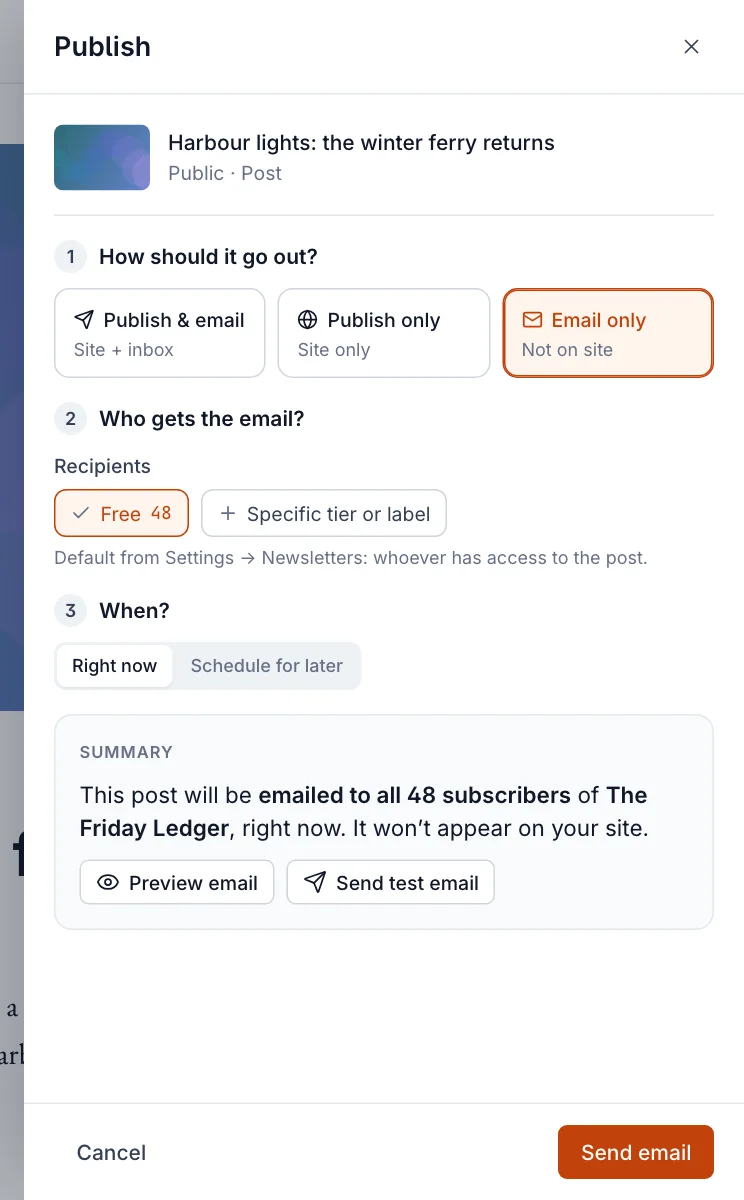
| Email only | The post is emailed but doesn’t appear on your site. Good for subscriber-only updates. |
3. Who gets the email?
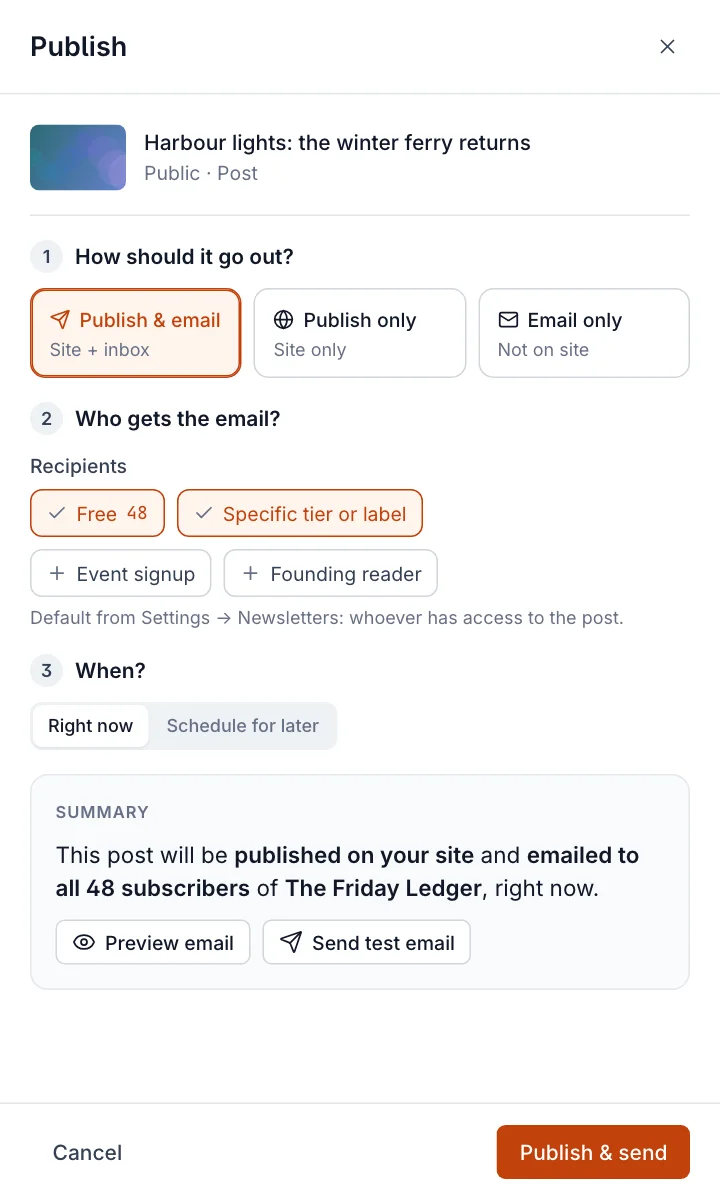
The recipients start from your default recipients, and the line underneath says so. Each chip shows how many people it covers:
- Free and Paid: your free and paying subscribers. Paid appears once you take payments.
- Specific tier or label: select it to add chips for each of your tiers and member labels, then choose the ones you want. A label is a quick way to email a group, such as everyone who signed up at an event.
- If you have more than one newsletter, you also choose which newsletter this is sent as. Only that newsletter’s subscribers receive it.
4. When?
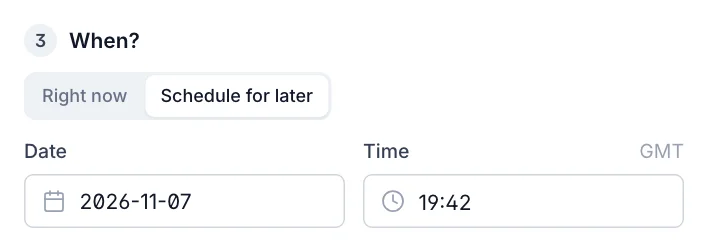
Choose Right now, or Schedule for later and pick a date and time. Times are in your site’s time zone, shown next to the field. A scheduled post is published and emailed together at that moment.
5. Preview and test
Under the summary, Preview email shows the email as subscribers will get it, with the sender and subject line. Send test email sends a copy to you first. Its subject starts with [TEST]. Opening it on your phone is the best check there is.
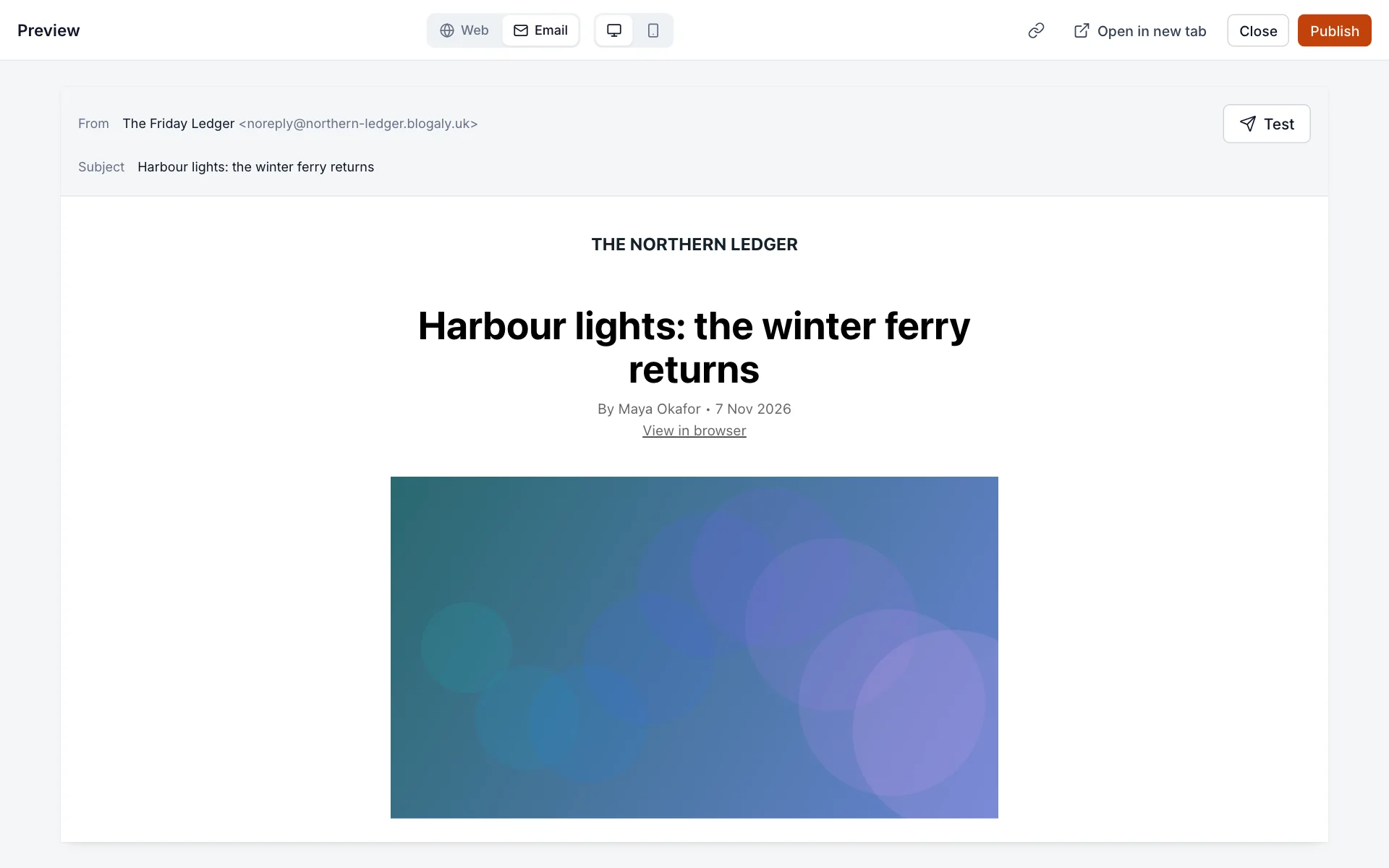
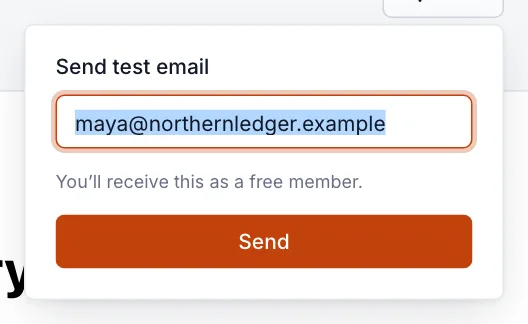
The subject line is the post’s title. To change what readers see in the email without changing the post, edit the title before sending.
6. Send
Select Publish & send (or Send email, or Schedule). The panel shows the email going out. Larger lists take a few minutes to finish. You can close the panel; sending carries on.
If the email options are missing or greyed out
| What you see | Why |
|---|---|
| No “How should it go out?” step | It’s a page (pages can’t be emailed), the post has already been sent, or newsletter sending is off in Settings → Email. |
| The email choices are greyed out | You have no members yet, there is no active newsletter, or sending is paused on your site. The panel explains which. |
| A message about your plan instead of the steps | Your site has more members than your plan includes. See below. |
Over your plan’s member limit
Starter and Publisher include up to 1,000 members, Business up to 10,000. People can keep signing up when you go over, but you can’t publish or send newsletters until you’re back under the limit. The publish screen says “This action would exceed the members limit on your current plan.” Move to a bigger plan from your dashboard (see Plans and what each includes), or remove members you no longer need.
Good to know
- If sending fails, the publish panel says so and offers to retry. Your post is still published.
- Members-only and paid posts are emailed in full to the people who have access. Free subscribers who don’t have access get the part before the paywall, with a link to upgrade.
- Each email ends with an unsubscribe link and your site name. Readers who unsubscribe stop getting that newsletter right away.
- See how a send did (opens and clicks) in newsletter analytics.
Last checked against the product on 7 November 2026.
Related
Still stuck?
Tell us what you were trying to do and what you saw, and we’ll help you sort it out.
Contact us