Publish now, schedule, or save a draft
Publish a post to your site, email it to subscribers, schedule it for later, change it after it’s live, or take it down again.
Who can do this: Owners, Administrators, Editors and Authors can publish. Contributors can write drafts, and an Editor or Administrator publishes them.
Every post starts as a draft. Drafts save themselves as you write and nobody outside your staff can see them. When you’re ready, the Publish button walks you through three questions: how the post should go out, who gets the email, and when.
Publish a post
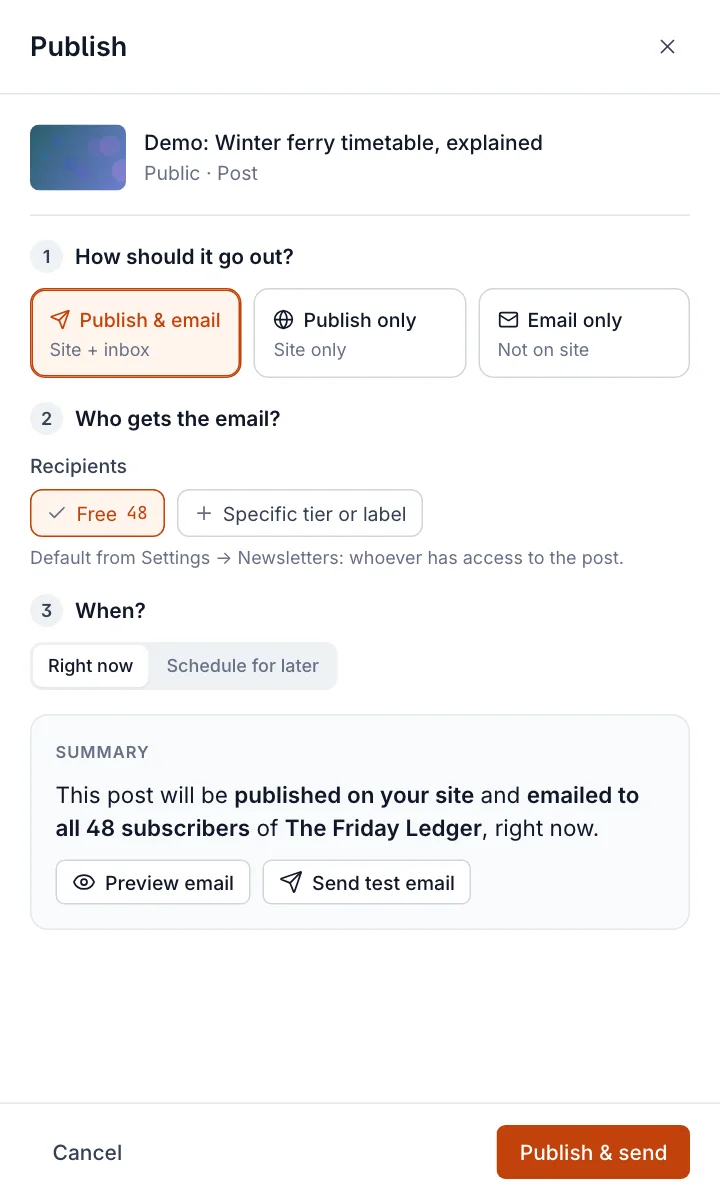
- In the editor, select Publish at the top right (or press Cmd+Shift+P / Ctrl+Shift+P). The publish panel opens on the right.
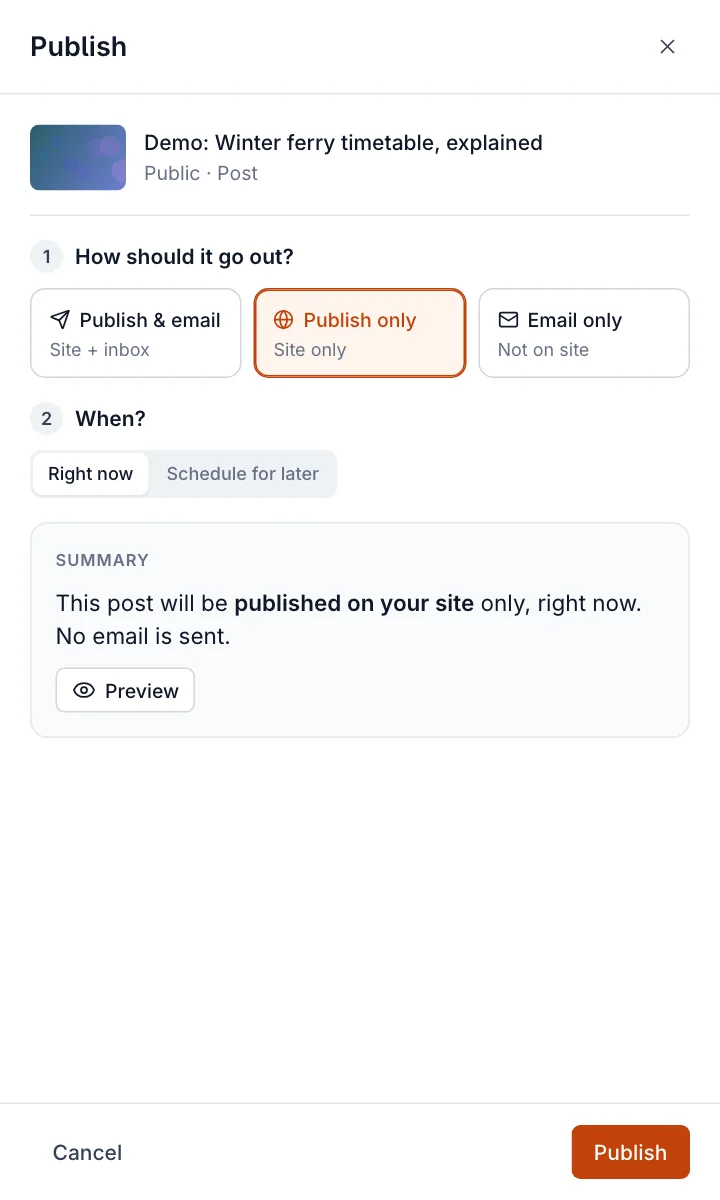
- Under How should it go out?, choose Publish & email, Publish only or Email only.
- If you’re sending an email, check Who gets the email?. It starts with your default from Settings → Newsletters; select Specific tier or label to narrow it down.
- Under When?, leave Right now selected.
- Read the Summary. It says exactly what will happen. Then select the button at the bottom right: Publish & send, Publish or Send email.
| Option | On your site | In inboxes |
|---|---|---|
| Publish & email | Yes | Yes, to the recipients you choose |
| Publish only | Yes | No |
| Email only | No. It only appears in your Posts list, under Email only. | Yes |
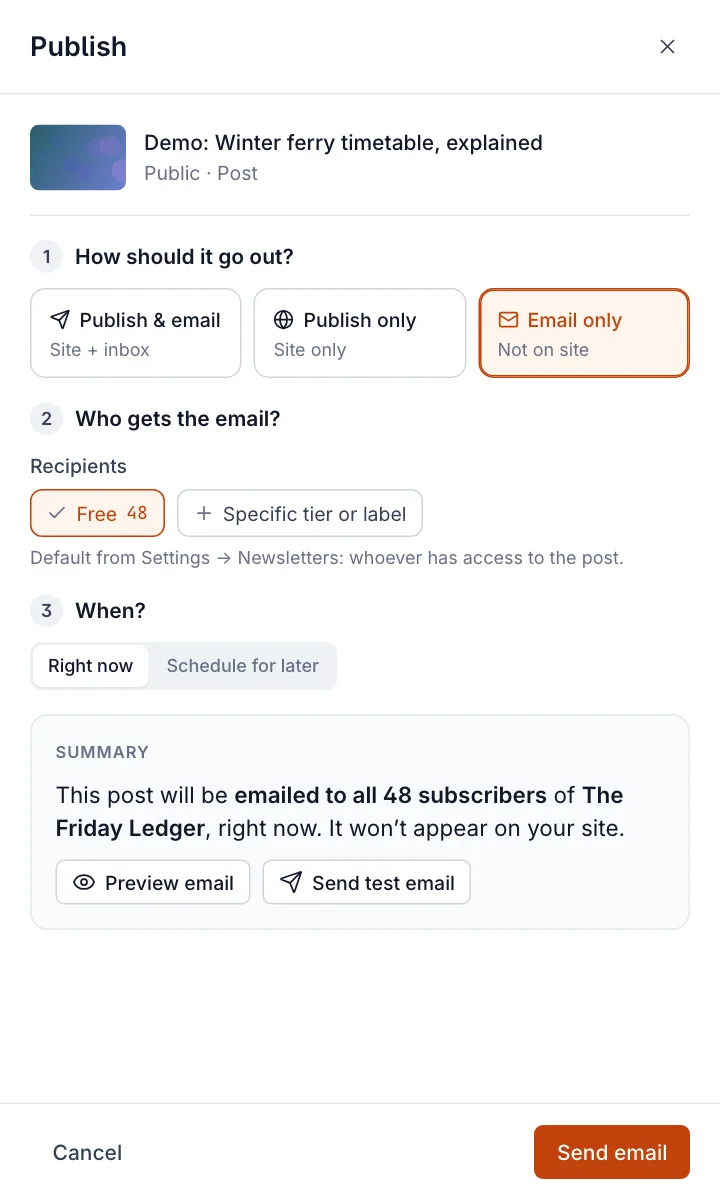
Before you send, use Preview email to see the email, or Send test email to send it to yourself. For everything about the email side, see send a post as an email.
After you publish
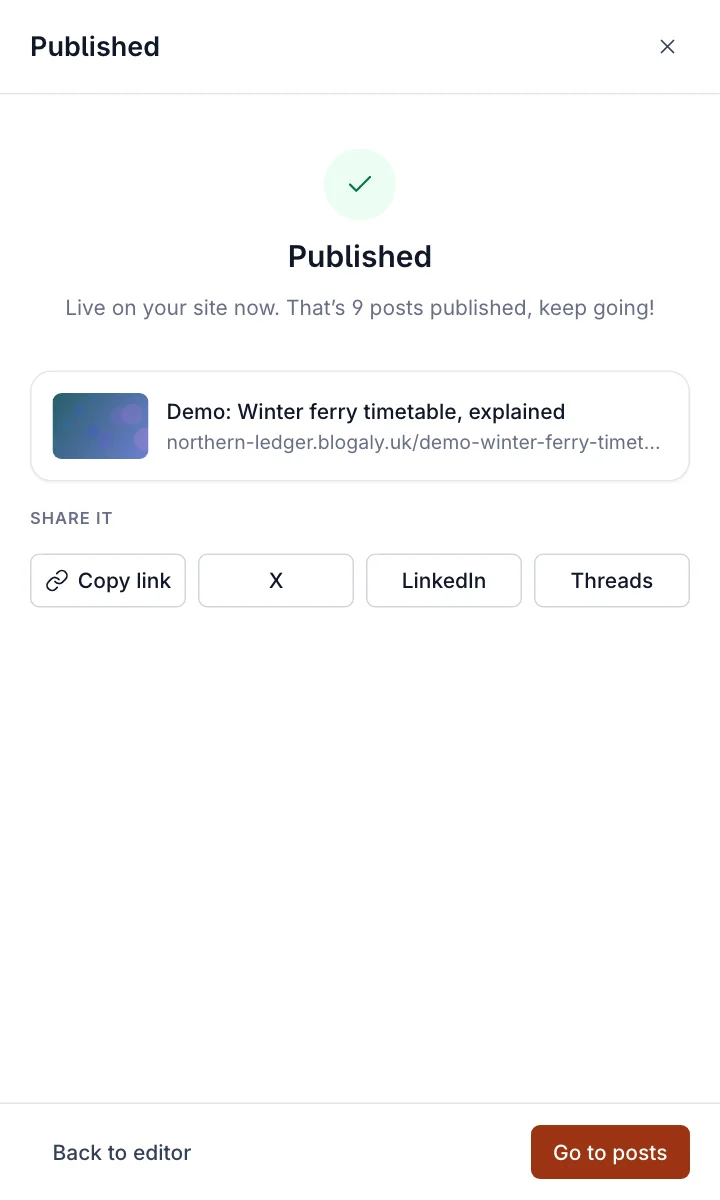
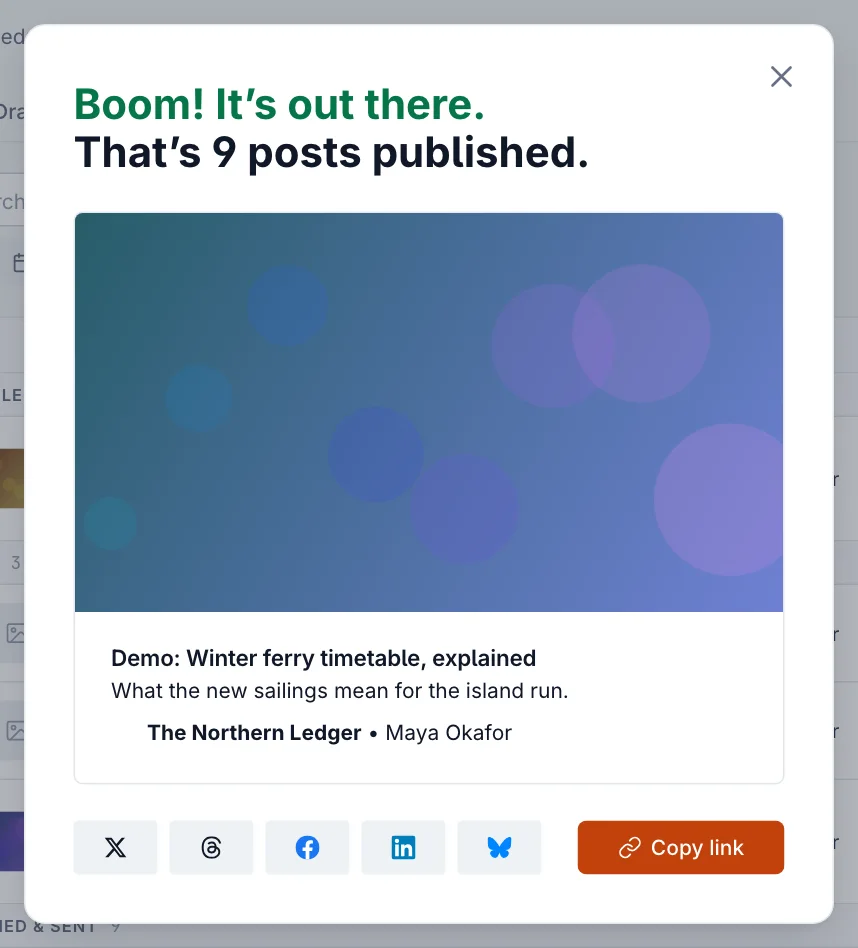
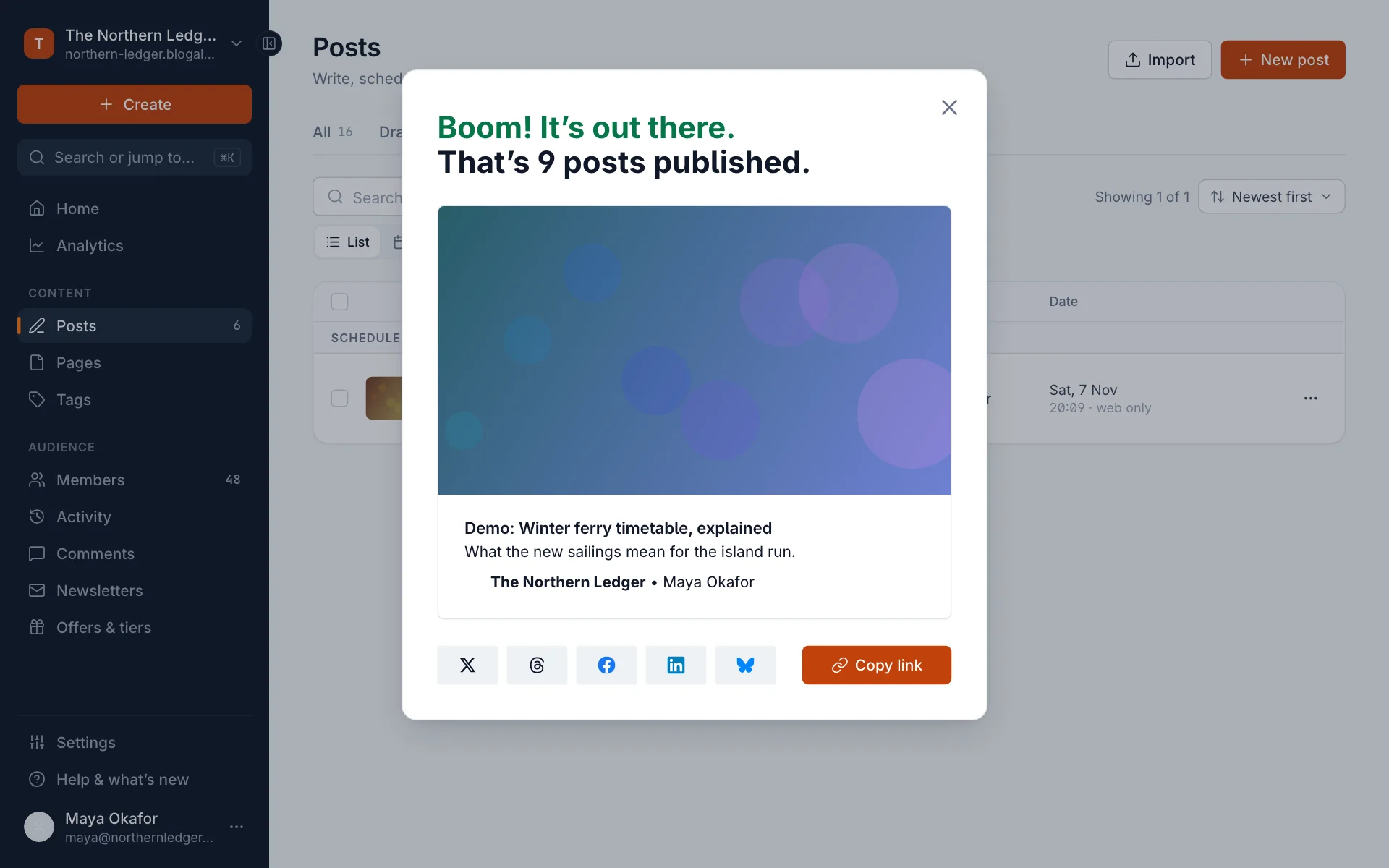
The panel confirms the post is live, with its address and buttons to copy the link or share it. Back to editor returns to the post; Go to posts takes you to your list, where a short celebration offers the same sharing buttons.
Schedule a post for later
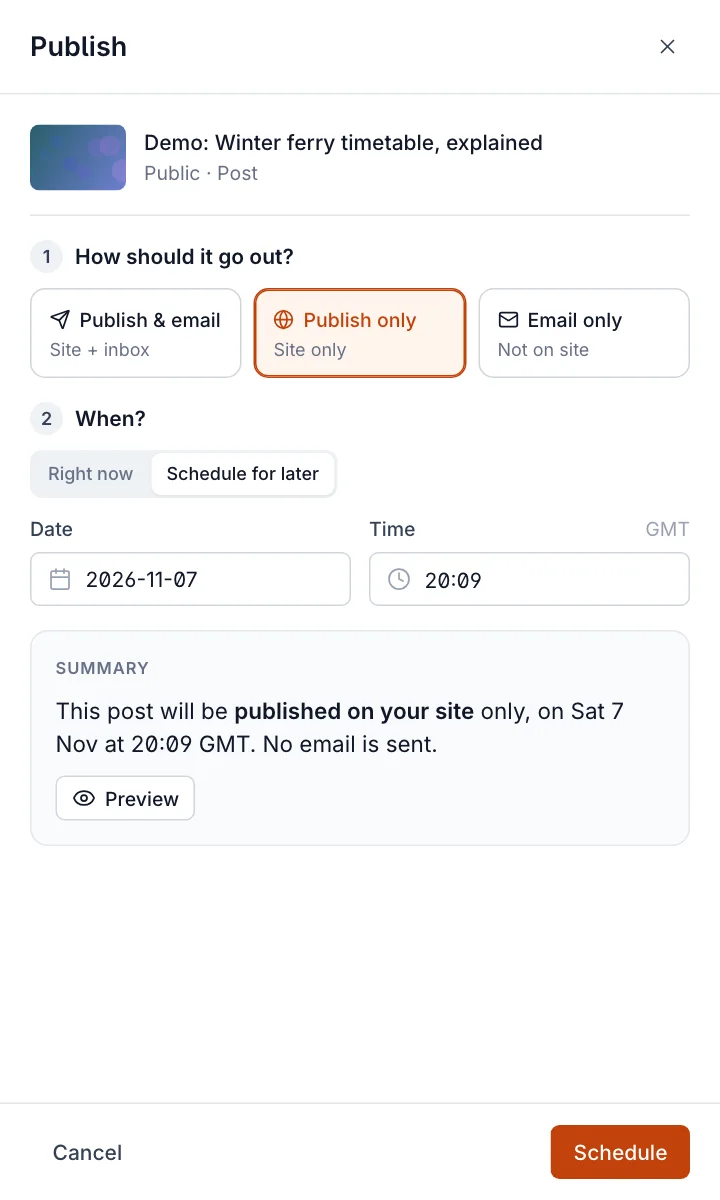
- Open the publish panel and choose how the post should go out, as above.
- Under When?, select Schedule for later.
- Pick a Date and type a Time. Times are in your site’s time zone, shown next to the field.
- Check the Summary, then select Schedule.
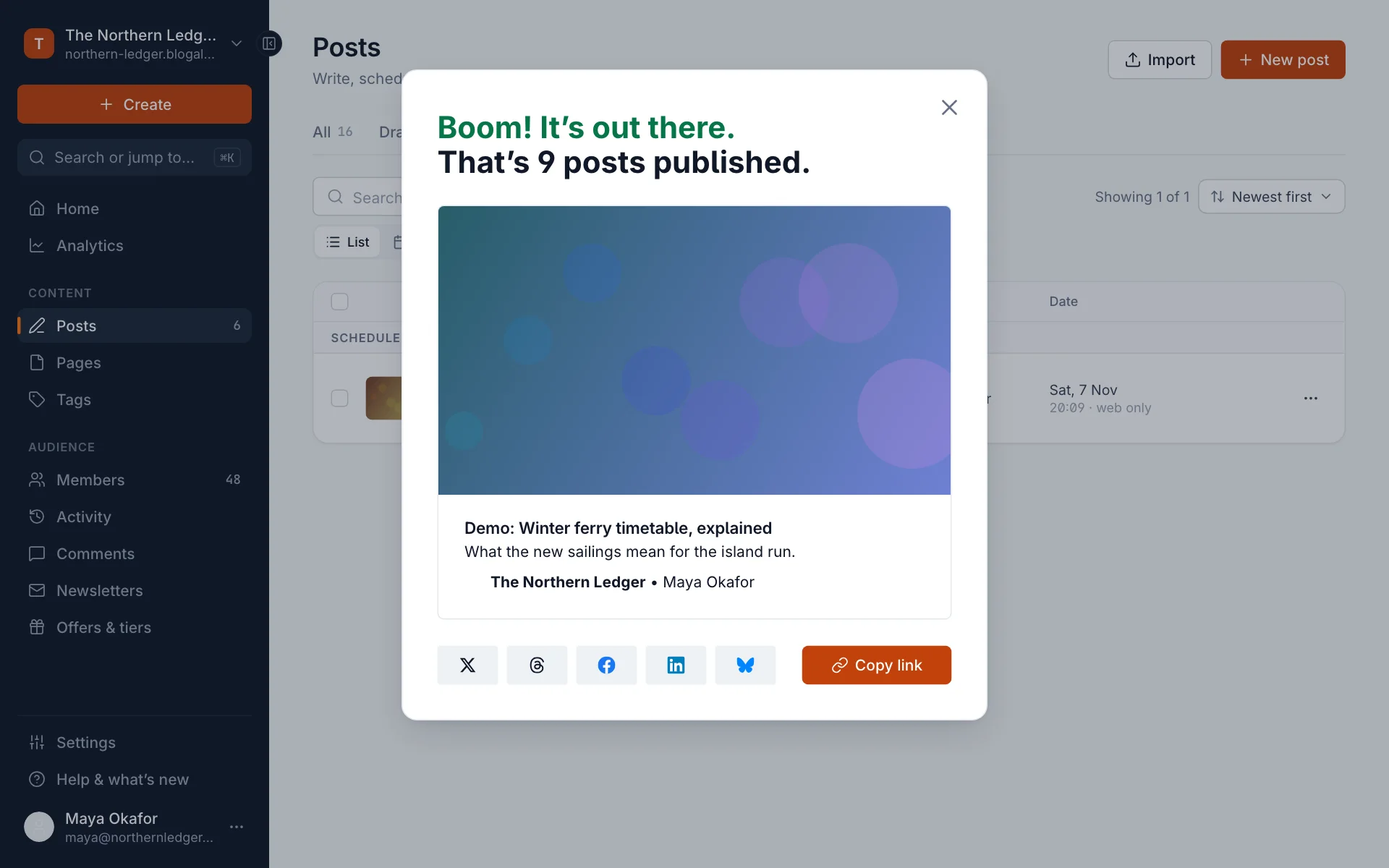
At the time you set, the post is published and any email is sent automatically. You don’t need to be online. Scheduled posts are listed under Scheduled in your Posts list, and Calendar shows them by day.
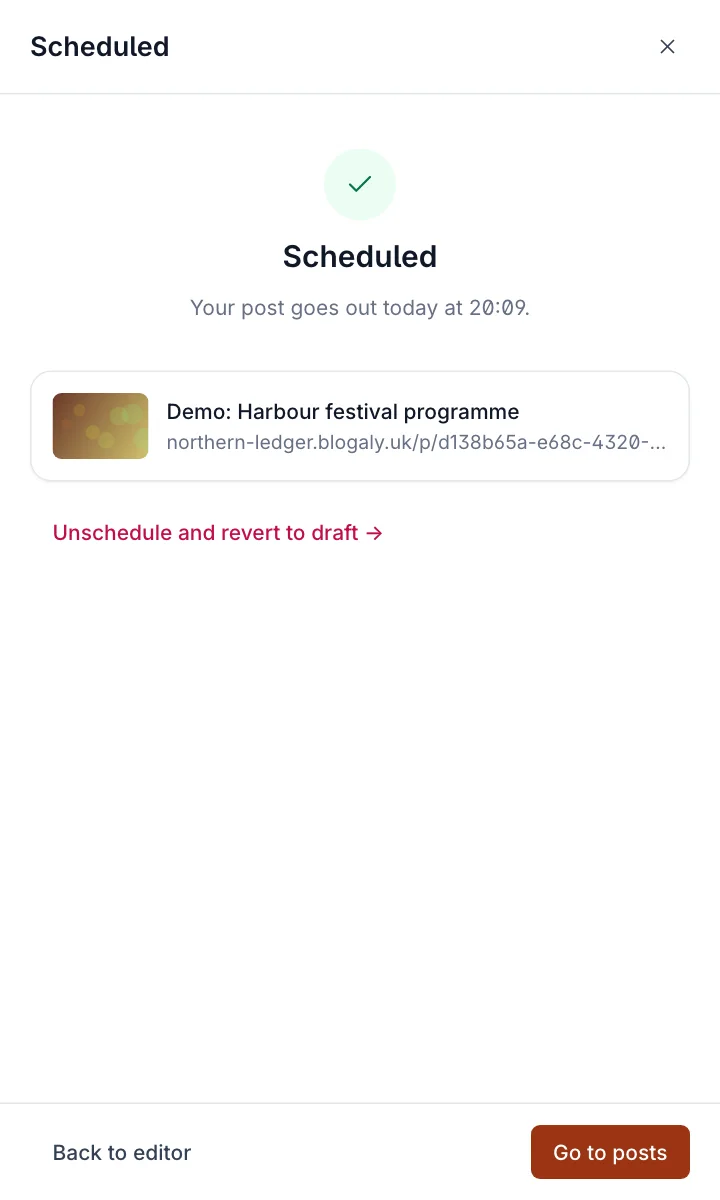
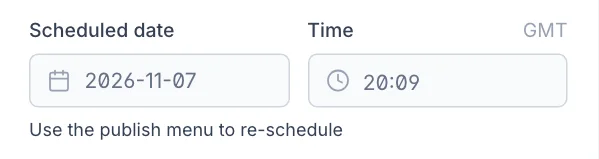
To change the time, open the post and use the publish menu again. The date in Post settings is locked while a post is scheduled and says Use the publish menu to re-schedule. To cancel, select Unschedule at the top of the editor: the post goes back to being a draft.

Change a post after it’s published
Open the post from your Posts list and edit it as usual. Published posts don’t save as you type, so readers never see a half-finished change. When you’re done, select Update (or press Cmd+S / Ctrl+S). Your changes are live straight away. An email that has already gone out isn’t changed.

Unpublish a post
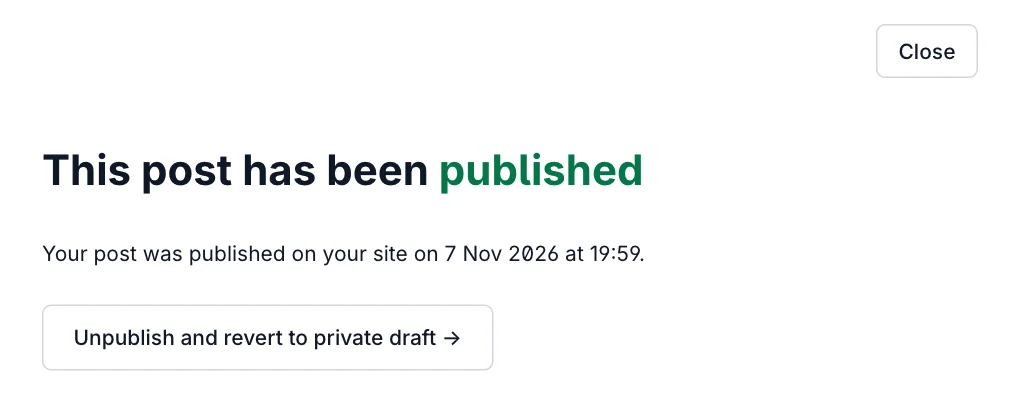
Select Unpublish at the top of the editor, then Unpublish and revert to private draft. The post disappears from your site and goes back to being a draft. Its address stops working until you publish it again.
Go back to an earlier version
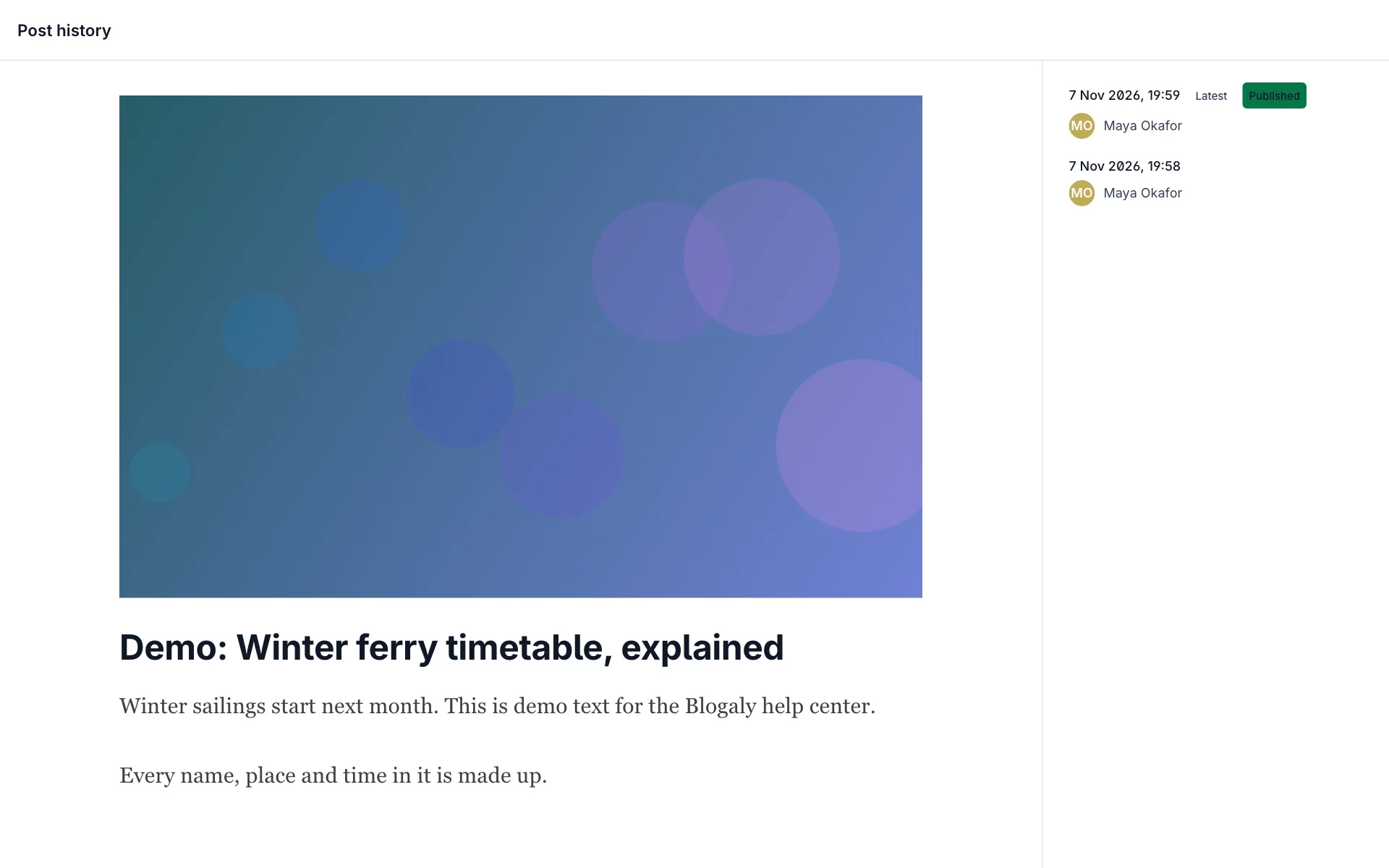
Every save is kept. Open Post settings, expand Advanced and select Post history. Pick a version on the right to see it, then select Restore to bring it back. On a published post, restoring replaces what readers see, so check it first.
Change the publish date
To show an earlier date on a post, for example one you’re bringing over from somewhere else, open Post settings and change Publish date and Time under Basics. The date must be in the past; for a future date, schedule the post instead.
Good to know
- If the post still has
TKplaceholders, the publish panel warns you with a Review button. See leave yourself a note with TK. - Email options don’t appear for pages, for posts that have already been emailed, when sending is turned off under Settings → Default recipients, or when Who should be able to subscribe to your site? is set to Nobody.
- If no one is subscribed yet, email can’t be chosen. Publish only still works.
- Times follow the time zone in Settings → General. If scheduled posts go out an hour early or late, check it. See general settings.
- To delete a post completely, open Post settings, expand Advanced and select Delete post. This can’t be undone.
- Want someone to read a draft first? In Preview, copy the preview link and send it to them. They don’t need an account.
Last checked against the product on 7 November 2026.
Related
Still stuck?
Tell us what you were trying to do and what you saw, and we’ll help you sort it out.
Contact us