Import members from a CSV
Bring your subscribers to Blogaly from a spreadsheet or another platform’s export: upload, match the columns, label them and import.
Who can do this: The owner and administrators.
You can import members from any CSV file: an export from your previous platform, a mailing-list tool or a spreadsheet. Only import people who agreed to hear from you.
1. Prepare your file
The file needs one row per person and a column with their email address. Everything else is optional. Column names don’t have to match exactly; you match them up in the next step.
| Field | What to put in it |
|---|---|
| Required. One address per row. | |
| Name | The member’s name. |
| Note | A private note, up to 2,000 characters. |
| Subscribed to emails | true to subscribe them to your newsletters, false to add them without email. |
| Labels | One or more labels, separated by commas. |
| Created at | When they originally signed up, so your growth history stays right. |
| Complimentary plan | true to give free access to your paid tier. Needs paid tiers (Publisher and Business). |
| Stripe Customer ID | Links an existing paying subscriber to their Stripe customer. Needs Stripe connected to the same Stripe account. |
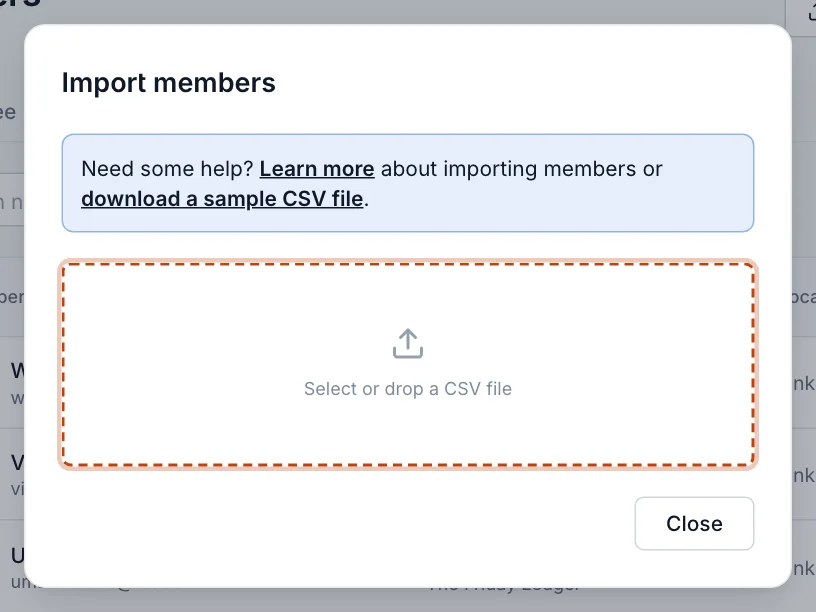
The import dialog has a link to download a sample CSV file if you’d like a template.
2. Upload it
- In Members, select Import.
- Drag your CSV into the box, or select it to choose the file.
3. Match the columns
Each column in your file is listed with a sample value. Under Import as, choose which field it fills, or Not imported to skip it. Email and name columns are usually matched for you. Use the arrows next to Sample data to check a few rows.
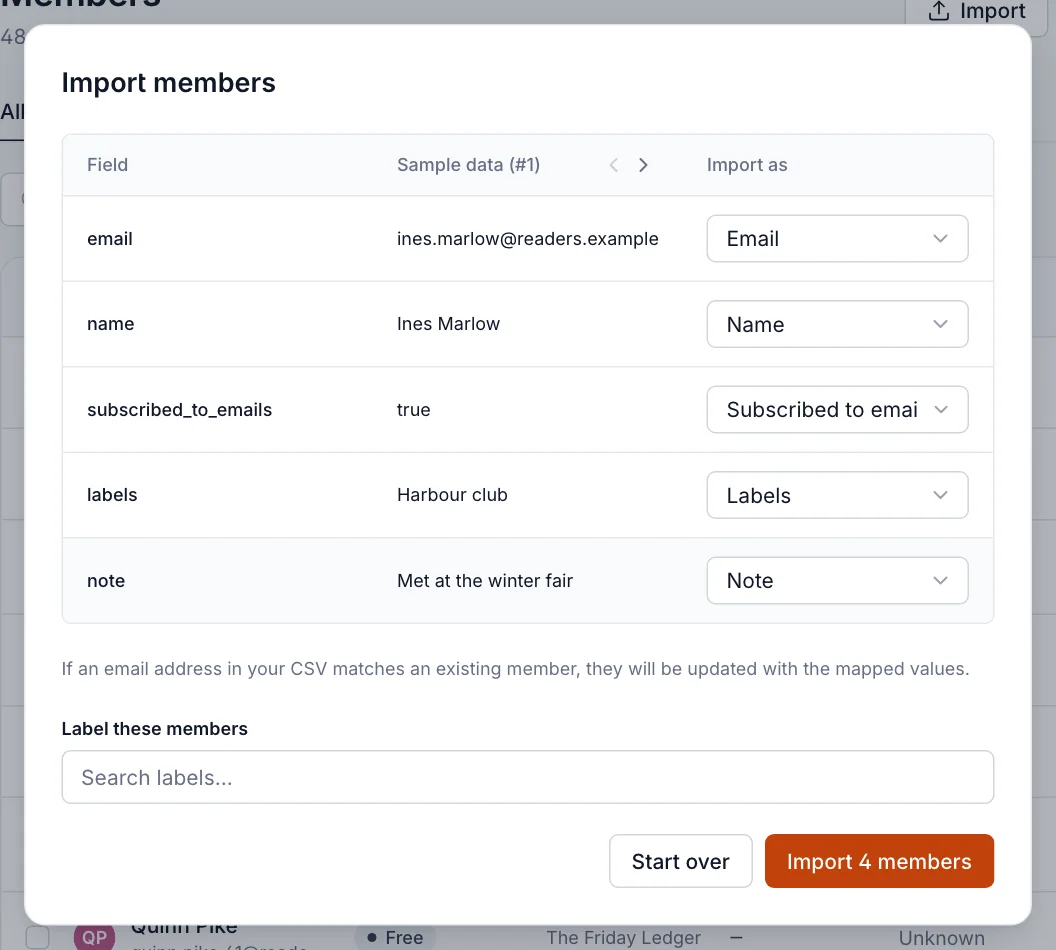
- Optionally, under Label these members, add a label to everyone in this file, such as the platform they came from.
- Select Import members. The button shows how many rows will be imported, for example Import 4 members.
4. Check the result
Small files import straight away and the dialog shows how many people were added or updated. Larger files import in the background: you’ll see “Your import is being processed” and get an email when it’s done. You can close the dialog and keep working.
If some rows couldn’t be imported, the dialog lists the reasons (a missing or invalid email, a note that’s too long) and offers Download error file: a CSV of just those rows, so you can fix them and import that file.
Every import also gets an automatic label like Import 2026-11-07 10:30, so you can find, check or undo exactly that batch with a filter.
Common problems
| Message | What to do |
|---|---|
| “Please map "Email" to one of the fields in the CSV.” | Choose Email under Import as for the column with addresses. |
| “File is empty, nothing to import.” | The file has headings but no rows. Check you exported the right list. |
| “Failed to parse this file.” | Save it again as CSV (UTF-8) from your spreadsheet app. Excel files (.xlsx) won’t work. |
| “The file type you uploaded is not supported” | Only .csv files can be imported. |
Good to know
- If an email address is already a member, that member is updated with the values from your file instead of being added twice.
- Imported members don’t get a welcome email or a confirmation email. Consider sending a short “we’ve moved” post so your first newsletter isn’t a surprise.
- Imported members count towards your plan’s member limit (1,000 on Starter and Publisher, 10,000 on Business). The import isn’t blocked if it takes you over, but you won’t be able to publish or send until you’re back under. See Members: free and paid readers.
- Old lists often contain addresses that no longer work. These bounce on your first send and are disabled automatically. Removing people who haven’t engaged in a long time first helps your delivery.
- Moving your posts too? See Move your site to Blogaly.
Last checked against the product on 7 November 2026.
Related
Still stuck?
Tell us what you were trying to do and what you saw, and we’ll help you sort it out.
Contact us