SEO, social cards and search previews
Control how your posts appear in search results and when they’re shared on social media, and what Blogaly does for search engines automatically.
Who can do this: Anyone who can publish can edit a post’s SEO and social cards. Site-wide settings need an Owner or Administrator.
You don’t have to do anything for your posts to be found. Every Blogaly site has clean addresses, a sitemap, structured data and social sharing tags built in. The settings in this article let you fine-tune what people see in search results and in social feeds, post by post.
What happens automatically
- A sitemap at
your-site/sitemap.xml, listing every published post, page, tag and author. Search engines find it on their own; you can also submit it in Google Search Console. - Structured data, so search engines understand that a page is an article, who wrote it and when.
- Social sharing tags, so links shared on X, Facebook, LinkedIn, Slack and messaging apps show a title, description and image.
- Fast, mobile-friendly pages and HTTPS on every site, which search engines reward.
- Canonical links, so the same post reached by different addresses isn’t treated as duplicate content.
If nothing else is set, a post’s title, excerpt and feature image are used everywhere. Write a good title and excerpt and add a feature image, and you’ve done most of the work.
The post URL
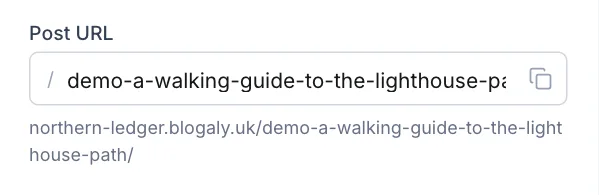
The address of a post is made from its title when you first save it. To change it, open Post settings and edit Post URL under Basics. Short, readable addresses with the main keywords work best: lighthouse-path-walk rather than demo-a-walking-guide-to-the-lighthouse-path.
How a post appears in search results
- Open Post settings and expand SEO & social.
- Write a Meta title: the headline shown in search results. Aim for about 60 characters; the counter turns green while you’re in range.
- Write a Meta description: the short summary under the headline. Aim for about 145 characters.
- Check the preview underneath. It shows roughly how the result will look.
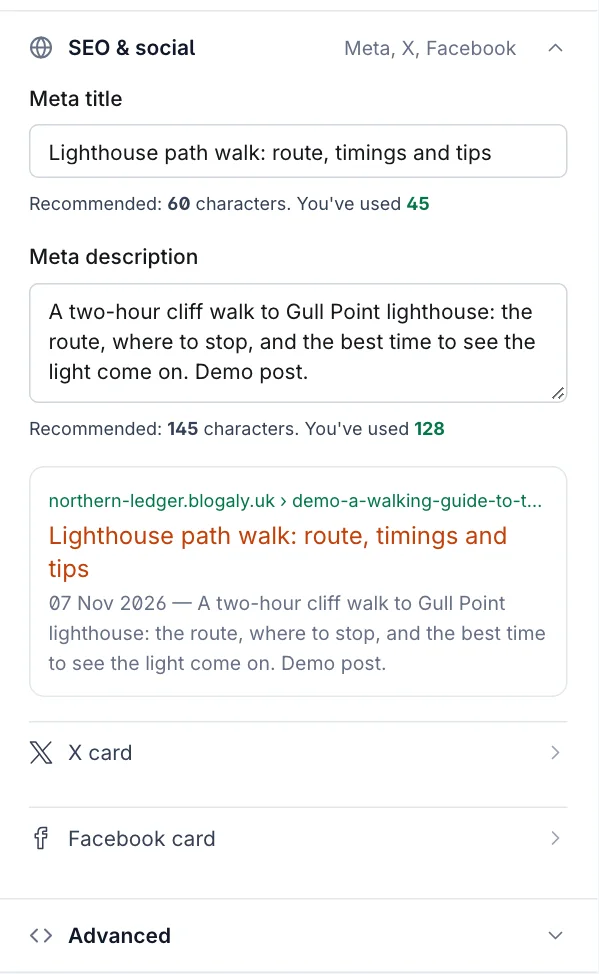
Leave them empty and the post title and excerpt are used. A separate meta title is useful when your headline is playful but searchers type something plainer.
How a post looks when shared
Under SEO & social, select X card or Facebook card to set a different image, title and description for each network. A live preview shows the result. Facebook card is also what most other apps use, including LinkedIn, Slack, WhatsApp and iMessage.
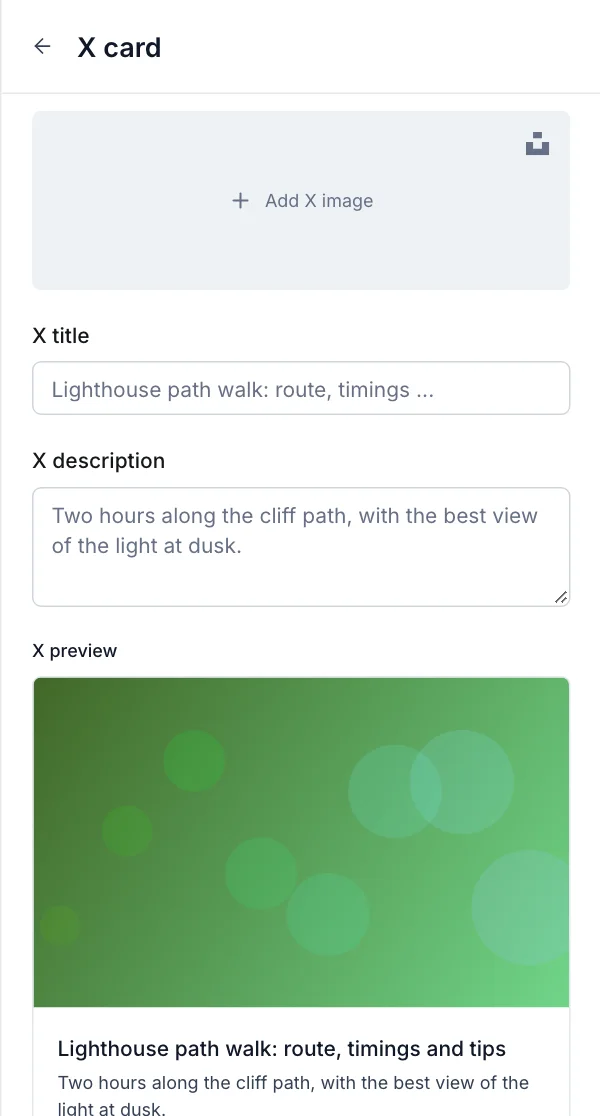
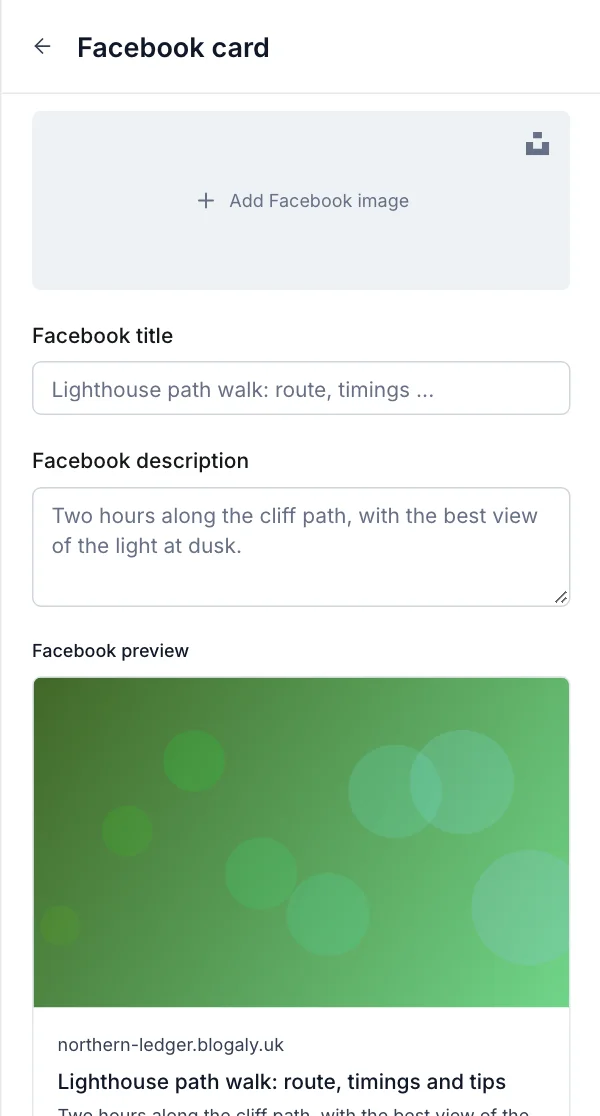
Social images look best at 1200 × 630 pixels or larger, with nothing important near the edges, because each network crops them slightly differently.
Site-wide defaults
Your homepage and any page without its own settings use your site’s defaults. Go to Settings → Meta data. The Search tab sets the meta title and description for your homepage (recommended 70 and 156 characters); X card and Facebook card set the image and text used when your homepage is shared, and as a fallback for posts without a feature image.
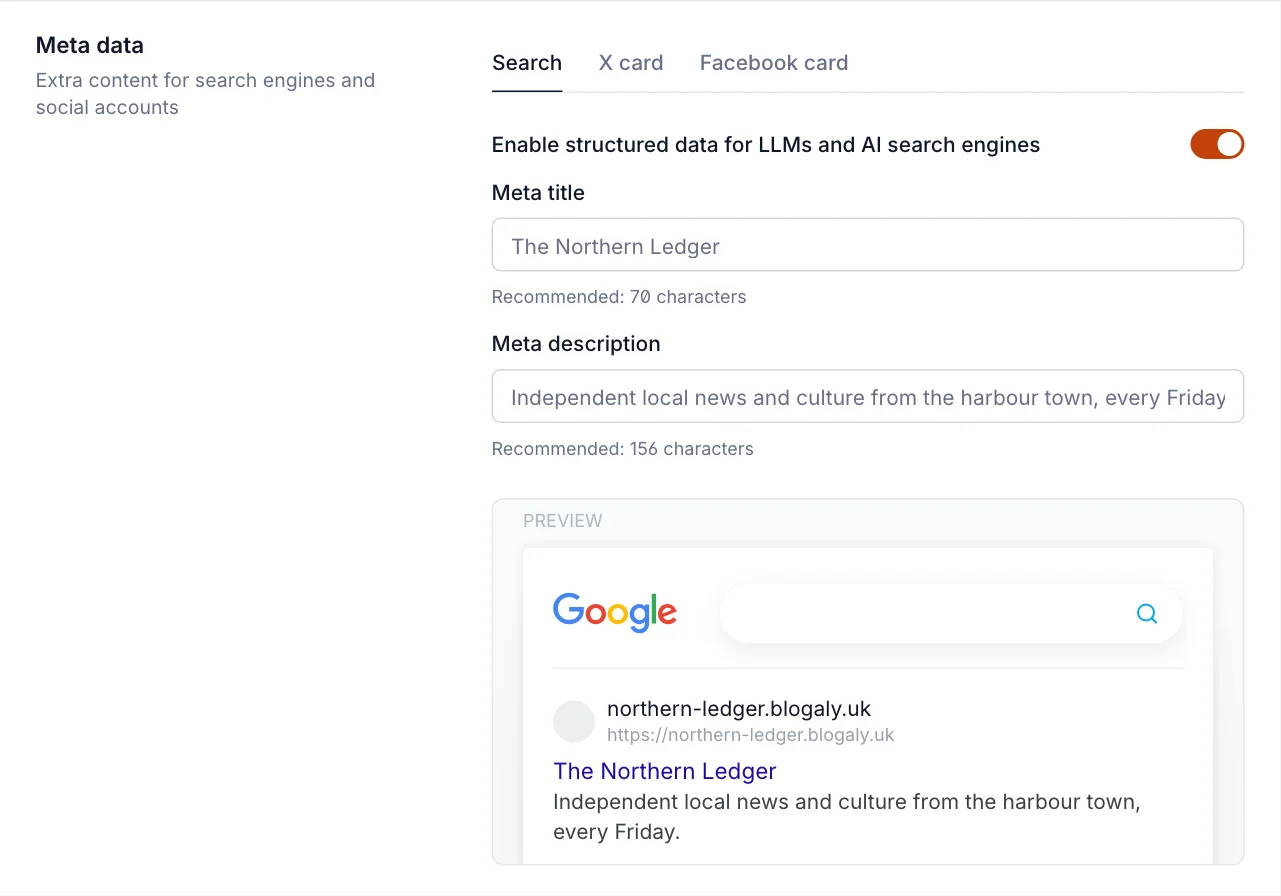
Also in Settings, Social accounts lets you add your X, Facebook, LinkedIn, Bluesky, Threads, Mastodon, TikTok, YouTube and Instagram profiles. Themes link to them, and they’re added to your structured data.
AI search engines
Enable structured data for LLMs and AI search engines is on by default. It publishes a plain-text guide to your site at /llms.txt and /llms-full.txt, and a plain Markdown version of each post, so AI assistants and AI search tools can read and cite your work accurately. Members-only and paid posts only expose their free preview. Turn it off if you’d rather AI tools didn’t get this help; it doesn’t affect regular search engines.
Good to know
- Search engines take time. A new site can take days or weeks to appear in results. Submitting your sitemap in Google Search Console can speed it up.
- While your site is private (behind an access code, for example during your free trial), it’s hidden from search engines and the AI guides are switched off. Once you make it public, search engines can start indexing it.
- If you connect your own domain, your sitemap, canonical links and social tags switch to it automatically.
- Social networks cache link previews. If you change an image after sharing, the old one can stick around for a while. Most networks offer a tool to refresh a link’s preview.
- Tags have their own meta and social card settings too. See organising content with tags.
Last checked against the product on 7 November 2026.
Related
Still stuck?
Tell us what you were trying to do and what you saw, and we’ll help you sort it out.
Contact us