Who can read a post: public, members, paid
Choose who can read each post, give everyone a free preview, and set the default for new posts.
Who can do this: Anyone who can publish. Paid and tier-only posts need Stripe connected, which is available on the Publisher and Business plans.
Every post has an access setting. Readers who can’t see the whole post see the part above the public preview, followed by an invitation to subscribe or sign in. It’s how you turn casual visitors into members, and members into paying subscribers.
The four options
| Option | Who can read the whole post |
|---|---|
| Public | Anyone. No sign-in needed. |
| Members | Anyone signed in as a member, free or paid. |
| Paid | Members with an active paid subscription. |
| Specific tiers | Members on the tiers you tick, for example only your top tier. |
Set access on a post
- Open the post and select the Post settings button (the panel icon at the top right).
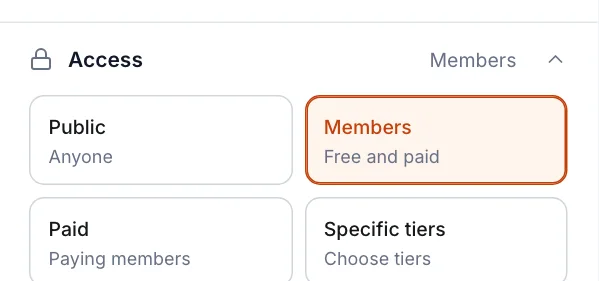
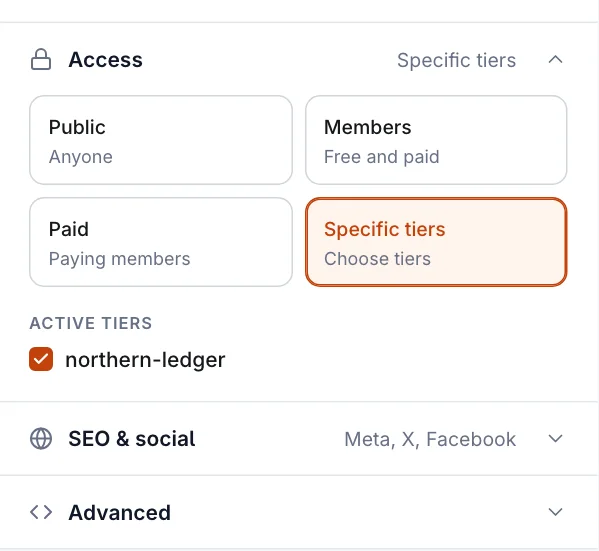
- Expand Access. It shows the current choice on the right.
- Select Public, Members, Paid or Specific tiers. For Specific tiers, tick the tiers that should have access.
- On a draft, the choice saves straight away. On a published post, select Update.
Give everyone a free preview
By default, readers without access see the title, the feature image and the start of the post. To choose exactly where the preview ends, add a Public preview card: on an empty line, type /paywall and press Enter, or pick Public preview from the card menu.
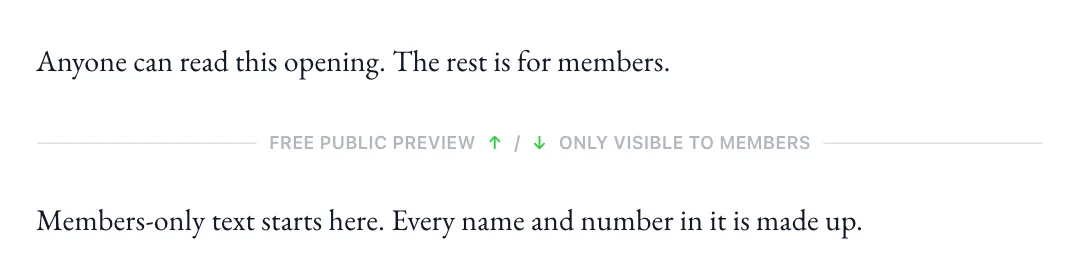
Drag the card to move the line. If you remove it, readers without access see your excerpt or the opening of the post instead.
What readers see
Below the preview, readers without access see a box inviting them in. On a Members post it asks them to subscribe for free; on a Paid or tier post it invites them to upgrade. Readers who are already signed in with the right access see the whole post, with no box.
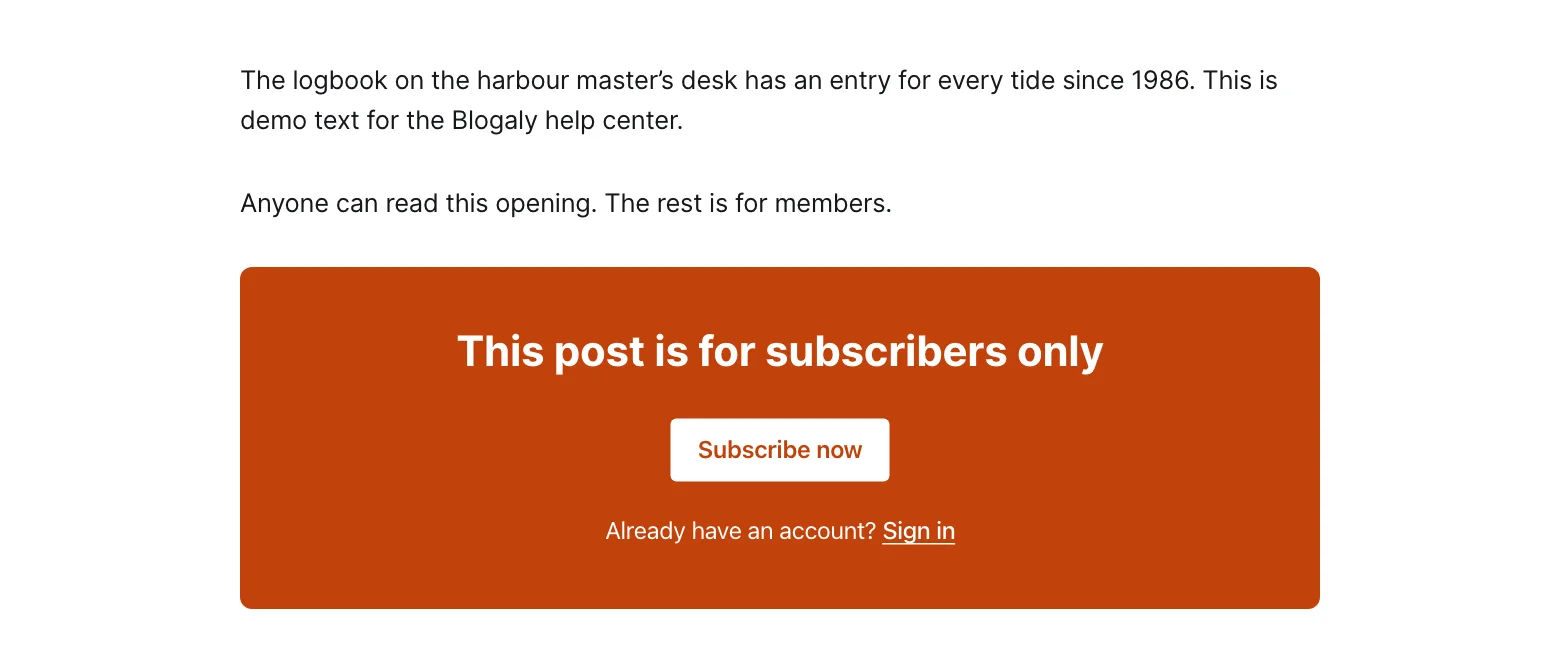
The box’s colour is your accent colour. Its exact look depends on your theme.
Set the default for new posts
- Go to Settings → Access.
- Next to Who should have access to new posts?, choose Public, Members only, Paid-members only or Specific tiers.
- Select Save.
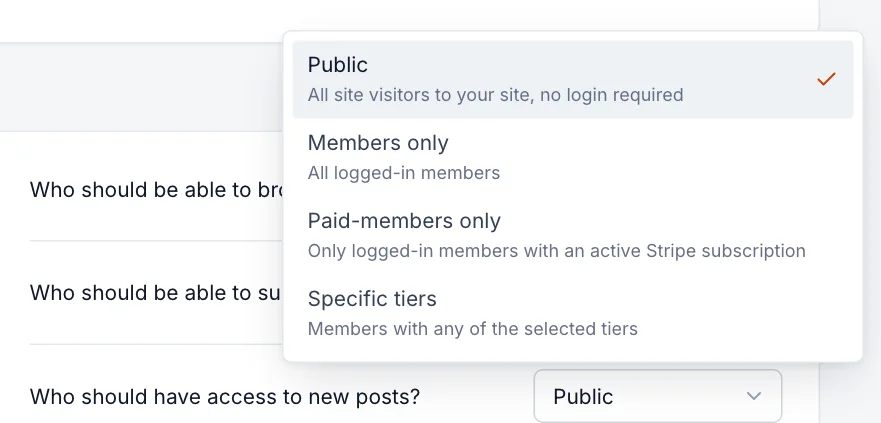
The default only applies to posts you create from now on. It doesn’t change posts you’ve already written.
Access and email
When you email a post, the recipients follow its access by default: a public or members post goes to all your subscribers, and a paid post goes only to paying ones. If you choose to send a paid post to free subscribers too, their copy shows the preview and an invitation to upgrade, just like on the site. See send a post as an email.
Good to know
- Paid and Specific tiers need paid subscriptions, which need Stripe. That’s on the Publisher and Business plans. See connect Stripe and plans and what each includes.
- Pages have the same access options as posts.
- Filter your Posts list by Access to see which posts are public, members-only or paid.
- Locked text isn’t sent to the browser of a reader without access, so it can’t be revealed by viewing the page source.
Last checked against the product on 7 November 2026.
Related
Still stuck?
Tell us what you were trying to do and what you saw, and we’ll help you sort it out.
Contact us