Add custom code to every page
Add your own HTML, CSS or scripts to the header or footer of every page of your site, or of a single post, page or tag.
Who can do this: Site-wide code: Owners and Administrators. Post and page code: anyone editing that post or page. Available on every plan.
Code injection lets you add a snippet to your site without changing your theme. Common uses are a verification tag from a search console, a small CSS tweak, a third-party chat or booking widget, or a font. What you add keeps working when you switch themes.
Add code to every page
- Go to Settings. Under Advanced, find Code injection and select Open.
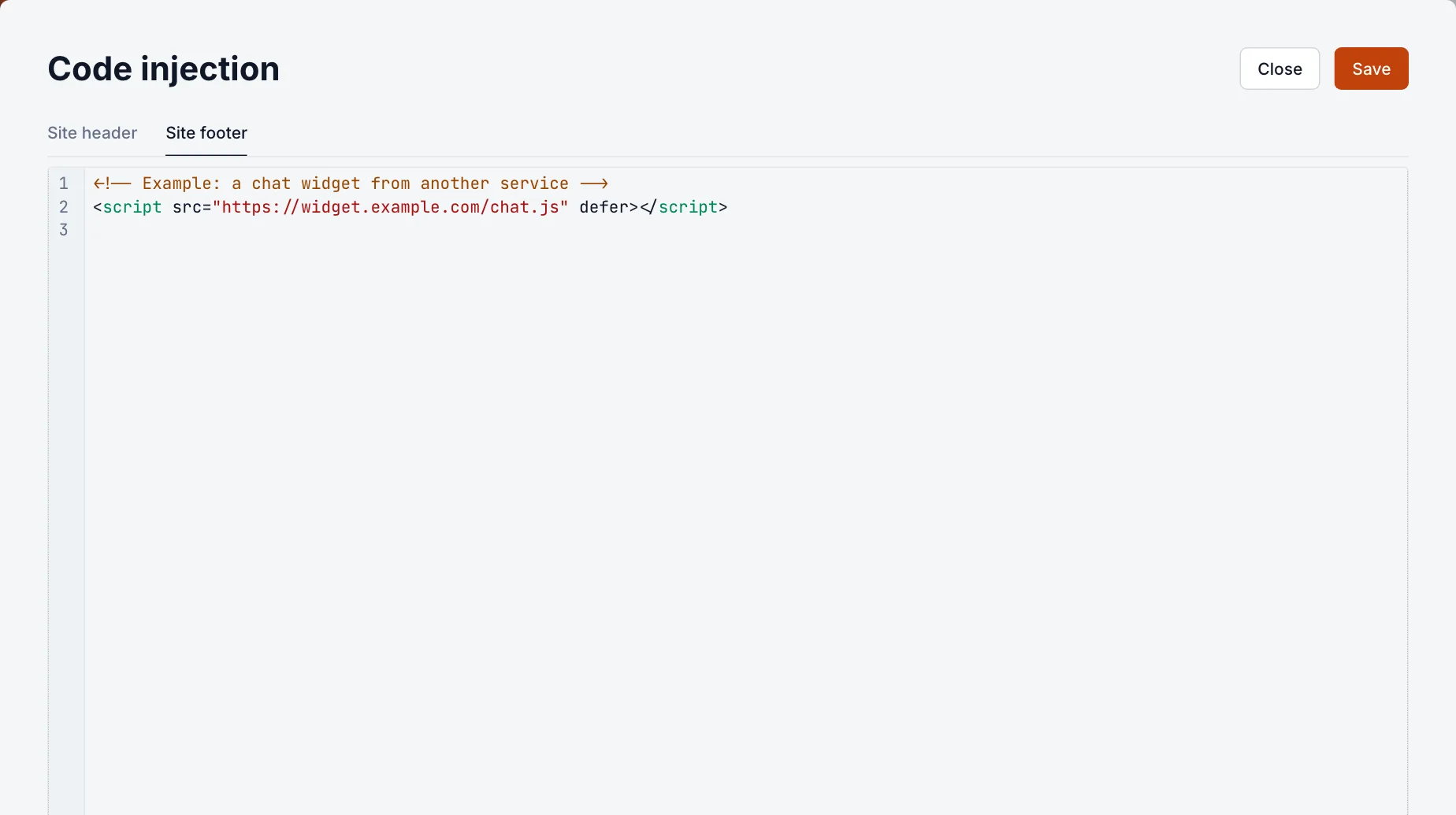
- Choose Site header or Site footer (see the table below), and paste your code.
- Select Save. The code is on every page of your site straight away.

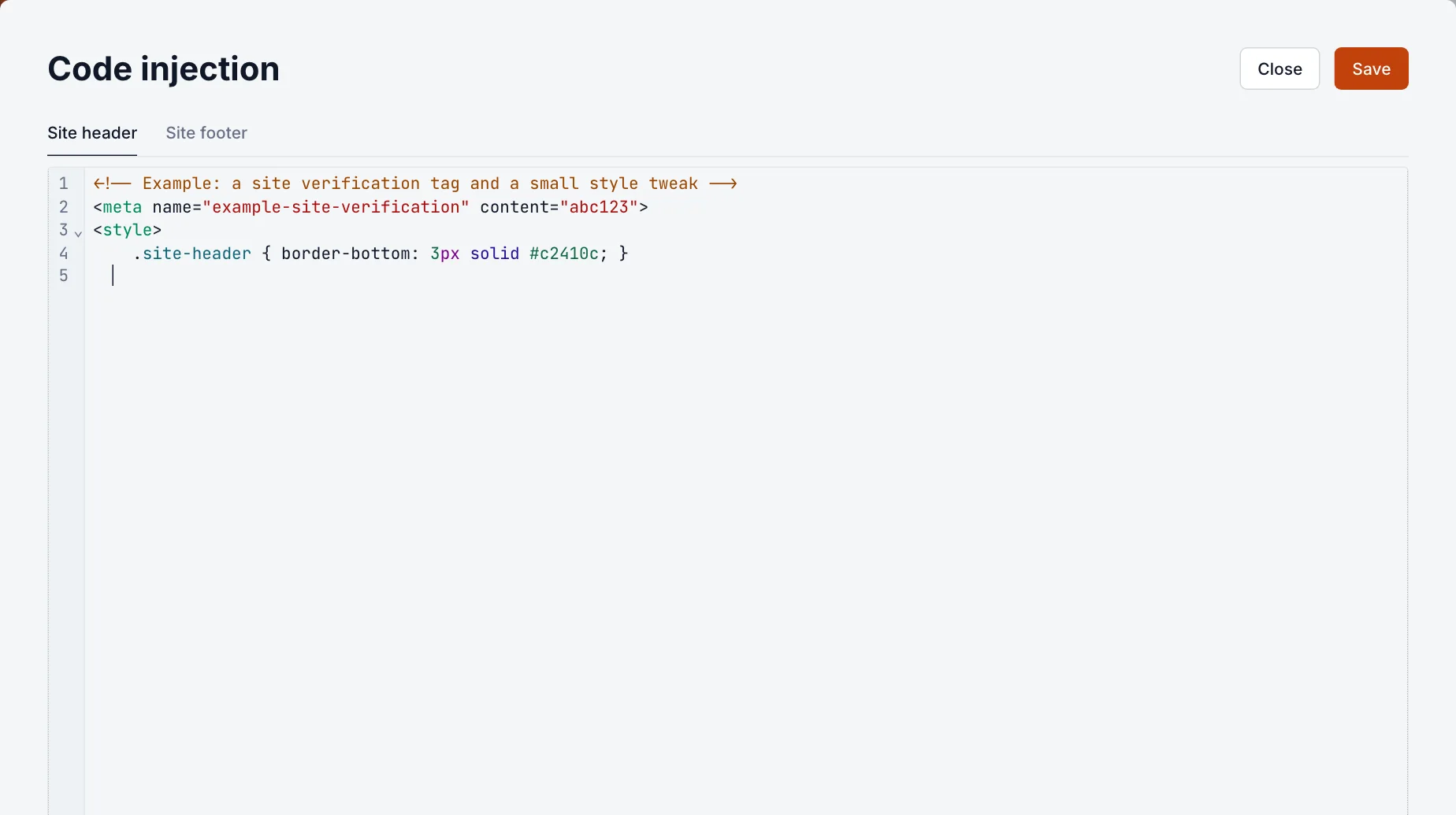
| Tab | Where the code goes | Use it for |
|---|---|---|
| Site header | Inside the page’s <head>, after your theme’s own tags | <meta> verification tags, <style> blocks, fonts, scripts that must load first |
| Site footer | At the end of the page, just before </body> | Widgets and most third-party scripts, so they don’t slow down your content |
Add code to one post or page
- Open the post or page in the editor.
- Open the settings panel with the button at the top right.
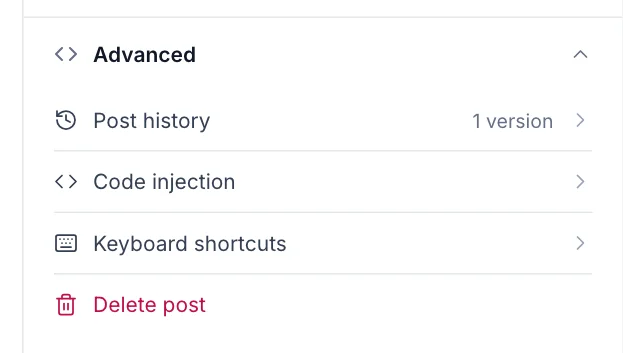
- Open Advanced, then Code injection.
- Add your code to Post header or Post footer (Page header and Page footer on a page). It’s saved with the post: select Update on a published post to make it live.
Post code is added after the site-wide code, so it can override it. Tags have code injection too: open a tag under Tags and expand Code injection to add code to that tag’s archive page.
Common mistakes
- Pasting a whole page. Paste only the snippet you were given, not
<html>or<body>tags. - An unclosed tag. A missing
</style>,</script>or</div>can hide or break the rest of the page. If your site suddenly looks wrong after saving, remove the code you added last. - Expecting it in emails. Code injection only affects your website. Newsletters are sent without it.
- Editing the theme instead. If a snippet needs to sit in a particular place inside a template, it belongs in the theme. See upload your own theme.
Good to know
- Blogaly’s own analytics are built in and need no code. See your analytics.
- Scripts you add run for every visitor and can collect data or set cookies. Blogaly’s analytics don’t use cookies, but a script you add might, and that may mean you need to ask visitors for consent. Check what each service does before you add it.
- Only add code from sources you trust. A script can change anything on your pages.
- Press Cmd+S (Mac) or Ctrl+S (Windows) to save while the code injection editor is open.
Last checked against the product on 7 November 2026.
Related
Still stuck?
Tell us what you were trying to do and what you saw, and we’ll help you sort it out.
Contact us