Import your content
Bring your posts, pages and subscribers to Blogaly from Substack, WordPress, Medium or another publishing platform.
Who can do this: Administrators and the site owner.
Moving to Blogaly usually takes three steps: bring over your writing, bring over your subscribers, and make sure your old links still work. This guide covers the first and points you to the other two. You never give us your password for the old platform: you download an official export there and upload the file here.
Before you start
- Import into a fresh site if you can. Imports add to what’s already there, so test posts you wrote while exploring will sit alongside your archive.
- Set your time zone and language first, so dates come across the way you expect.
- Keep your old site online until you’ve checked everything. Imported images may still load from the old platform at first.
Where the import tools are
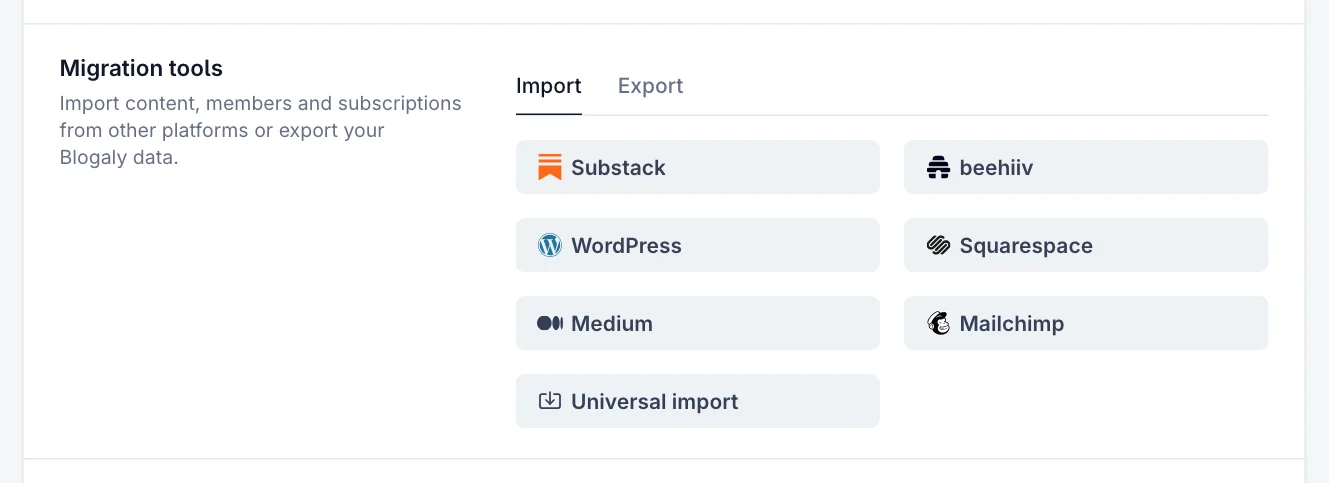
Go to Settings → Advanced → Migration tools. The Import tab has a button for each platform, plus Universal import for export files from other publishing platforms.
Which route to take
| Coming from | Posts and pages | Subscribers |
|---|---|---|
| Substack | The Substack importer (ZIP export) | Subscriber CSV → import members |
| WordPress or WordPress.com | The WordPress importer (XML or ZIP export) | Your email tool’s CSV → import members |
| Medium | The Medium importer (archive ZIP or HTML) | Medium doesn’t export followers |
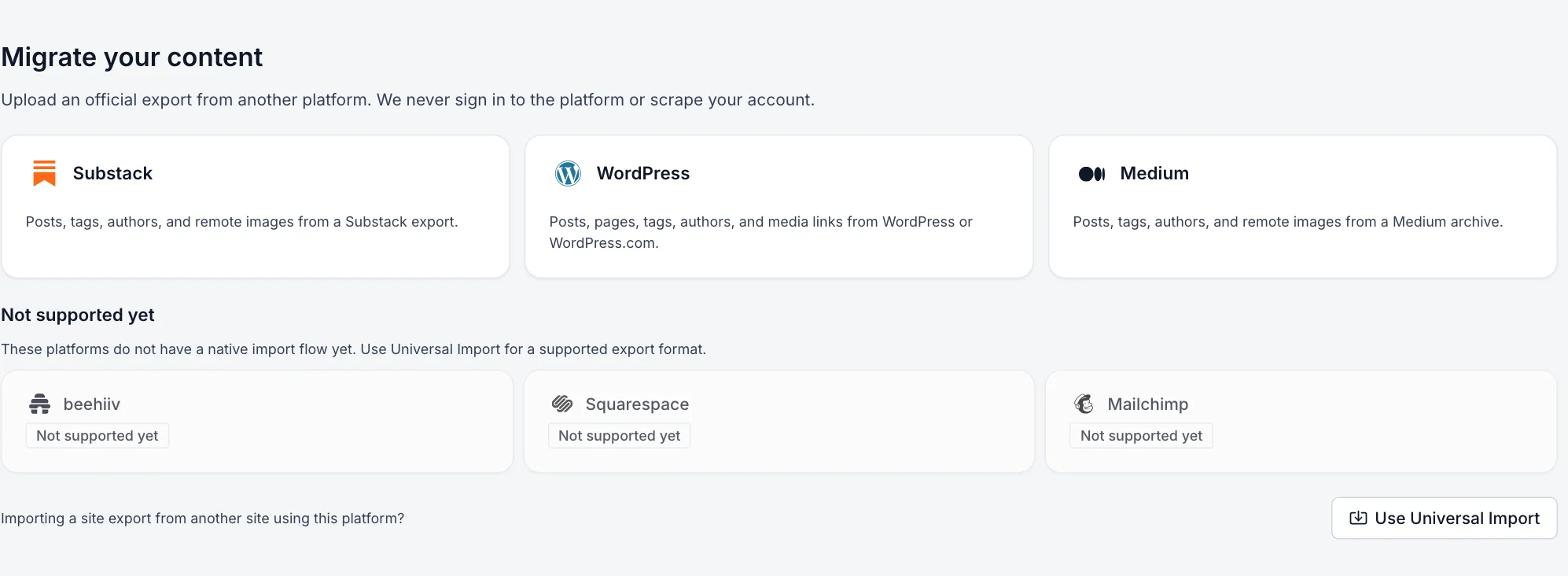
| beehiiv, Squarespace, Mailchimp | Not supported yet | Subscriber CSV → import members |
| Another publishing platform with a JSON export | Universal import | Members CSV → import members |
Import from Substack, WordPress or Medium
- In Migration tools, select your platform. You can also see every platform on one screen and pick from there.
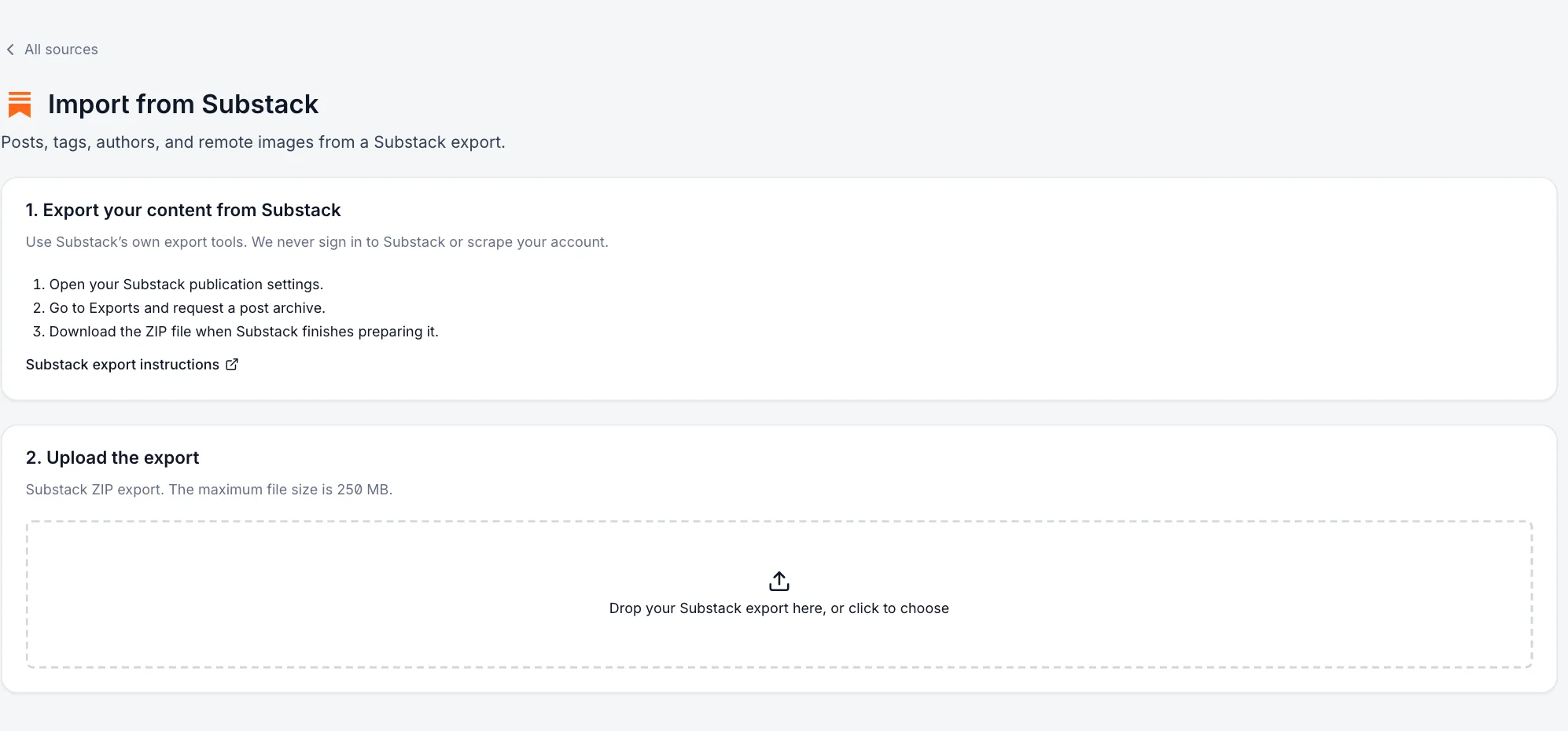
- Follow the steps on screen to download an export from your old platform. Each one links to that platform’s own instructions.
- Under Upload the export, drop the file in or click to choose it, then select Preview import. Files can be up to 250 MB.
- Under Review the import, check how many posts, pages, tags and authors were found, and read any warnings about things that can’t come across.
- Under Import options, choose how imported posts arrive (below). Leave Preserve original dates ticked to keep each post’s original publish date, and tick Inline remote media after import to copy images onto your site.
- Tick I own this content or have permission to migrate it, then select the Import button.
- Keep the original status: published posts stay published and drafts stay drafts. Good when you’re moving a live publication.
- Import everything as drafts: nothing goes live until you publish it. Good when you want to review first.
- Publish imported posts: everything in the export is published straight away.
Big imports run in the background and you get an email when they finish. The import report shows what came in, what was skipped as a duplicate, and any problems. Posts that already exist on your site are skipped, so it’s safe to run the same import again.
Bring your subscribers
Content and subscribers are separate imports. Export a CSV of your subscribers from your old platform or email tool, then go to Members and select Import. See import members from a CSV for the columns, labels and paid subscribers.
Keep your old links working
If your old addresses looked different (for example /p/my-post or /2019/05/my-post/), add redirects so links from search engines and other sites land on the right post. Then connect your domain when you’re ready to switch.
Good to know
- Paid subscriptions don’t move on their own. Billing stays with the payment provider your old platform used; see connect Stripe and import members.
- Authors in your export are added as staff so posts keep their bylines. They arrive as Contributors who can’t sign in until they reset their password, and you can change their role within your plan’s staff limit.
- Comments, likes and email statistics from your old platform aren’t imported.
- Platform-specific embeds and widgets may come across as plain links. Skim a few imported posts before you publish them.
- Stuck, or moving a large archive? Get in touch and we’ll help.
Last checked against the product on 7 November 2026.
Related
Still stuck?
Tell us what you were trying to do and what you saw, and we’ll help you sort it out.
Contact us